module
2
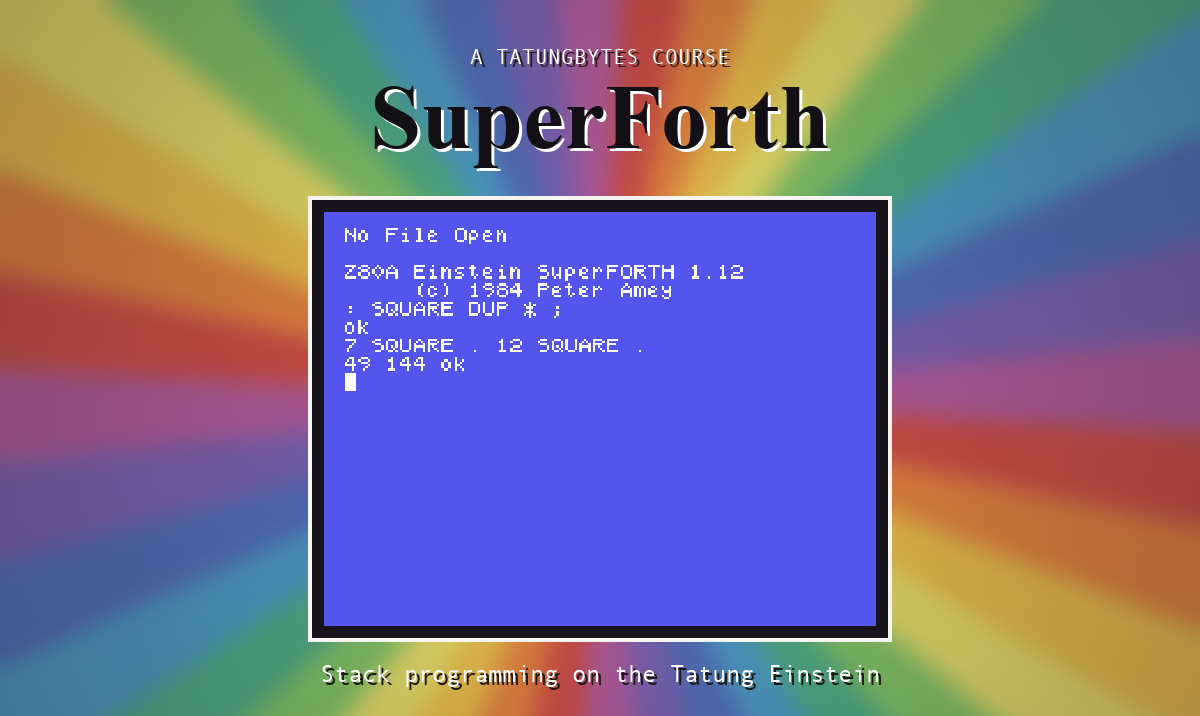
This is the only section with no Forth in it. By the end of it you will have an Einstein running on your own machine, with SuperForth loaded and waiting, and somewhere to keep the programs you write.
Set it up once and it stays out of your way.
Most of this section is about the emulator, and you can pass over it. What you need instead is a SuperForth 1.12 disc, and, before anything else, the backup copy of it that section 3.6 of its manual tells you to make, and tells you how. Work on the backup.
Start the machine with that disc in the drive, do what the screen asks, and when you have the 0: prompt, pick this section up again at the point where it types FORTH.
Three things are different for you from here on.
BIGFORTH on it. From S9 the course uses a SuperForth with the editor already built in. The course disc carries one ready made; you make your own, with seven lines from the same section of the manual. S9 tells you when, and Appendix III has the lines.If you have a way of getting a disc image onto your machine, the course disc itself will save you making BIGFORTH: the Einstein Disc Tools turn its .mfi into a .dsk.
Three pieces, all free.
| Piece | What it does |
|---|---|
| MAME | The emulator. Given the right ROM, it behaves like an Einstein. |
| The Einstein ROM | The machine's own built-in software. MAME cannot be an Einstein without it. |
| The SuperForth course disc | A disc image with SuperForth 1.12 on it, the extension files that came with it, and room for your own work. |
One disc. SuperForth and its extensions take a little over half of it, and the remaining 80K is yours.
The disc matters more than it looks. SuperForth keeps your programs on its disc, so it has to be able to write to it, and MAME will not write to a .dsk disc image. It will write to an .mfi. The ordinary .dsk images you will find elsewhere boot perfectly and then fail, with a disc error that explains nothing, the first time you try to keep anything. The course disc is an .mfi for that reason. Use it rather than another copy of SuperForth.
These steps cover macOS and Windows. Everything in this course was written and checked on macOS; the Windows steps are written from MAME's own documentation rather than from our own machine, so if something here is wrong or missing, please tell us and we will fix it.
Linux is not written out separately; MAME is in every major distribution's package manager, and from step 2 onwards the Linux instructions are the macOS ones.
On macOS, the easiest way is Homebrew. If you do not already have it, follow the instructions at brew.sh, then:
brew install mame
Check it is there:
mame -version
On Windows, MAME is a download from mamedev.org/release.html. Take the 64-bit binary: mame0289b_x64.exe, or mame0289b_arm64.exe if your PC has an Arm processor. It is a self-extracting archive rather than an installer: run it, choose a folder such as C:\mame, and it unpacks a pile of files including mame.exe.
There is no installer and nothing is added to your Start menu. You work in the folder you unpacked into.
The course is written against MAME 0.289. A later version will almost certainly be fine; if something behaves differently from what a section describes, the version is the first thing to check.
It is a file called einstein.zip. Download it from Einstein System ROM (MOS 1.2 & 1.21) on the Downloads page. It goes in a folder called roms.
On macOS, make one in your home folder:
~/roms/einstein.zip
On Windows, MAME already unpacked a roms folder next to mame.exe. Put it there:
C:\mame\roms\einstein.zip
Do not unzip it. MAME wants the .zip exactly as it is.
Download the SuperForth course disc and put it somewhere you can find again.
On macOS, a folder called einstein in your home folder will do:
~/einstein/superforth.mfi
On Windows, next to MAME is simplest:
C:\mame\superforth.mfi
Keep a spare copy of it somewhere. Your work is going onto this disc, so a mistake at the keyboard can overwrite something, and a second copy of the file you downloaded costs nothing.
One command, and it is the same one every time.
On macOS, in Terminal:
mame -rompath ~/roms einstein -flop1 ~/einstein/superforth.mfi -window
On Windows, open a Command Prompt in the folder you unpacked MAME into and type:
mame.exe -rompath roms einstein -flop1 superforth.mfi -window
The quickest way to a Command Prompt in the right place is to open the folder in File Explorer, click in the address bar, type cmd and press Enter.
Either way the parts mean the same thing: -rompath says where einstein.zip is, einstein is the machine to be, -flop1 is its first disc drive, and -window keeps it in a window rather than taking over the screen.
It is worth saving that line somewhere: a shell alias on macOS, or a .bat file on Windows, because you are going to run it a lot.
A window opens and the Einstein boots from the disc:
        ***  EINSTEIN  ***
TATUNG/XtalDOS 1.11        (C) 1983 1984

0:
That 0: is the disc operating system waiting for a command. SuperForth is a program on the disc, and you ask for it by name. Type:
FORTH
and press ENTER. The screen sits still for a few seconds, clears, and then SuperForth announces itself:
No File Open

Z80A Einstein SuperFORTH 1.12
     (c) 1984 Peter Amey
and leaves a solid block cursor on the line below. No File Open is not a complaint; S3 explains it.
Check the number. The course disc will always say 1.12. If a disc of your own says something else, S1 explains what that means.
While the MAME window is in front, your keyboard is the Einstein's. MAME lays the Einstein's keys over yours by position, so a few characters are not where your own keys say they are. S3 deals with that. The only one you need in this section is the double quote: " is SHIFT and 2, whatever is printed on your own 2.
MAME has control keys of its own as well: Esc to quit, F3 to reset, and it starts with them switched off, so that those keys reach the Einstein, which needs them. One key switches them on: forward delete on a Mac (Fn and Backspace on a laptop), and Scroll Lock on Windows according to MAME's documentation. Leave it alone. If ESC ever closes MAME instead of doing what the course says it does, that key has been pressed, and pressing it again puts things back.
To stop the Einstein, close the MAME window. Where the course says restart the Einstein, that means close the window and run the command again.
." SUPERFORTH IS RUNNING"
That is a full stop, a double quote, a space, the message, and a closing double quote. The space matters; S3 says why.
Starting from
A fresh boot, with SuperForth just started.
What you should see
The line you typed, and underneath it the message followed immediately by ok:
." SUPERFORTH IS RUNNING"
SUPERFORTH IS RUNNINGok
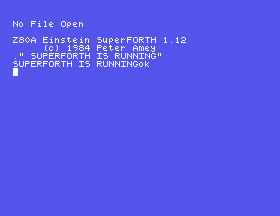
If you get that, everything is installed and working. S3 explains the ok, and why it is jammed up against your message.
-rompath ~/romz on macOS, -rompath romz on Windows. MAME refuses before the machine even starts. Read what it says. Seeing that message once, deliberately, saves you ten minutes the day you see it by accident.-flop1 part left off, so the machine starts with no disc in it at all. You get a different screen with an instruction on it. Try typing FORTH anyway: what happens, and why could it never have worked?| Symptom | Cause |
|---|---|
MAME says mos12.i023 NOT FOUND and Required files are missing | The ROM is not where it is looking. Check that einstein.zip is in the roms folder and that -rompath points at that folder. |
On Windows, mame.exe is not recognised | You are not in the folder you unpacked MAME into. cd to it first, or type its full path. |
You get Insert disc in drive 0, Ready and a > instead of 0: | The machine started without a disc. Check the path after -flop1; MAME will have complained about it in the terminal you started it from. |
You type FORTH and just get another > | Same thing. That > is the machine's built-in monitor, not the disc operating system, and it has never heard of SuperForth. |
The key marked " on your keyboard gives some other character | Your keyboard's legends do not apply; the Einstein's do. " is SHIFT and 2. |
| Esc closes MAME, or F3 restarts the Einstein | MAME's own control keys have been switched on. Forward delete on a Mac (Fn and Backspace on a laptop), or Scroll Lock on Windows, switches them off again. |
Bad Data, Drive 0: and Try Again(Y/N)? | You are running from a .dsk image, and MAME will not write to one. Use the course disc, which is an .mfi. |
MAME plus the Einstein ROM gives you the machine; the disc gives you SuperForth and somewhere to keep your work. One command starts it, FORTH loads the language, and a sign-on with a cursor under it means it is ready.
S3, Talking To SuperForth: what that cursor is waiting for, how to type a line it will act on, what it says when it does not understand, and how to leave.
This form is protected by reCAPTCHA, and the Google Privacy Policy and Terms of Service apply.
