Tasprint, from Tasman Software in 1985, gives Tasword five typefaces: Lectura, Median, Compacta, Data run and Palace. Tasprint draws every letter itself, dot by dot, in the typeface you choose, instead of using the printer's own lettering, so a letter or a notice can look like it came from somewhere much grander.
You choose the typeface in your Tasword text, with a key at the start of each line, and print as usual. This guide shows how, and how to set Tasprint up for a particular printer. It follows on from Writing with Tasword, which covers Tasword itself. Everything here was done in MAME with the library's Tasprint disc.

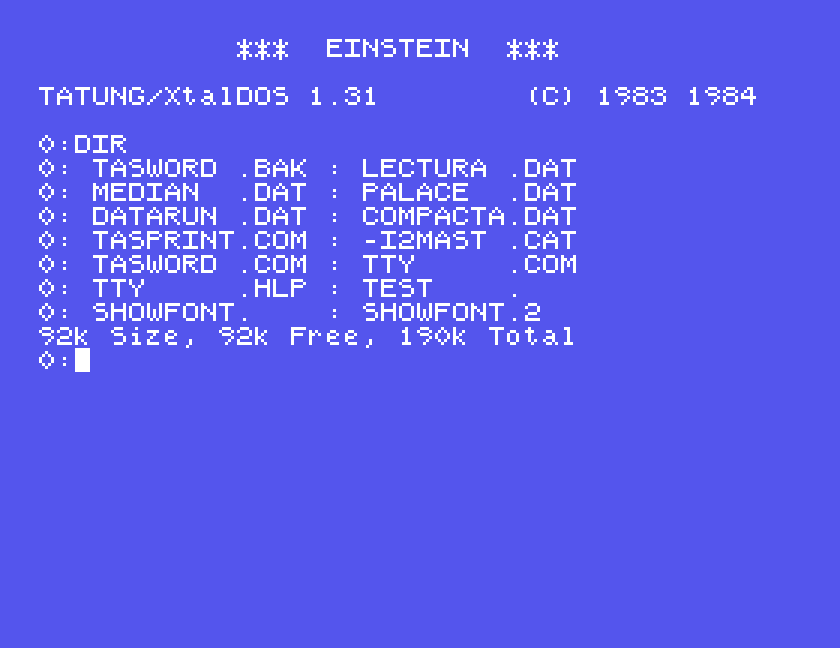
The Tasprint disc. It boots by itself to the DOS 0: prompt, and holds Tasprint, a copy of Tasword with Tasprint already built in, the five typeface files and a demonstration file. It also carries a terminal program, TTY, which has nothing to do with Tasprint.
A printer, or MAME pretending to be one. Tasprint prints in dot graphics, so it needs a dot matrix printer that understands Epson-style graphics codes. Under MAME, set up the Einstein as in Setting Up MAME, use an .mfi image of the disc, which MAME can save to (DSK, MFI and SCP explains how), and give it a printer that writes to a file:
mame einstein -window -flop1 tasprint.mfi -centronics printer -prin tasprint.prn
The file holds exactly what a printer would have received. Because it is dot graphics rather than text, a text editor shows it as nonsense; the pictures in this guide were made by drawing the dots from that file.
Start Tasword from the disc by typing TASWORD at the 0: prompt. The typefaces are switched on and chosen with special characters in your text:
~ on a line of its own, at the very top, switches Tasprint on. On the Einstein it is SHIFT with the ↑ key; in MAME, Shift with your Up arrow.| Keys | Typeface |
|---|---|
| SHIFT F0 | Lectura |
| SHIFT F1 | Median |
| SHIFT F2 | Compacta |
| SHIFT F3 | Data run |
| SHIFT F4 | Palace |
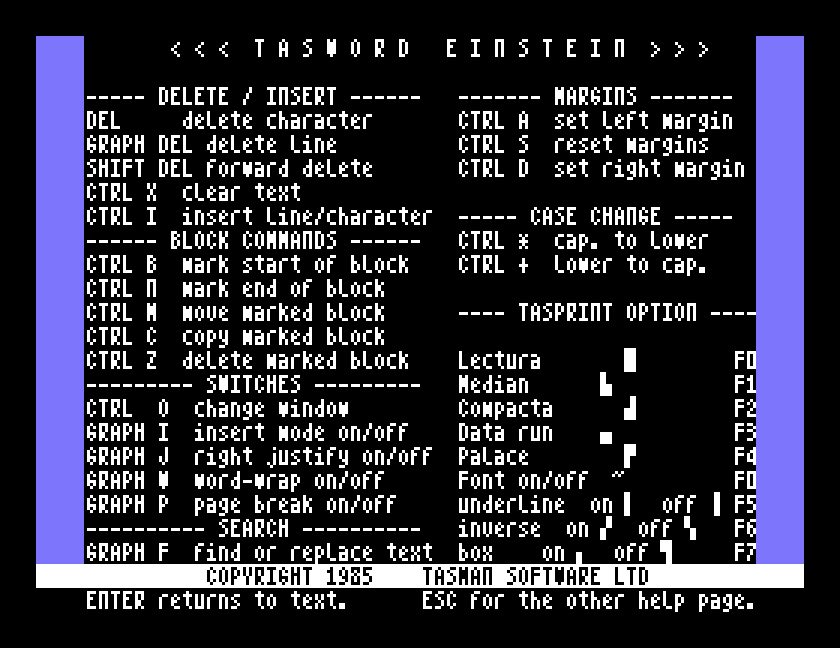
In MAME, the Einstein's F0 key is your F1 key. Tasword's second help page, which ESC shows, lists them under TASPRINT OPTION:
Here is a line in each typeface, typed with ALPHA LOCK off so that the letters are small, and the ~ at the top:
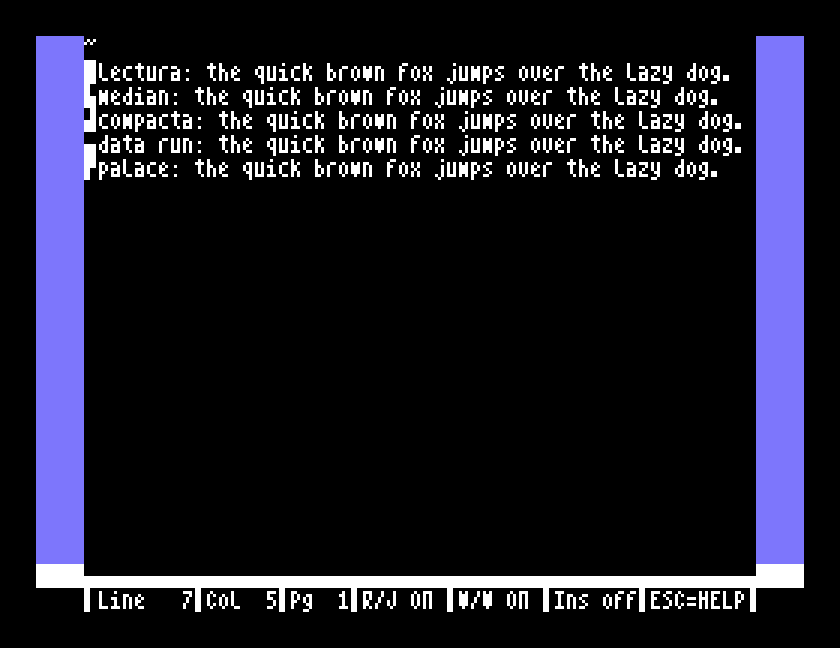
Print it as you would any Tasword text: CTRL and ENTER for the main menu, P for print, and F0 to print with the default settings. It printed as the picture at the top of this guide, one typeface per line. Data run prints only in capitals, whatever you typed.
Without the ~, Tasword prints plain text as usual, and the same SHIFT and function keys send Tasword's ordinary printer codes instead, the ones on its first help page.
The help page also lists underline, inverse and box among the Tasprint options; we did not try them.
The demonstration file. SHOWFONT, on the disc, is a short text with a line in each typeface. Load it with L on Tasword's main menu and print it to see them all.
The Tasword on the disc is ready to print, as it is: that is how the pictures above were made. Every printer of the time wanted slightly different codes for graphics, though, and Tasprint's own program, TASPRINT, sets up a copy of Tasword for yours. It saves the copy, with the typefaces, to a separate, blank disc.
At the 0: prompt type TASPRINT. It says what it will do:
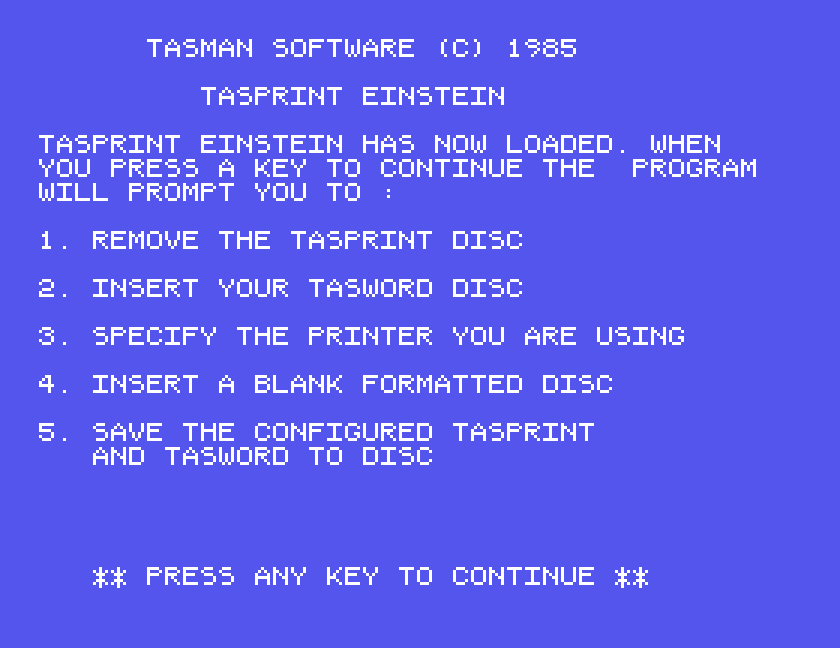
Press a key. When it asks for your Tasword disc, leave the Tasprint disc in: the Tasword it needs is on it. Press a key, and choose your printer:
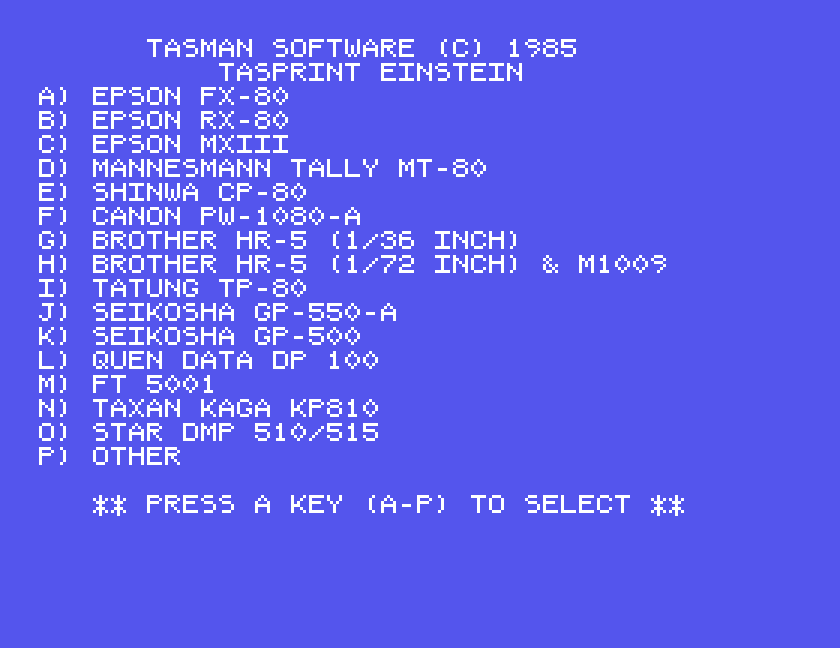
Press its letter; Tasprint says YOU SELECTED OPTION and the letter, and ENTER confirms it. P, Other, asks instead for the printer's own codes for line spacing and graphics; we did not try it.
Then it asks for a blank disc:
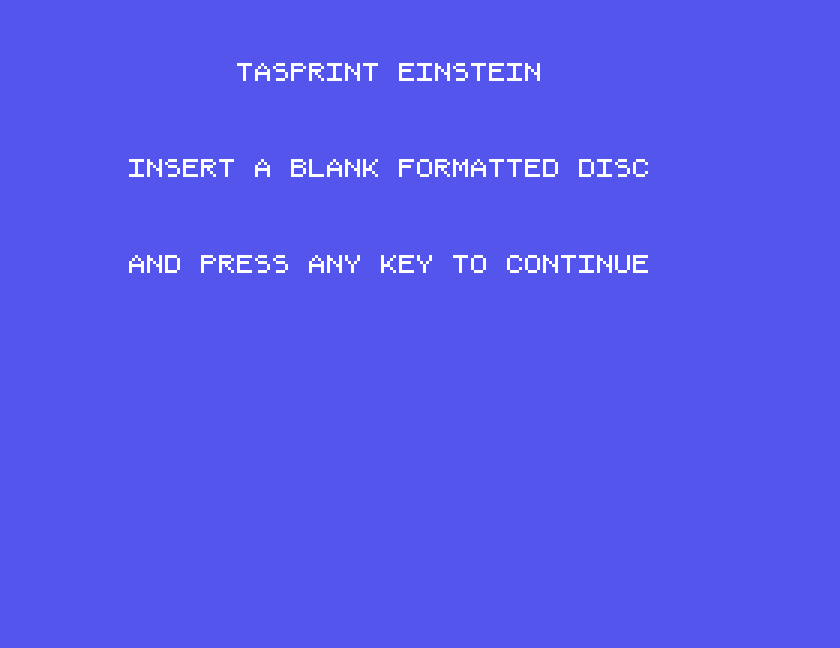
It must be a different disc. When we left the Tasprint disc in the drive at this point, Tasprint wrote empty entries for Tasword and the typefaces onto it, alongside the ones already there, which left that disc with two of each name. Put in a blank disc; under MAME, change the disc in drive 0 while MAME is running, to a blank .mfi made with the Einstein Disc Tools.
Tasprint saved TASWORD.COM and the five typeface files to the blank disc. When it had finished, the screen stayed on that message and the Einstein did not respond; start it again.
The new disc has no DOS on it, so it does not start the Einstein by itself. Start with the Tasprint disc, or any DOS disc, in drive 0, put the new disc in drive 1, and type:
1:
TASWORD
That runs the new Tasword from drive 1, and it saves and loads your texts there too. We set ours up for an Epson FX-80, option A, and it printed the typefaces in exactly the same way, with the codes that printer expects.
| Key | Does |
|---|---|
~ on the top line | Tasprint on |
| SHIFT F0 to F4 | Lectura, Median, Compacta, Data run, Palace |
| CTRL ENTER, P, F0 | |
TASPRINT | set up a copy of Tasword for your printer |
If you used Tasprint, or have its manual, we would like to hear from you. The contact form is at tatungbytes.co.uk/contact.