← Back to Guides
Tasword on the Einstein: A Modern Guide to the Word Processor
Version:
1.0
September 26, 2026
Tasword was the word processor most Einstein owners had. Tasman Software of Leeds wrote a Tasword for nearly every British home computer of the time, and the Einstein version arrived in 1985 in two forms on one disc: TASWORD for the TC01 and TASWORD2 for the Einstein 256. It gives you a 64 column page, justified text as you type, a help screen a key away, and a printed letter at the end of it, on a machine with 64K of memory.
This guide takes you through using it today, on a real Einstein or under MAME. It covers starting the program, typing and correcting, shaping a page, moving text about, saving and loading, and what printing means when almost nobody has a printer the Einstein can talk to. Everything in it was done on the machine, in MAME, with the copy in our library: the Tasword disc and the Tasword Einstein Manual. Where the manual and the machine disagree, the guide says what the machine did.
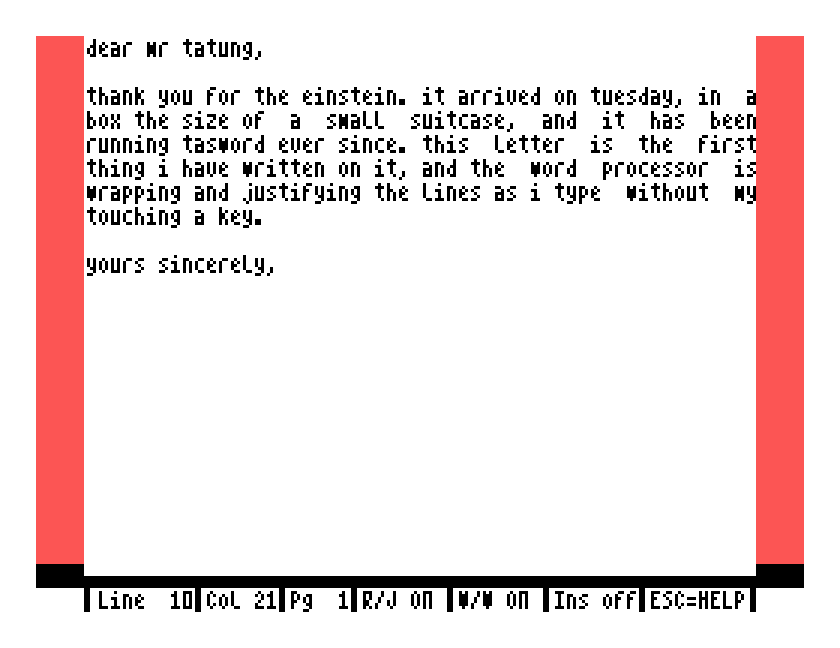
A real Einstein needs the Tasword disc, and nothing else. The library's copy is a .dsk image; the Einstein Disc Tools will get it onto a real floppy, or an SD card interface will take it as it is.
MAME needs the Einstein ROM and the disc, set up as in Setting Up MAME. One thing matters more here than for a game: Tasword writes to its disc, every time you save a letter, and MAME will not write to a .dsk image. Try to save on one and you get this:
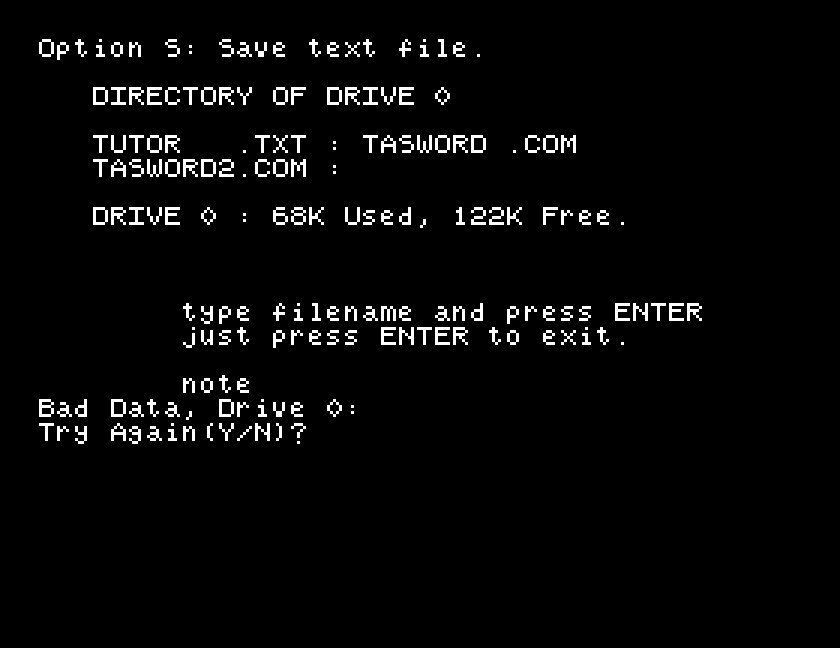
The cure is to convert the image to MAME's own .mfi format, which it can write, and boot that instead. DSK, MFI and SCP explains the formats, and the Einstein Disc Tools do the conversion in one command. Then start MAME with the converted disc in drive 0:
mame einstein -window -flop1 tasword.mfi
Keep a spare copy of the file. Your letters are going onto it.
The disc boots to XtalDOS and its 0: prompt. Type TASWORD and press ENTER. The screen clears, and a few seconds later you are looking at Tasword's page:
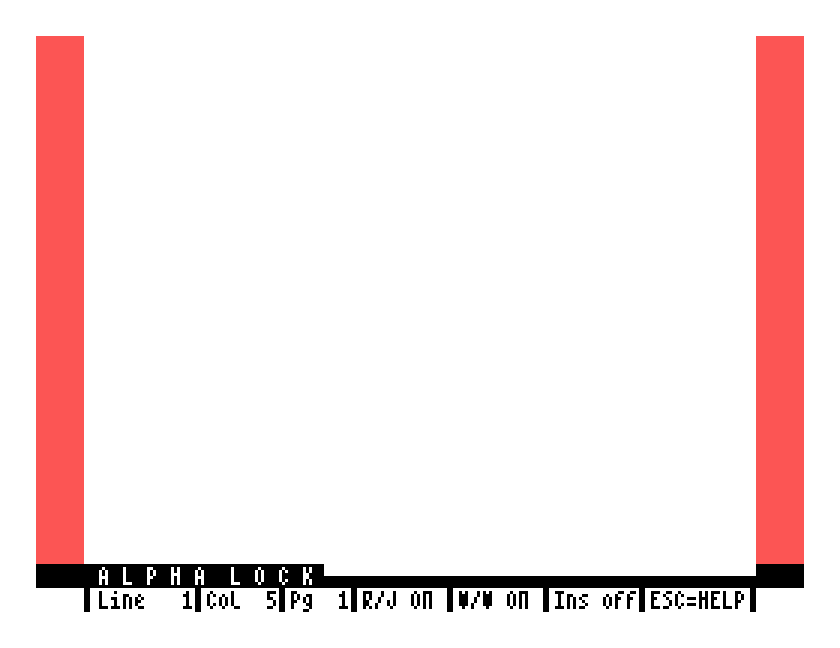
On an Einstein 256, type TASWORD2 instead. It is the same program with two differences the manual's addendum lists: the load command, and the key that moves a block of text, which is CTRL H rather than CTRL M. On the 256 the page is grey rather than white.
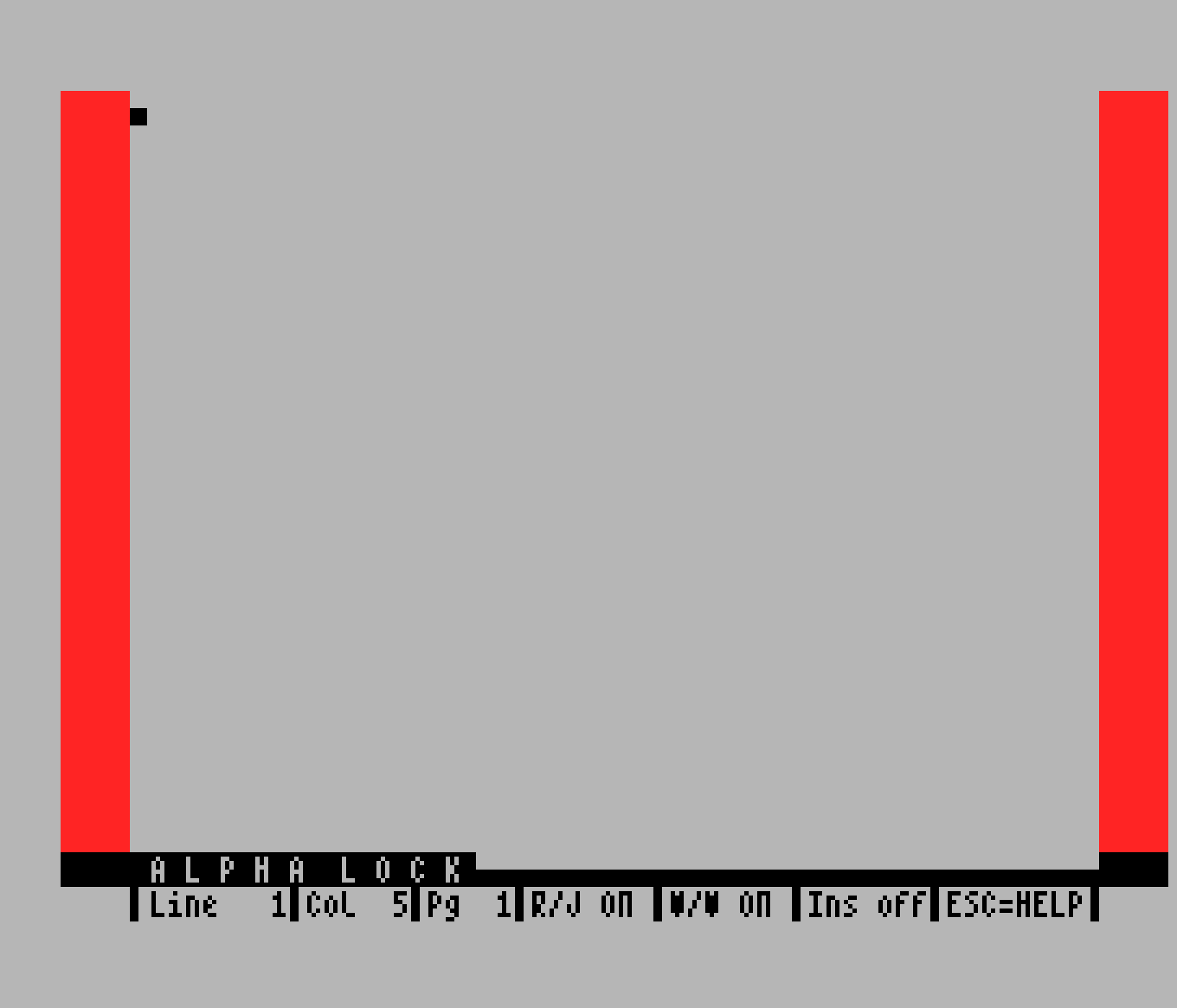
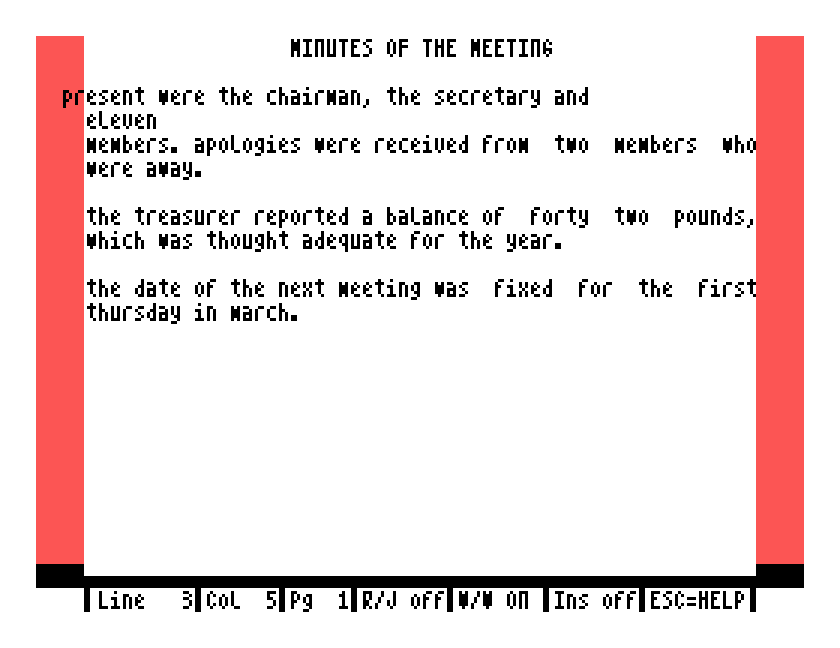
The white area is your page, 64 characters wide. The two red bars are the margins, and Tasword starts with them set at columns 5 and 60, because some televisions lose the edges of the picture. The bottom line tells you where the cursor is by line and column, which page it is on, whether right justification and word wrap are on, whether insert mode is on, and that ESC gets you help.
The screen is a window onto a text file that can hold about 560 lines. Twenty two of them show at a time.
Tasword uses three modifier keys with the letters: CTRL, GRAPH and SHIFT. A command like CTRL J means hold CTRL and tap J. In MAME, CTRL is your Ctrl key and GRAPH is F8.
Capitals come from the ALPHA LOCK key, which the Einstein turns on when it starts. Press it once and the ALPHA LOCK message disappears and letters come out small; press it again to go back. The manual says a SHIFT key held with a letter gives a capital too. Under MAME it did not: every SHIFTed letter we typed in Tasword came out small, however the key was held. So for a capital in the middle of a sentence, tap ALPHA LOCK before and after the letter, or type it small and change it afterwards with CTRL and the ; + key, which is described below. We have not been able to try SHIFT on a real Einstein; if it works for you there, that is the manual being right and the emulation being different.
Moving the cursor is where a modern keyboard misleads you. The Einstein has two grey cursor keys at the right of the QWERTY row, not four. One moves the cursor right, and left with SHIFT held. The other moves it down, and up with SHIFT. Those are the keys Tasword and its Tutor mean by "the arrow keys".
In MAME those two keys are on your Tab key and your Down arrow. So:
| To move the cursor | On a real Einstein | In MAME |
|---|---|---|
| right | the horizontal cursor key | Tab |
| left | SHIFT and the horizontal key | Shift and Tab |
| down | the vertical cursor key | Down arrow |
| up | SHIFT and the vertical key | Shift and Down arrow |
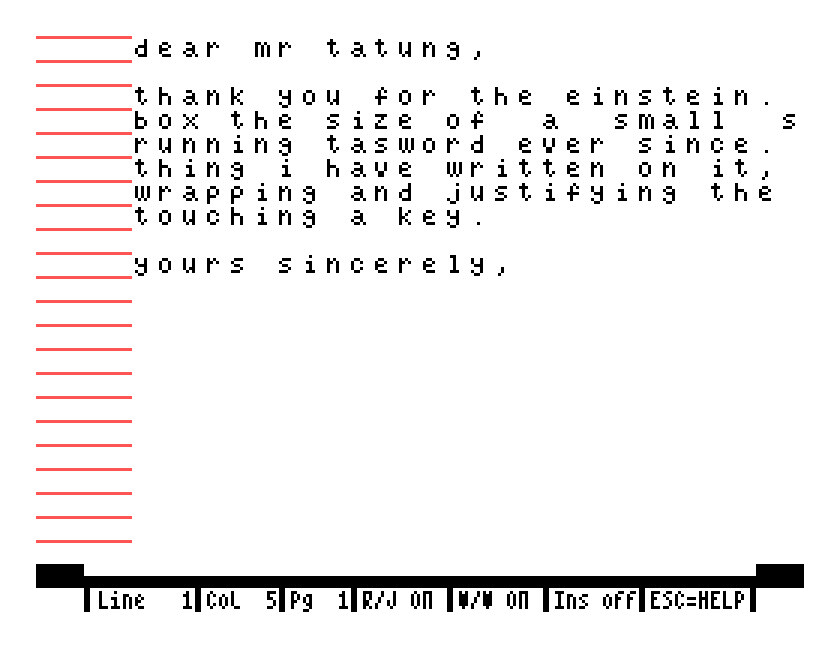
Your Left, Right and Up arrow keys are something else entirely. MAME maps them to three ordinary character keys on the Einstein whose legends happen to be arrows, because the Einstein draws [ as a left arrow, ] as a right arrow and ^ as an up arrow. Press them in Tasword and that is what you get:
![The end of the letter with the characters [ ] and an up arrow typed after Yours sincerely](https://cdn.prod.website-files.com/6a7b0cd2622dd251afbb1beb/6ab7827c3064e85727133ddb_6ab780e0b9190b5f664d5dbf_tasword-arrow-keys.png)
This is worth knowing beyond Tasword. It is why so many descriptions of the Einstein under MAME say "the arrow keys type brackets and do not move the cursor". They do not, because they are not the cursor keys.
Two more keys: DEL is your Backspace in MAME, and ENTER is Return.
Press ESC and the page is replaced by the first of two help pages. Press ESC again for the second, and ENTER to get back to your text. They list every command, and the first one also shows the sixteen printer control characters on the function keys.
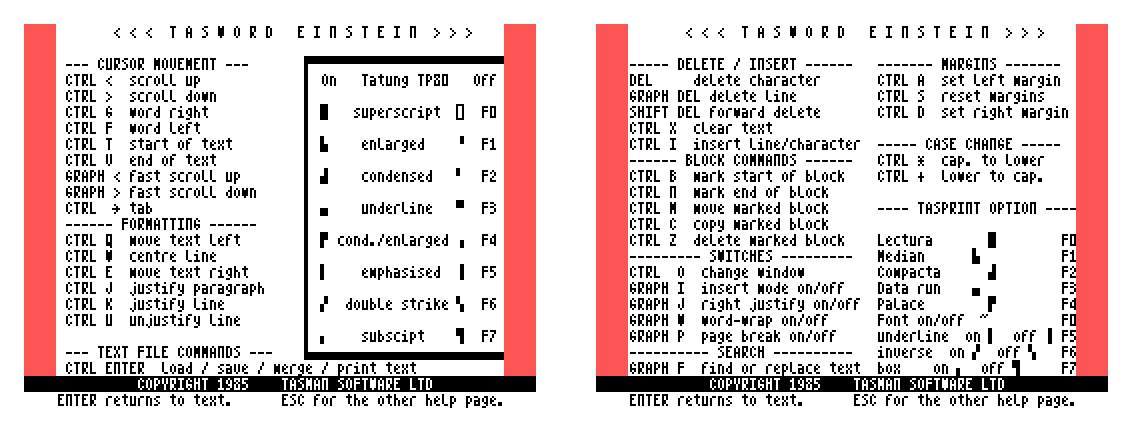
You will notice the help page lists "CTRL U" twice. The second one, under cursor movement, is CTRL V: the Einstein's character set draws the letter V so that it looks like a U at this size, and the same happens in the Tutor's text.
Turn ALPHA LOCK off and type. Two things happen that a typewriter would not do. When a word will not fit on the line, the whole word moves down to the next line: that is word wrap, and it is why you never press ENTER at the end of a line. And when a line is complete, Tasword spreads its words out with extra spaces so that the right hand edge is straight: that is right justification, and the R/J on the status line says it is on.
Press ENTER only to end a paragraph. A blank line between paragraphs, or a few spaces at the start of the first line, is what Tasword uses to tell where one paragraph ends and the next begins, and its rejustify command depends on that.
Watch the cursor when you type the last letter that fits on a line. It jumps to the start of the next line and becomes taller. The tall cursor means Tasword is still treating the next thing you type as part of the last word. If that word is finished, type a space, as you would have anyway, before starting the next one.
The window shows small letters, 64 to a line, which is more than the Einstein's normal screen manages. If you find them hard to read, CTRL O switches the window to the Einstein's ordinary character size. You then see 32 columns at a time, and the page scrolls sideways as you move. CTRL O again puts the small letters back.
The cursor keys move one character or line at a time, and repeat if you hold them. For anything further:
| Key | Moves the cursor |
|---|---|
| CTRL G | to the start of the next word |
| CTRL F | to the end of the previous word |
| CTRL T | to the top of the text |
| CTRL V | to the end of the text |
| CTRL > | down one line, scrolling the window |
| CTRL < | up one line |
| GRAPH > | down a screenful, 22 lines |
| GRAPH < | up a screenful |
CTRL and the ] key | to the next tab stop, every eighth column |
The manual points out that T, F, G and V sit together on the keyboard, with T at the top and V at the bottom, which is as good a way to remember them as any. In MAME the ] key is your Right arrow.
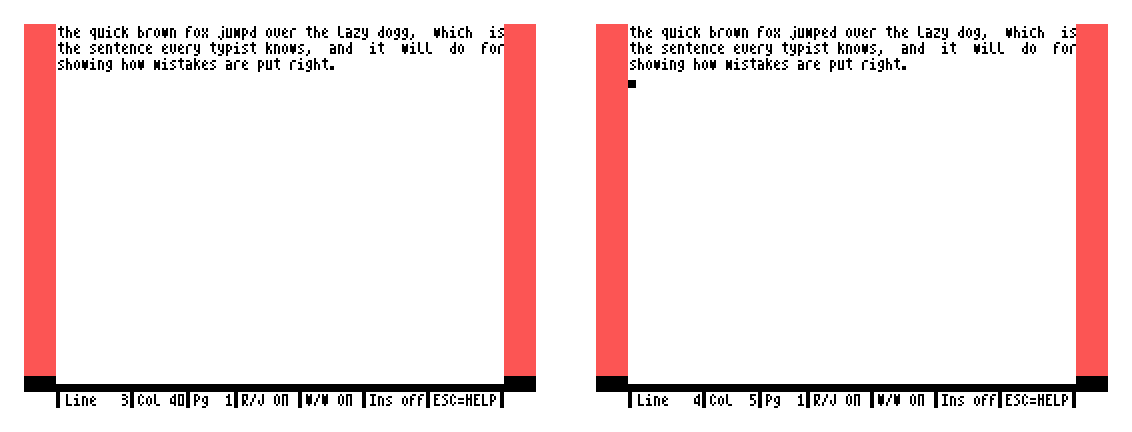
The cursor keys and overtyping do most of it: put the cursor on the wrong letter and type the right one. For the rest:
Insertions and deletions spoil the justification of a paragraph, and that is expected. When you have finished, put the cursor on the paragraph's first line and press CTRL J: Tasword reflows and rejustifies from there to the end of the paragraph. You will use CTRL J more than any other command.
There is also an insert mode, switched with GRAPH I and shown as Ins on the status line. With it on, finishing a line or pressing ENTER opens a fresh blank line below instead of moving onto whatever was there. It is the mode for typing a new paragraph into the middle of an old one: CTRL I to open a line, GRAPH I on, type, GRAPH I off. With it off, typing over the top of existing text replaces it, which is what you want most of the time and a surprise the first time you forget which mode you are in.
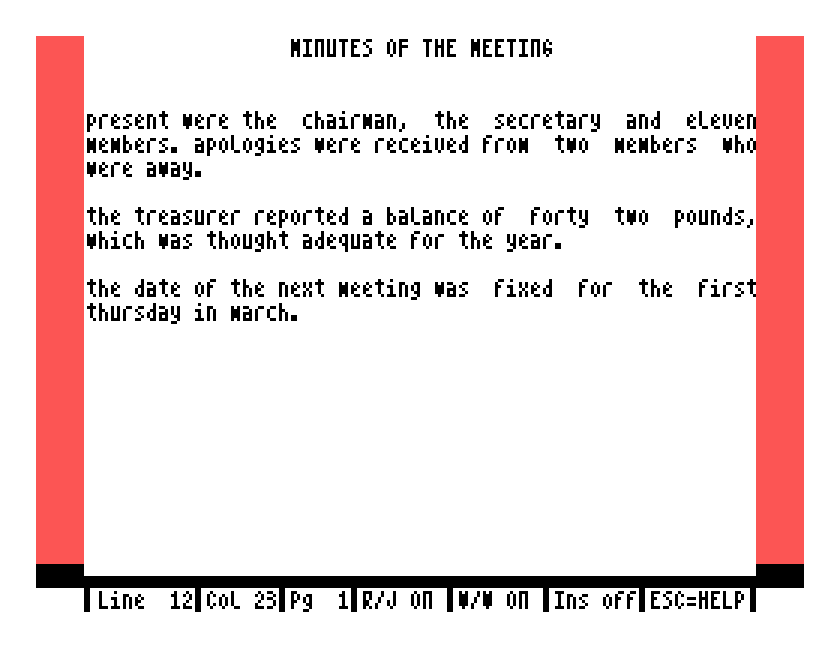
Centring. Type a heading, leave the cursor on the line, and press CTRL W. The line is centred between the margins.
Ragged right. GRAPH J turns right justification off and on; the status line changes from R/J on to R/J off. It affects what you type from then on. To change text you have already typed, switch justification the way you want it, put the cursor on the paragraph and press CTRL J.
One line at a time. CTRL K justifies just the line the cursor is on, and CTRL U takes the extra spaces out of it again. CTRL E and CTRL Q push the text under the cursor one character right or left.
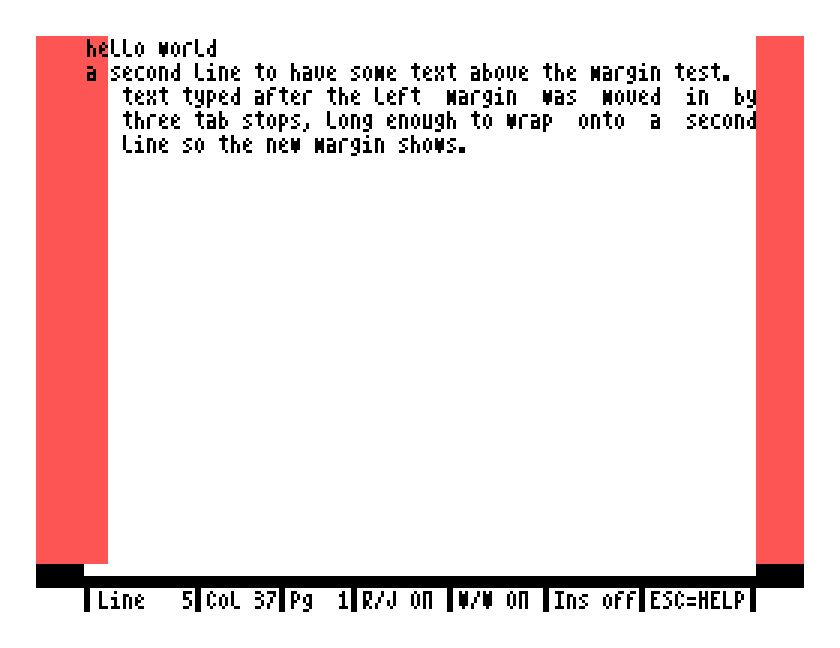
Margins. Put the cursor where you want the left margin and press CTRL A; the red bar widens to meet it, and text typed after that wraps inside the new margin. CTRL D does the same for the right margin. CTRL S puts both back to where they were when Tasword started. Margins are how you indent a quotation or a list, and they are also how you get the full 64 columns if your screen shows them: cursor to column 1, CTRL A, cursor to column 64, CTRL D.
Page breaks. A dashed line across the page shows where a printed page would end, every 55 lines. GRAPH P hides and shows it. It is only a marker; add blank lines above a paragraph if you do not want it split across two sheets.
Tasword moves text in blocks of whole lines. Marking a block puts visible markers into your text, which is unusual, and it means you can see exactly what you have selected.
[ characters appears above it. There is a pause while Tasword checks there is no other start marker in the file.] characters appears below it.![Left: the treasurer's paragraph between a row of [ markers and a row of ] markers. Right: the same paragraph moved above the first paragraph](https://cdn.prod.website-files.com/6a7b0cd2622dd251afbb1beb/6ab7827c3064e85727133dfc_6ab780e245a02f95d4bf83f9_tasword-block.png)
The markers are lines in your text. If you change your mind, delete them with GRAPH and DEL like any other line. The block commands are ignored if the cursor is inside the block, so move out of it before pressing CTRL M.
GRAPH F asks for a word, and then for what to replace it with. Press ENTER at the second question to find the word without changing it, or type the replacement and press ENTER to change it.
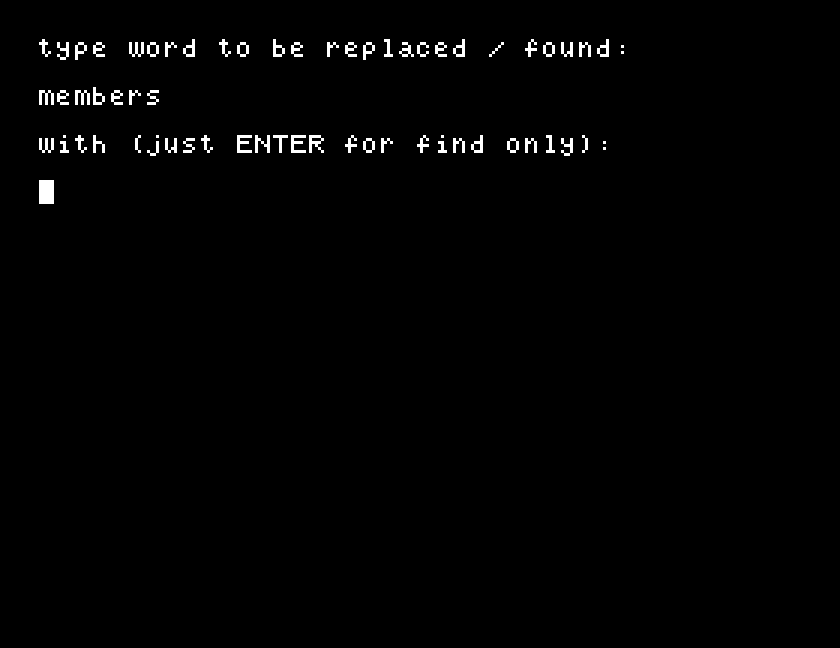
Finding works well. It searches forward from the cursor, so press CTRL T first if you want the whole text, and it leaves the cursor on the last letter of the word it found. If nothing matches, the cursor ends up at the end of the text. Two things to know, both found the hard way:
Replacing was less dependable in our testing under MAME. The Tutor's own example, changing "luck" to "fortune", worked exactly as described. Changing a seven letter word to a six letter one left the last letter of the old word behind, and one replacement did nothing at all. Treat replace as a convenience to check afterwards rather than a tool to trust blindly, and remember that ESC abandons a search that is taking too long.
Nothing goes to the disc until you tell it to. CTRL and ENTER together brings up the main menu, which is also where the word, line and character counts live:
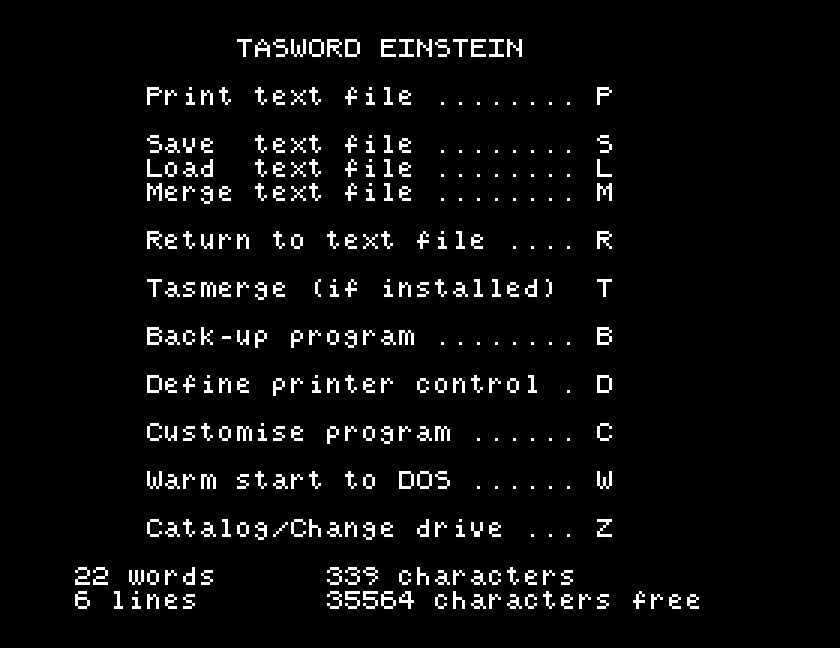
S saves. Tasword shows what is on the disc, asks for a name, and writes the text. Names are up to eight characters with an optional three character type: LETTER, LETTER.TXT and LETTER.002 are all fine. Save over an existing name and the old file is kept as .BAK, so you always have the previous version.
L loads, and clears whatever is in the text first, so save before you load. M merges: the file is added on the end of the text already there, which is how a standard paragraph or an address gets reused. Z shows the catalogue and lets you change drive.
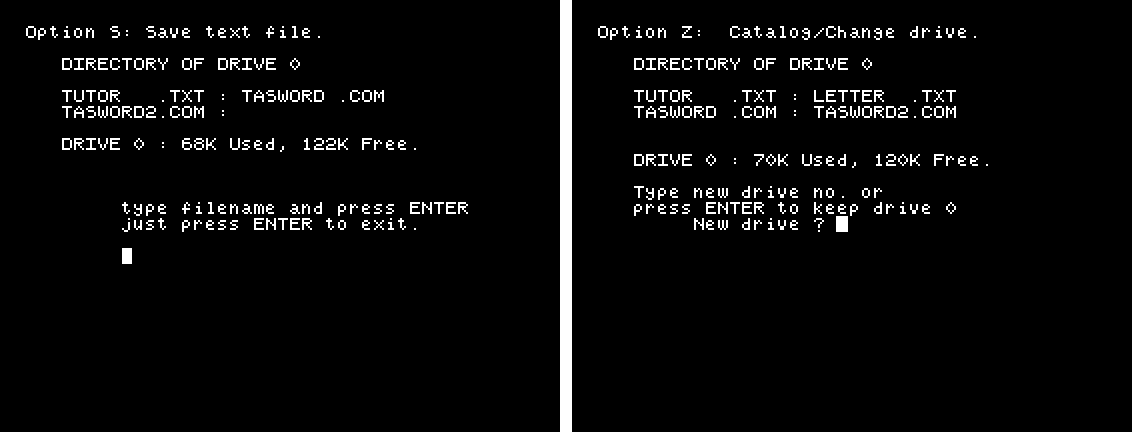
A saved text file is plain text, one line per line of the page, with the justification spaces included. Pull it off the disc image with the disc tools and it opens in any editor on your PC, which is the easiest way to get words out of the Einstein today.
W is a warm start to DOS: you get the 0: prompt with Tasword and your text still in memory, can run DIR or copy a file, and GO takes you straight back in. B writes a fresh copy of Tasword itself to the disc, with whatever customisation you have made, keeping the old one as TASWORD.BAK. That is what the manual means by saving Tasword.
Tasword prints through the Einstein's Centronics port, and it is set up out of the box for the Tatung TP80, a dot matrix printer that used the Epson control codes almost every printer of the period understood. P on the main menu brings up the print menu:
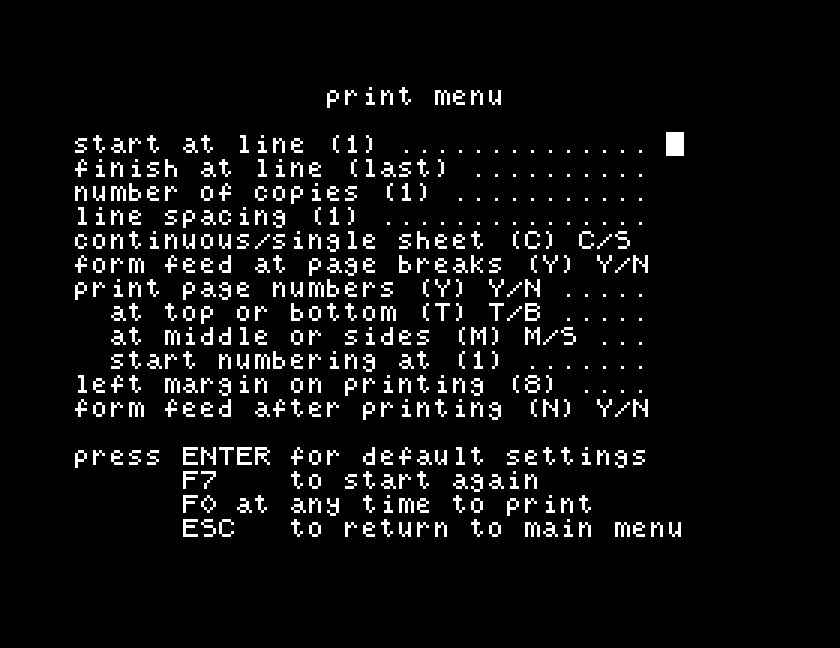
Answer the questions, or press F0 to take the defaults and print. The defaults print the whole text, one copy, single spaced, on continuous paper, with a page number at the top of each page and an eight character margin on the left so that 64 columns sit in the middle of an A4 sheet.
The function keys put printer control characters into your text: F3 starts underlining and SHIFT F3 stops it, F5 and SHIFT F5 do the same for emphasised print, F1 for enlarged, and so on through the sixteen the first help page lists. They show on the page as small block symbols and take up a character position each.
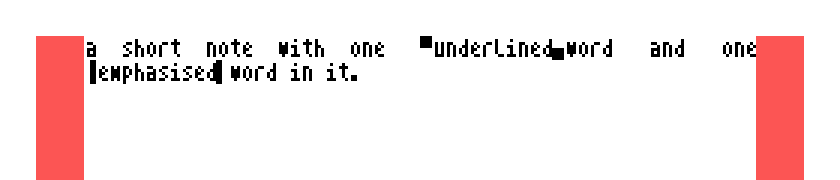
Now the honest part. In 1985 you plugged in a TP80 or an Epson and it worked. Today you almost certainly do not own a printer with a Centronics port that speaks Epson codes, and a modern printer cannot be connected to an Einstein at all. So what does printing mean now?
Under MAME, print to a file. Give MAME a Centronics printer that writes to a file, and everything Tasword sends to the printer lands there:
mame einstein -window -flop1 tasword.mfi -centronics printer -prin letter.prn
Print as normal, and afterwards letter.prn holds the page as the printer would have received it: your text, with carriage returns and line feeds, the page number, the left margin as spaces, and the Epson codes for anything you underlined or emphasised. ESC - 1 and ESC - 0 around an underlined word, ESC E and ESC F around an emphasised one. That is the real output of the real program. Open it in a text editor and the words are all there; strip the escape codes and you have a clean text file, which you can print on anything you like.
On a real Einstein you need a printer that still takes those codes. Old dot matrix and daisywheel printers with a parallel port do, and they are the machines Tasword was written for. If you have one, the print menu and the control characters do exactly what the manual says. If you do not, the disc is your printer: save the file, take the disc image off the machine, and the text is yours.
Either way, you lose nothing by treating printing as an export step. Tasword's print settings survive in a saved copy of the program, so once the margins and page length suit you, B on the main menu keeps them.
There is a third file on the disc, TUTOR.TXT. It is a Tasword text file, and it is a lesson: load it with L from the main menu and it walks you through the commands, in the text itself, asking you to try each one on the paragraph you are reading. It takes twenty minutes and it teaches the block commands better than the manual does.
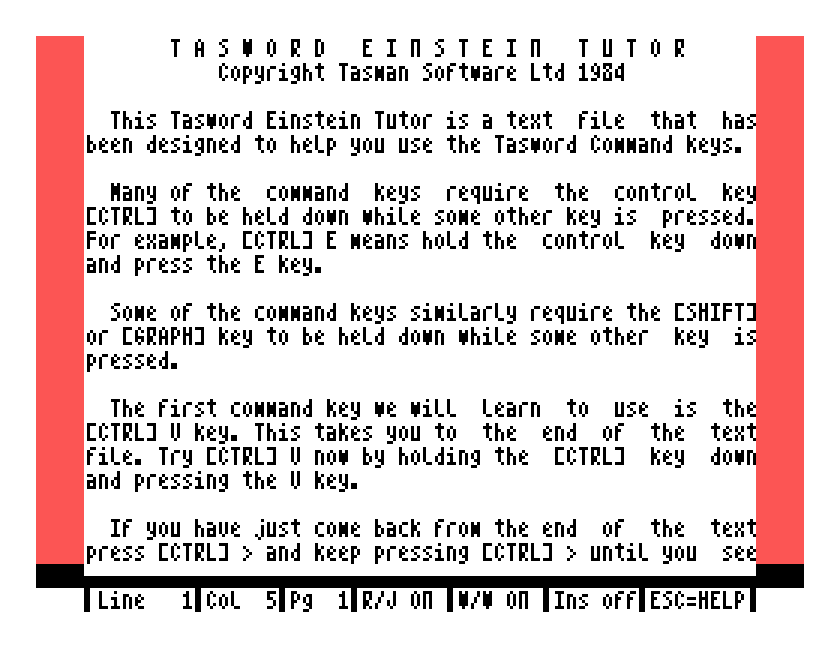
Two of its exercises need care. Its find exercise, the word "good", needs ALPHA LOCK off, as above. And it says that CTRL V marks the end of a block; it means CTRL N, and CTRL V is the end of the text.
C on the main menu is Customise, and it asks a list of questions with the current value in brackets: tab stops, the colours of the text and the margins, the default margins, lines per page, the printer's carriage return, line feed and form feed codes, cursor flash rate, keyboard repeat delay, and whether the printer is on the parallel or serial port. ENTER keeps the value shown. The program calls itself version 1.0 at the top of this screen.
D is Define printer control, which shows the codes behind each function key and lets you change them for a different printer, four codes per key, entered as decimal numbers. If you do have a printer that takes different codes, this is where Tasword meets it.
Whatever you change, it lasts until you leave Tasword, unless you save the program with B. Keep the original disc image somewhere safe first.
| Keys | Does |
|---|---|
| ESC | help pages; ENTER returns |
| CTRL ENTER | main menu: print, save, load, merge, catalogue, DOS |
| ALPHA LOCK | capitals on and off |
| cursor keys | move; SHIFT reverses the direction |
| CTRL G, CTRL F | next word, previous word |
| CTRL T, CTRL V | top of text, end of text |
| CTRL >, CTRL < | scroll a line |
| GRAPH >, GRAPH < | scroll a screen |
| CTRL O | small or large letters |
| DEL, SHIFT DEL | delete under cursor, with and without moving |
| GRAPH DEL | delete line |
| CTRL I | insert character, word or line |
| GRAPH I | insert mode on and off |
| CTRL J | rejustify paragraph |
| CTRL K, CTRL U | justify, unjustify a line |
| CTRL W | centre line |
| CTRL E, CTRL Q | nudge text right, left |
| GRAPH J | right justification on and off |
| GRAPH W | word wrap on and off |
| GRAPH P | page break line on and off |
| CTRL A, CTRL D, CTRL S | left margin, right margin, reset margins |
CTRL and ] | tab |
CTRL and ; + | small letter to capital |
CTRL and : * | capital to small letter |
| CTRL B, CTRL N | mark start, end of block |
| CTRL M (CTRL H on the 256), CTRL C, CTRL Z | move, copy, delete block |
| GRAPH F | find, or find and replace |
| CTRL X | clear the text |
| F0 to F7, with and without SHIFT | printer control characters |
If you have a real Einstein and a printer that still works, we would like to know whether SHIFT gives you a capital in Tasword, and what your printer makes of the control characters. The contact form is at tatungbytes.co.uk/contact.