Genesis is a word processor for the Tatung Einstein from Solo Software of Worcester, sold as the Genesis Word Processor with an "Einsoft Approved" badge on the case. On screen it calls itself the Genesis Text Editor V1.6, (C) S. Demant, and that is a fair description: it is a fast, full-screen editor that fits a lot of text on the screen, does everything with CTRL keys, and saves plain text files that any other program can read. It has no print command of its own; you print through DOS, and this guide shows how.
No printed manual for Genesis has turned up, but it does not need one: its instructions are on the disc, and Genesis can load them for you to read. Everything in this guide was done in MAME with the copy of the disc in our library, dumped from an original. Where something comes only from those instructions and we did not try it, the guide says so.
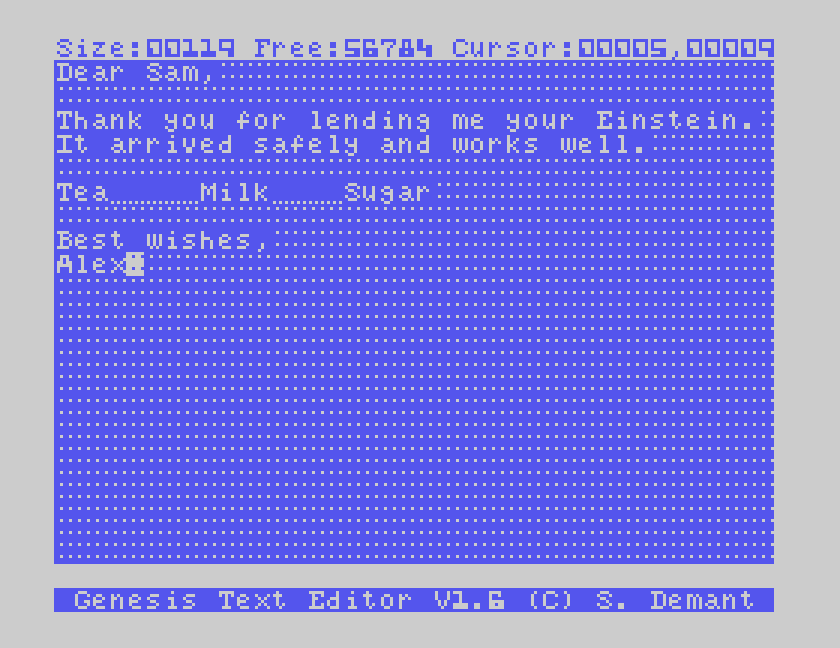
The Genesis disc, from our Downloads page. It boots by itself into DOS, and holds Genesis (GEN.COM) and its instructions.
On a real Einstein, put the disc in drive 0 and switch on, or press reset.
Under MAME, set up the Einstein as in Setting Up MAME, and use the disc's .mfi image, or convert the .dsk as DSK, MFI and SCP explains. This matters more than usual with Genesis: MAME does not save to a .dsk image, and when Genesis tried to save to one, it locked up and everything typed since the last save was lost. There is more on this under When a disc operation goes wrong, below.
mame einstein -window -flop1 genesis.mfi
The disc starts at the A: prompt. Type GEN and press ENTER:
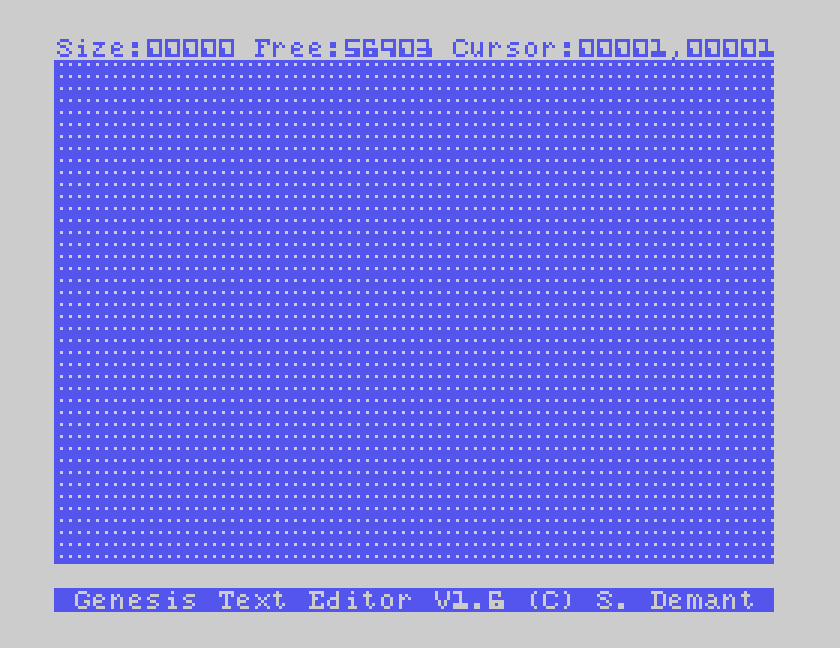
The top line is always there. Size is how many characters your text holds, Free how many more there is room for, and Cursor where you are: column first, then line, so 00005,00009 is the fifth character of line 9. The line above the title bar is where Genesis asks you questions and shows your answers.
To go straight to a file you saved earlier, put its name after GEN: GEN LETTER starts Genesis with LETTER already loaded.
Genesis's own instructions are a file on the disc, and the case tells you to read them in Genesis. Press CTRL-R (Read). At Filename: type GENINST.DAT and press ENTER:
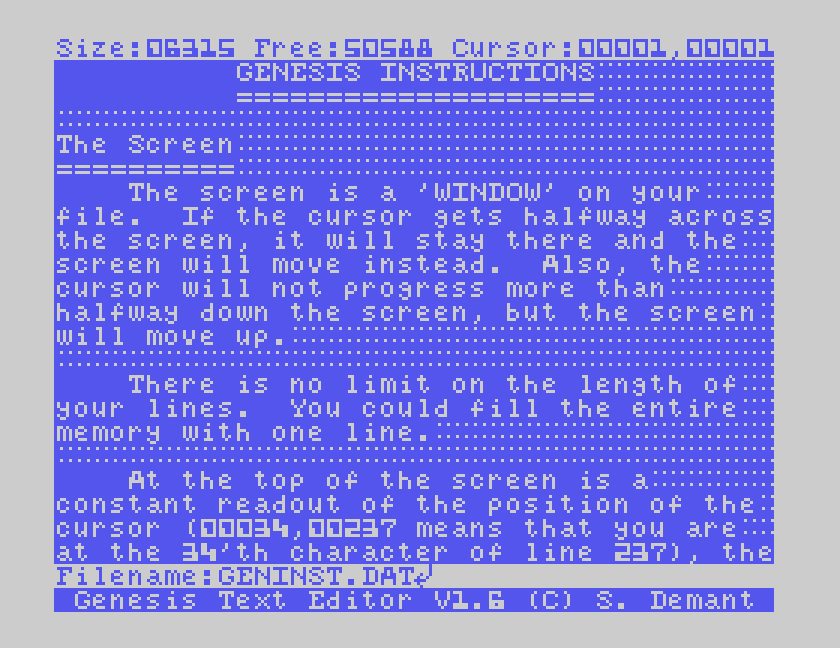
The case says to type GENINST. On our copy that file is empty and the instructions are in GENINST.DAT, so use that name. Move down through them with the cursor keys. When you have finished, CTRL-X clears the text: it asks Exterminate File ? and Y says yes.
Type, and your text appears at the cursor. Genesis never types over anything: whatever is under the cursor moves right to make room.
Letters come out as capitals when Genesis starts, and SHIFT gives a small letter, the reverse of a typewriter. For ordinary writing, press SHIFT and ALPHA LOCK together. That puts Genesis into what its instructions call typewriter mode: small letters, with SHIFT for capitals. ALPHA LOCK on its own puts it back.
ENTER starts a new line, and in the middle of a line it splits the line in two. Lines can be as long as you like: once the cursor passes halfway across the screen, the text slides left instead, and it slides back when you return.
TAB: SHIFT-SPACE or CTRL-I puts in a tab, shown as a dotted underline, which pushes the text after it on to the next tab column. There is one every eight columns. The Tea, Milk and Sugar in the letter above are lined up that way, and when the file is shown or printed the tabs come out as blank space.
Putting things right:
| Key | Does |
|---|---|
| DEL | rubs out the character to the left (so does CTRL-Y) |
| SHIFT-DEL (INS) | rubs out the character under the cursor (so does CTRL-Z) |
| DEL at the start of a line | joins the line to the one above |
| CTRL-A | swaps the letter under the cursor between capital and small, and moves on |
| GRAPH with a key | types that character reversed, dark on light |
| CTRL-G | swaps the character under the cursor between normal and reversed |
The instructions warn that not many printers will print reversed characters.
The Einstein has two grey cursor keys. The horizontal one moves right, and with SHIFT left; the vertical one moves down, and with SHIFT up. Genesis also has CTRL keys for the same four moves, and some for longer jumps:
| Key | Moves |
|---|---|
| CTRL-D, CTRL-H | right, left (they carry on round the ends of lines) |
| CTRL-J, CTRL-K | down, up |
| CTRL-B | to the beginning of the file |
| CTRL-T | to the end of the file |
| CTRL and the ← key | to the start of the line |
| CTRL and the → key | to the end of the line |
| CTRL and the ½ key | to the start of the next paragraph, after a blank line |
| CTRL and the ↑ key | back to the start of the paragraph |
The ←, → and ↑ keys here are the three keys with a single arrow printed on them, not the cursor keys. Pressed on their own they type arrow characters into your text.
In MAME the two cursor keys are your Tab key and your Down arrow, with Shift for left and up. Your Left, Right and Up arrow keys are the Einstein's ←, → and ↑ keys, so CTRL with your Left arrow goes to the start of a line. The ½ key is your backslash key.
Genesis works on blocks of text with markers. A marker is a character like any other, typed with GRAPH and F0, and it shows as a small box. In MAME, GRAPH is your F8 key and F0 is your F1 key, so hold F8 and press F1.
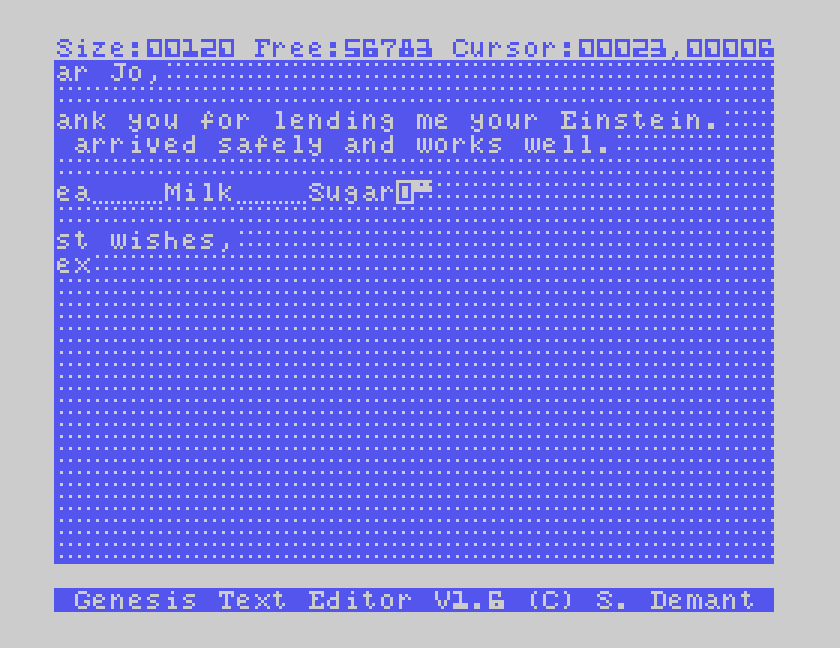
CTRL-C copies whatever lies between two markers to the cursor. The copy does not include the markers:
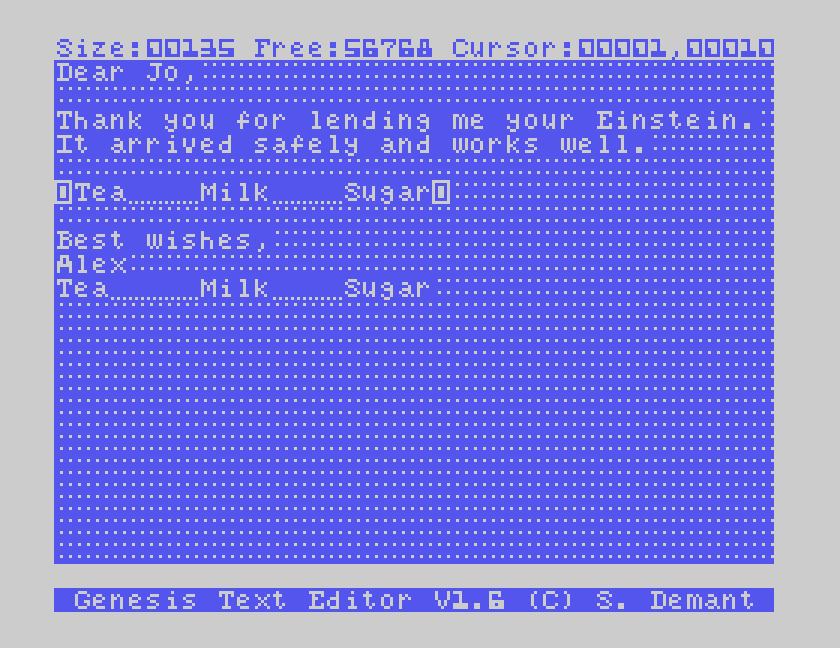
CTRL-E erases from a marker to the cursor. It asks Erase back to Marker (Gr. F0) ? first, and only Y goes ahead: any other key leaves your text alone.
CTRL-F finds text. Type what you are looking for at What: and press ENTER, and the cursor jumps to the next place it appears. CTRL-N finds the one after that.
CTRL-O replaces. It asks What: and then With::
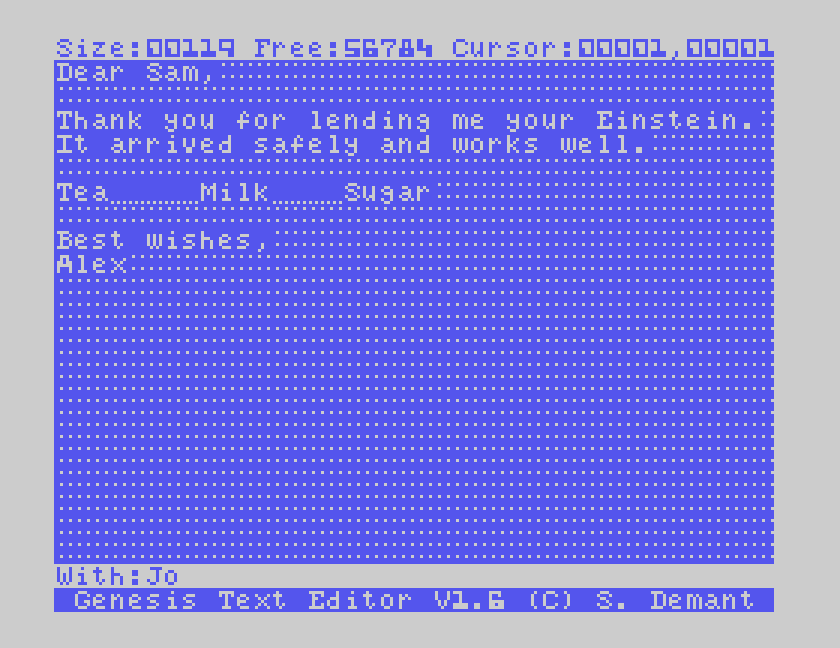
Genesis replaces the next place the text appears after the cursor, and CTRL-N replaces the one after that, one at a time. Press CTRL-B first to start from the top of the file. The instructions add that GRAPH-ENTER searches for the end of a line; we did not try that.
CTRL-W writes the whole text to disc. It asks for a Filename::
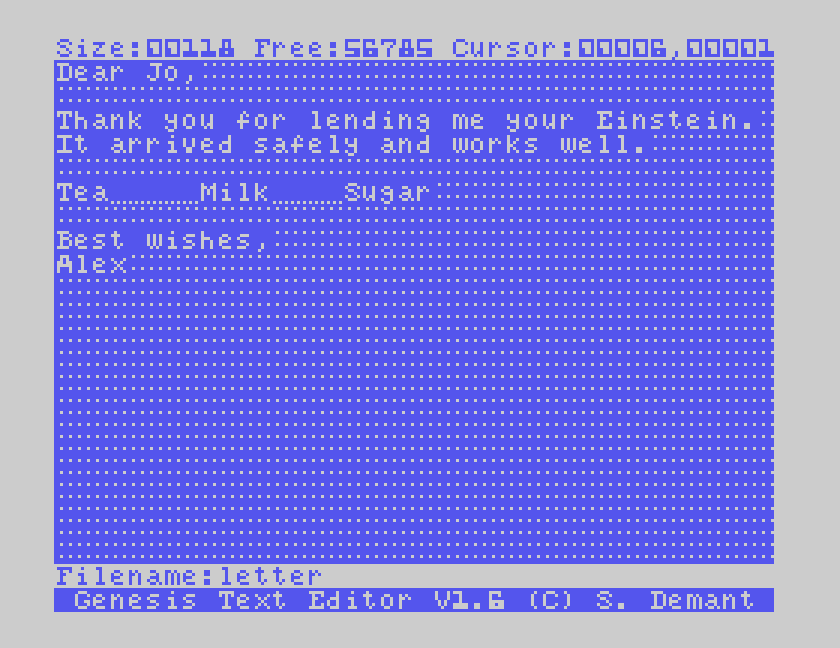
Genesis saves exactly the name you give it, with no extension added. DIR shows it as LETTER.
CTRL-S saves only part of the text: from the cursor up to the next marker. Put a marker where the part ends, move the cursor to where it starts, and press CTRL-S.
CTRL-R reads a file from disc and puts it in at the cursor, without removing what is already there. That makes it a way to join files together. If you want the file on its own, clear the text first with CTRL-X.
Save often. Genesis keeps your text in memory until you save it, and nothing else does.
CTRL-V changes the screen colours. It asks for two hexadecimal digits: the first is the colour of the text, the second the colour behind it. The normal setting is E4, grey on dark blue. Type the letters as capitals: in typewriter mode, 1f in small letters did nothing.
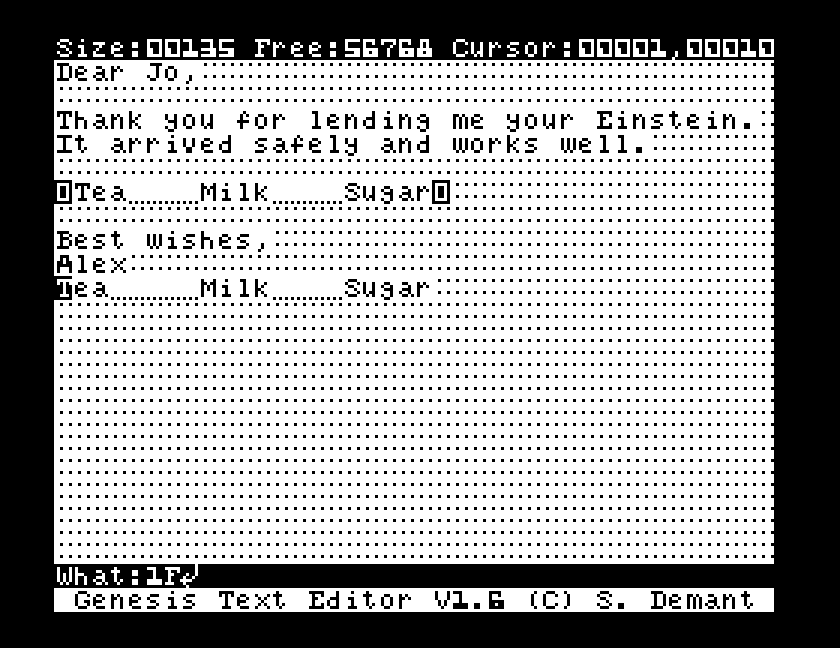
1F: black text on white.The digits are the Einstein's sixteen colours, numbered 0 to F. 1 is black and F white.
CTRL-Q quits. It asks Cold Start CPM ?, and Y takes you back to the A: prompt. Anything you have not saved is gone, so save first.
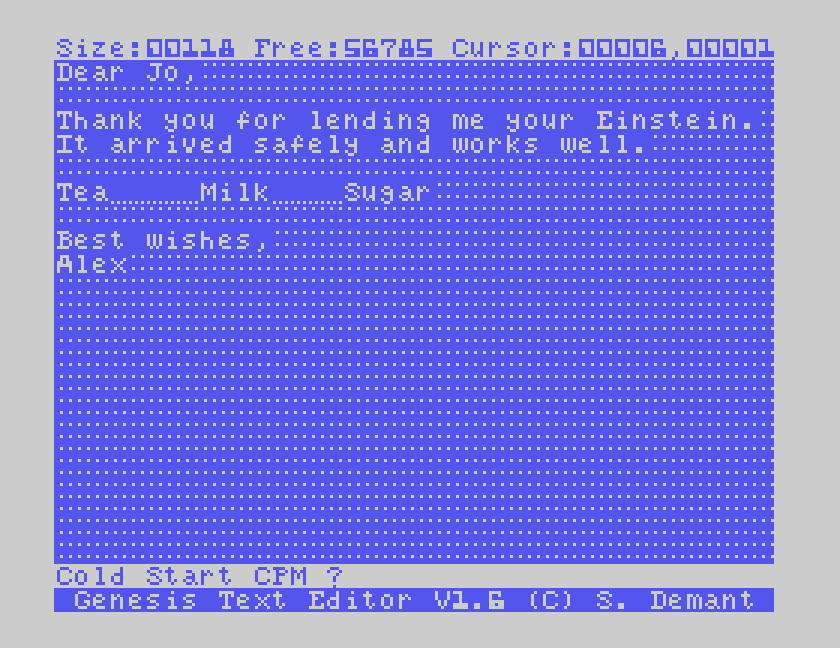
After quitting, the first key you press can be lost, so check that the first letter of your next command actually appears.
Genesis has no print command. You print from DOS, with its DISP command, which shows a file on the screen:
DISP LETTER
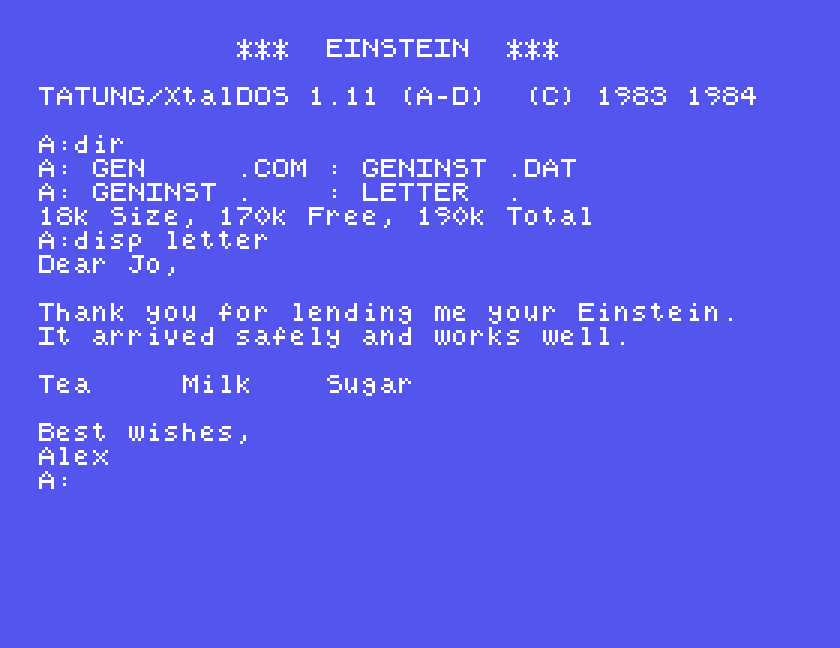
DISP LETTER at the DOS prompt.That on its own is useful if you have no printer: it is the quickest way to read a file without loading Genesis.
To print, type DISP LETTER, press CTRL-R, then press ENTER. CTRL-R does not show on the screen, but it sends everything that appears to the printer as well. When the file has finished, press CTRL-S to stop sending to the printer. In MAME, with its virtual printer attached, the letter went to the printer, and after CTRL-S the next command's output did not.
There are no page settings: what you get is the text exactly as you typed it, line for line. If you want margins or headings, type them in.
Genesis's instructions carry an important warning. To give its fast, dense screen, Genesis reprograms the Einstein's video chip, and so when DOS runs into a disc problem and asks a question, such as Write Protect, Try Again (Y/N)? or No Disk, Select (1-4), you do not see the question. Genesis just seems to stop.
We saw this in MAME by saving to a .dsk image, which MAME cannot write to. The screen filled with rubbish and Genesis stopped responding to anything, including Y, N, ENTER and BREAK. The only way out was a restart, and the text was lost.
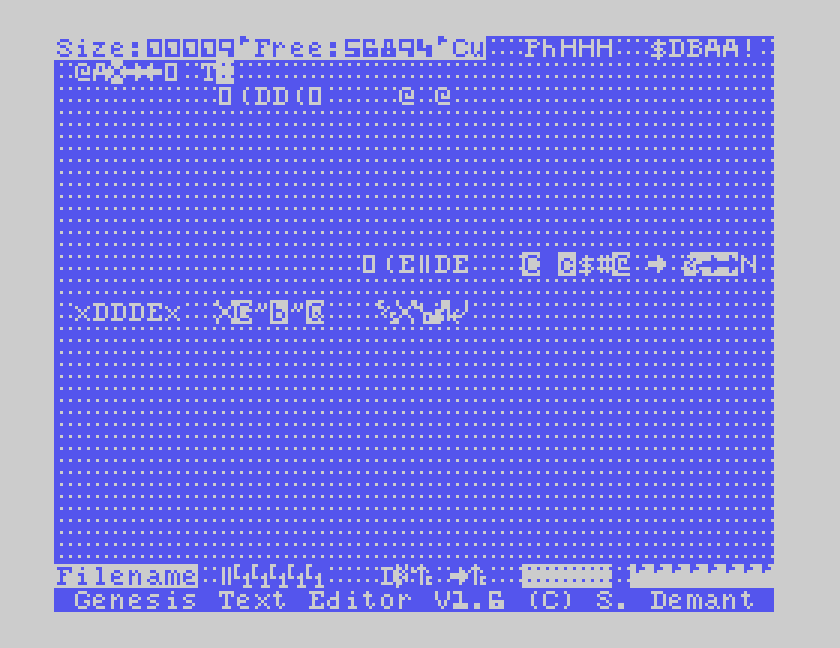
The instructions suggest changing discs and pressing Y, and if that fails, pressing 1. That did not help with the .dsk image, but on a real Einstein, with a real write-protected disc, it may. Either way the lesson is the same:
.mfi disc image, never a .dsk, for any disc you save to.| Key | Does |
|---|---|
| SHIFT and ALPHA LOCK | typewriter mode: small letters, SHIFT for capitals |
| ALPHA LOCK | back to capitals |
| SHIFT-SPACE, CTRL-I | tab |
| DEL, CTRL-Y | rub out to the left |
| SHIFT-DEL, CTRL-Z | rub out under the cursor |
| CTRL-A | swap capital and small letter |
| GRAPH and a key; CTRL-G | reversed character |
| GRAPH and F0 | marker |
| CTRL-B, CTRL-T | beginning, end of file |
| CTRL with ←, → | start, end of line |
| CTRL with ½, ↑ | next paragraph, start of paragraph |
| CTRL-C | copy between markers to the cursor |
| CTRL-E | erase from marker to cursor (answer Y) |
| CTRL-F, CTRL-N | find, find next |
| CTRL-O, CTRL-N | replace, replace next |
| CTRL-W | save everything |
| CTRL-S | save from the cursor to the next marker |
| CTRL-R | read a file in at the cursor |
| CTRL-X | clear the text (answer Y) |
| CTRL-V | screen colours, two hex digits in capitals |
| CTRL-Q | quit to DOS (answer Y) |
If you used Genesis on a real Einstein, or have its printed instructions, we would like to hear from you. The contact form is at tatungbytes.co.uk/contact.