Pete's Utilities is a disc of six small tools for the Einstein's DOS, written by P.J. Morris. Between them they make a disc start a program by itself, put your favourite commands on the function keys, rescue files you have erased, copy the DOS from one disc to another, and drive a printer, as a typewriter or with its control codes. Each tool comes with its own instructions on the disc.
This guide takes you through all six. Everything in it was done in MAME with the library's copy of the Pete's Utilities disc.
The disc. It boots by itself to the DOS 0: prompt.
Make a copy and work on that. The instructions say so first of all, and they are right: three of these tools write to discs in ways DOS itself never does. Under MAME, use an .mfi image, which MAME can save to; DSK, MFI and SCP explains how to convert the .dsk. For two of the tools, TYPE and CTRL, give MAME a printer that writes to a file, as described under Printing below.
mame einstein -window -flop1 peteutil.mfi
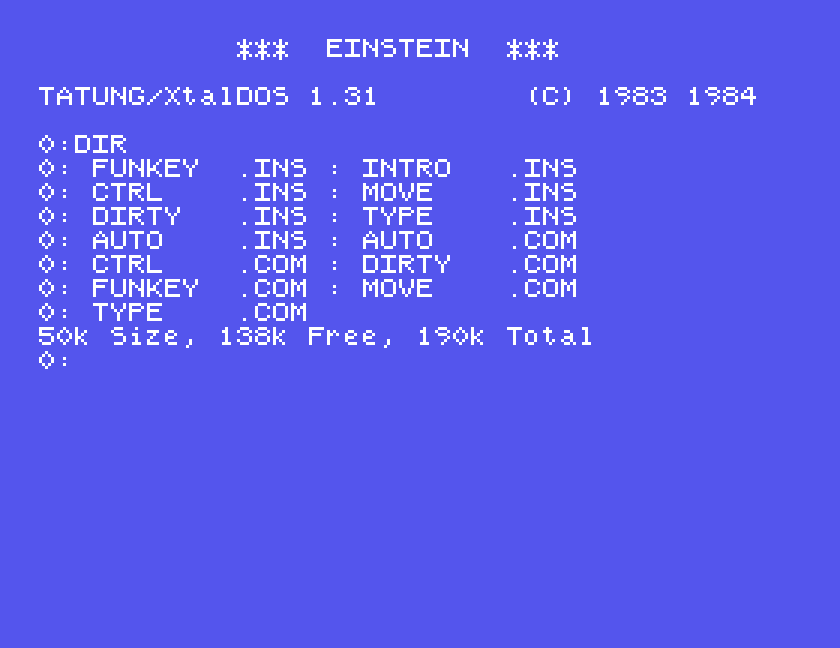
Each program is a .COM file, run by typing its name. Each has a .INS file of instructions, which you read with DOS's DISP command:
DISP INTRO.INS
The instructions are good, and worth reading in full. This guide shows each tool working and adds what we found.
FUNKEY puts a command on each of the eight function keys, F0 to F7, so that one key press types it for you.
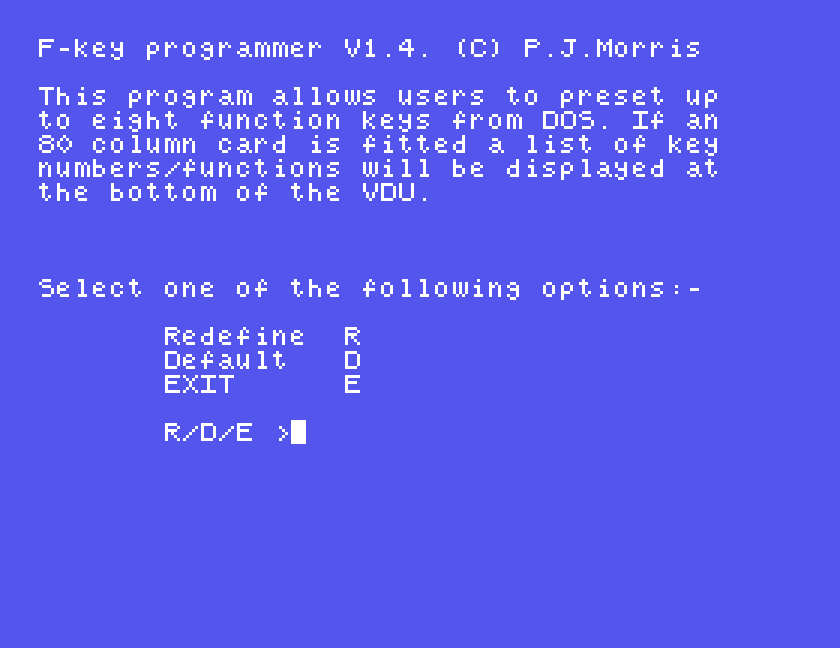
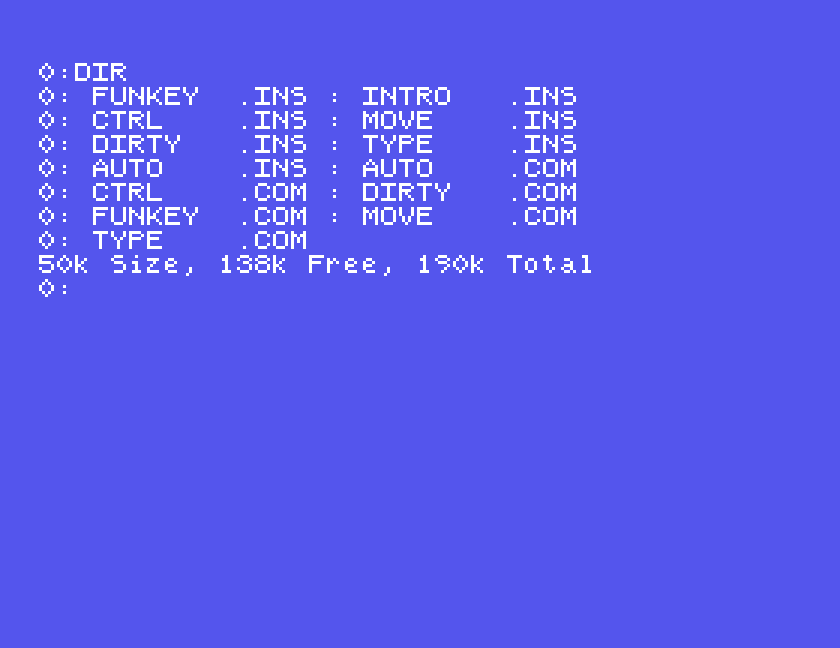
Press D for the defaults and FUNKEY sets the keys and returns to DOS. The instructions list the defaults as DIR, LOAD, DIR 1:, SAVE, MOS, DISP, GO and REN, from F0 to F7. F0 typed DIR and pressed ENTER for us, and F2 typed DIR 1:.
In MAME, the Einstein's F0 key is your F1 key.
Your own keys: press R, then any key. For each key from F0 to F7 FUNKEY asks Enter function for F0 and so on. Type up to six characters, pressing ENTER if you use fewer, and then answer Auto carriage return Y/N: Y presses ENTER for you when you use the key, N leaves the line waiting for you to finish it.
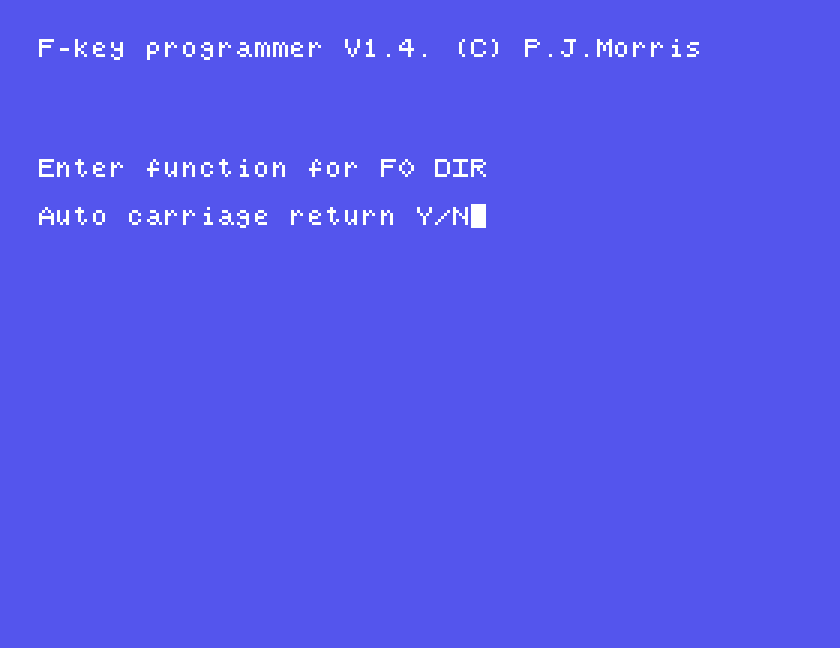
After the eighth key the menu comes back; press D to use your new keys. We set F1 to DISP with no automatic ENTER, so pressing F1 and typing a filename showed that file:
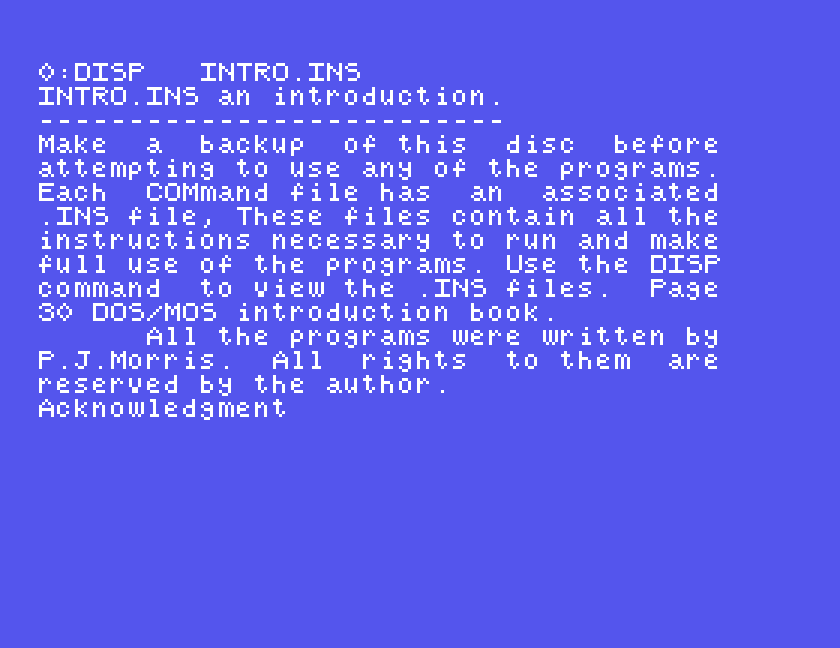
The instructions explain how to keep your own keys: after setting them, type SAVE 5 KEY1.COM at the DOS prompt, and KEY1 then sets them straight away. We did not try that.
AUTO makes a disc run a command by itself when the Einstein starts. It asks which drive the disc is in, finds out which DOS is on it, and asks for the command:
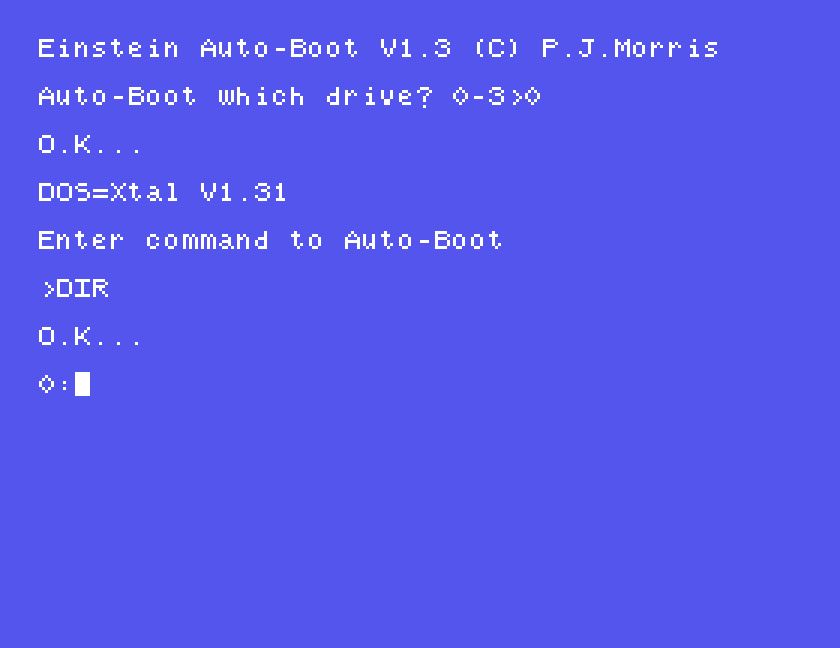
Type the command exactly as you would at the prompt, without .COM, and press ENTER. We gave DIR, and the next time the Einstein started from that disc, it listed the files by itself:
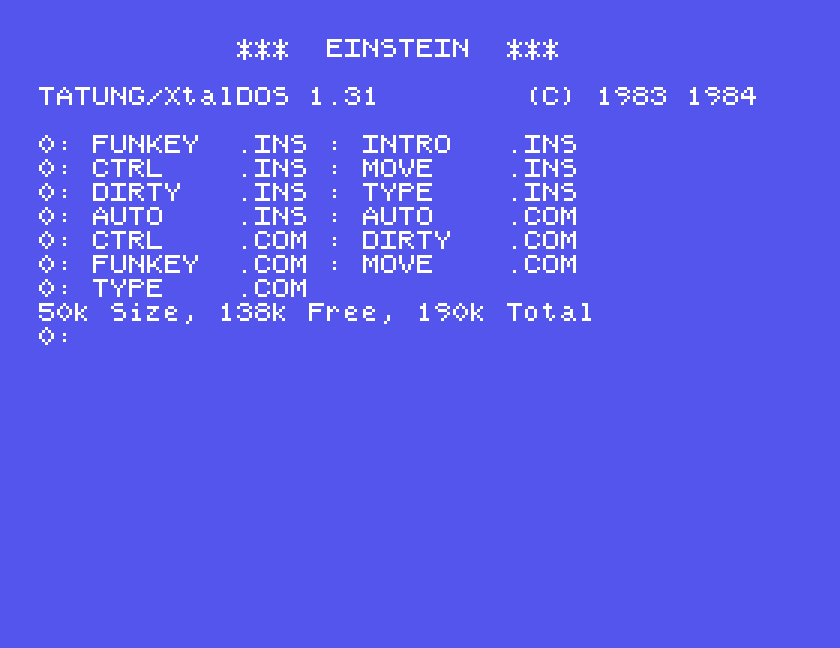
To remove it, run AUTO again and press ENTER on its own at Enter command to Auto-Boot. It says Auto-Boot Disabled.., and the disc starts at the plain prompt again.
The instructions carry one warning: once AUTO has read the DOS on a disc, do not change to a disc with a different DOS before you finish, or it may overwrite part of that DOS.
A disc only starts the Einstein if it has a DOS on it. MOVE copies the DOS from one disc to another, leaving the other disc's files alone. It asks which drive to read from, names the DOS it finds, then asks which drive to write to and waits for you to put the disc in:
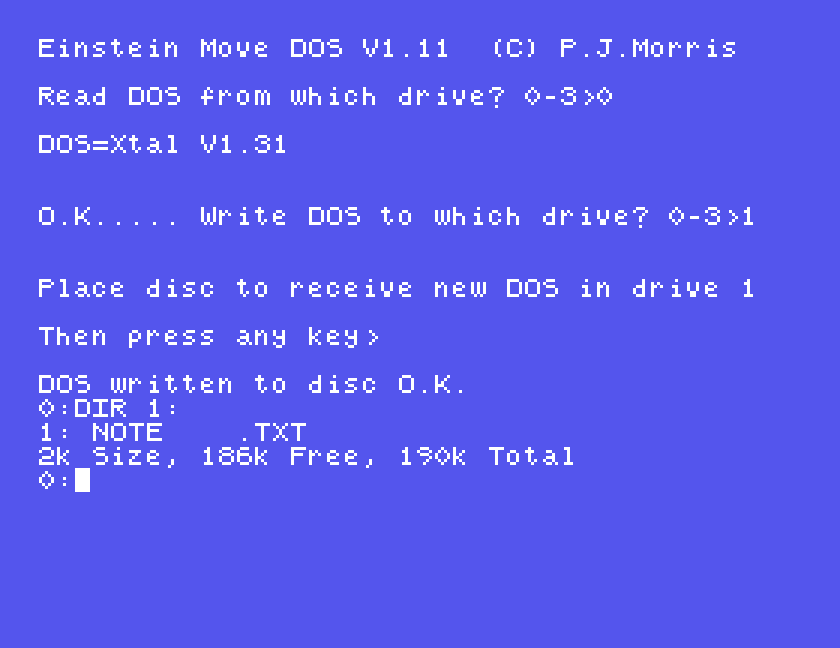
We tried it on a disc that held one file and no DOS. On its own that disc started no further than *** EINSTEIN ***. After MOVE, it started XtalDOS 1.31, with its file intact. The instructions add that MOVE copies an auto-boot command too, and that it will rescue a disc whose DOS has been damaged.
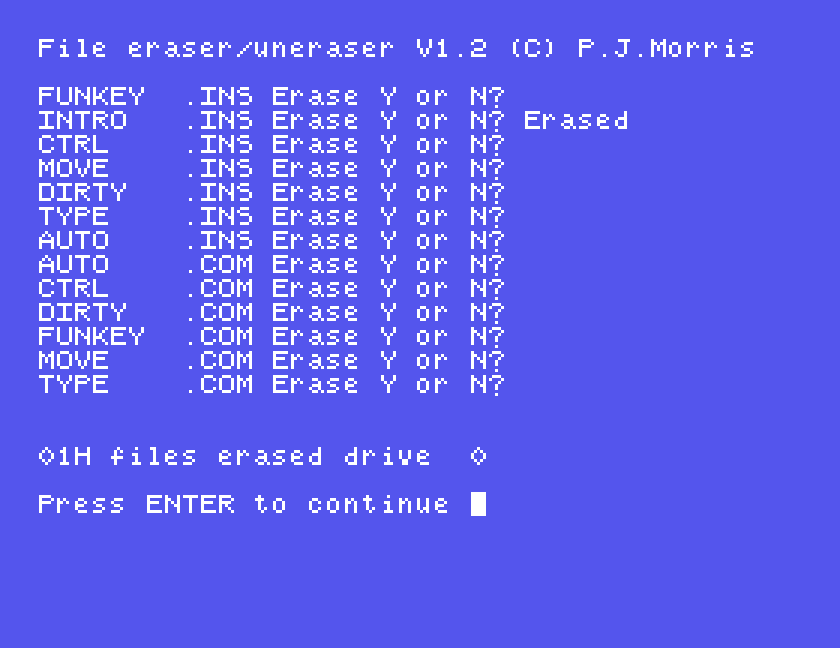
DIRTY, for DIRectory utiliTY, works on the directory directly. It can list the files you have erased, bring them back, erase files one by one and, the instructions say, find hidden system files. Each option we used asked first for a drive number.
Bringing back an erased file. We erased INTRO.INS with option 3, Selective erase, which goes through the files one at a time asking Erase Y or N?:
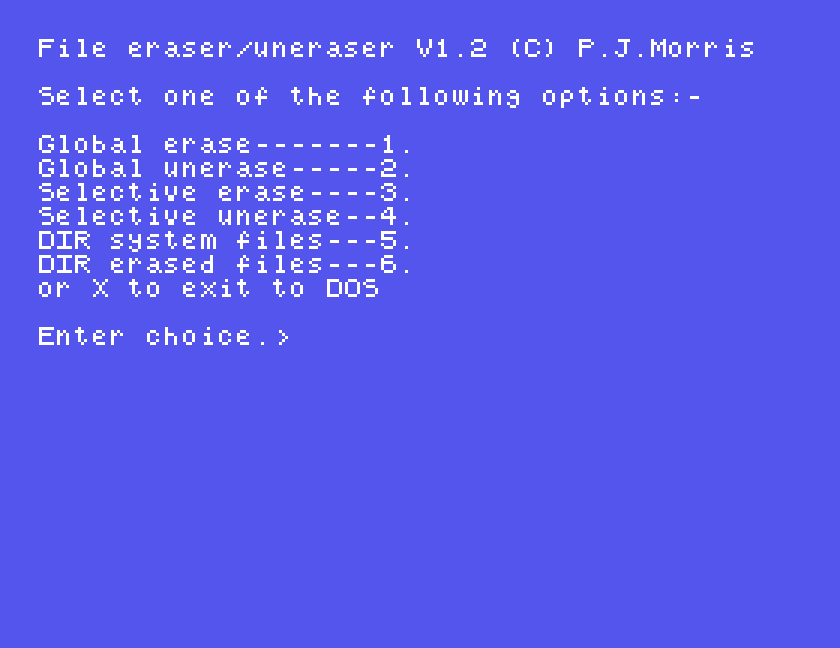
DIR no longer showed it. Option 6 listed it as erased:
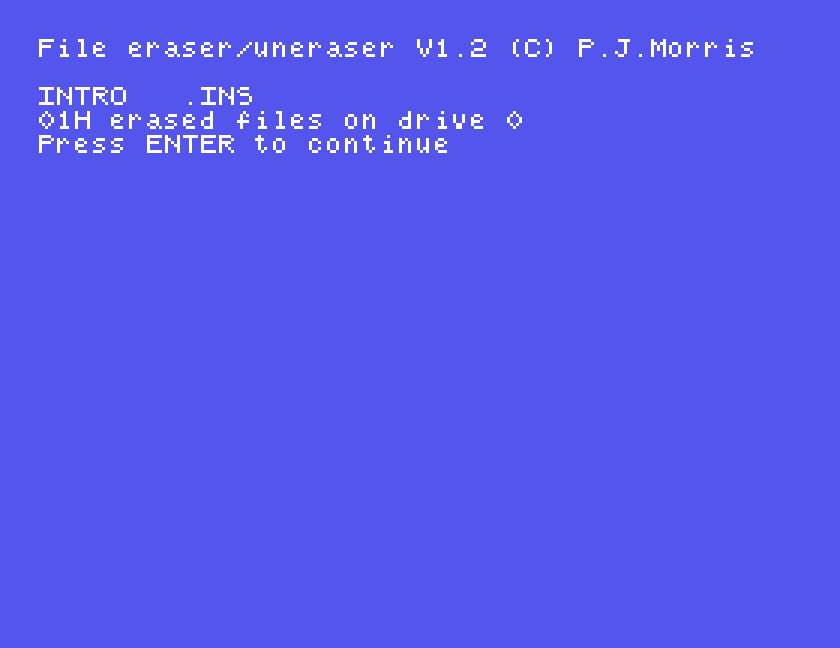
and option 4, Selective unerase, asked UNerase Y or N? for it; Y brought it back, and DIR showed it again. The counts DIRTY prints are in hexadecimal, so 01H is one file.
The instructions explain the limits. An erased file's space is free for DOS to reuse, so a file erased some time ago, with other files saved since, may come back damaged. A file longer than 16K appears more than once, and every entry must be unerased. Options 1 and 2 erase or unerase everything on a disc at once; we did not try them.
Always leave with X, as the instructions insist.
These two need a printer. Under MAME, give it one that writes to a file:
mame einstein -window -flop1 peteutil.mfi -centronics printer -prin printer.prn
Everything sent to the printer lands in printer.prn.
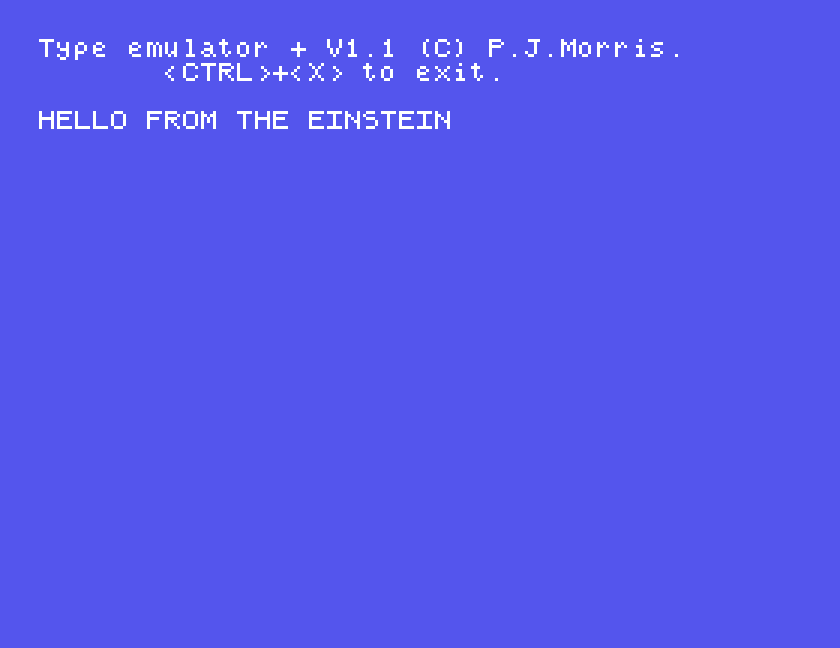
TYPE turns the Einstein into a typewriter. What you type is held until you press ENTER, then printed; until then, the instructions say, DEL takes back the last character. CTRL-X leaves; the instructions say to press ENTER first so that nothing is left unprinted.
CTRL sends control codes to an Epson compatible printer, the codes that switch on bold, enlarged or condensed print, change the character set and so on. It first offers instructions, Y or N, and then waits at Enter data>. Codes are typed in hexadecimal; ESC puts in the escape code, which most of them start with.
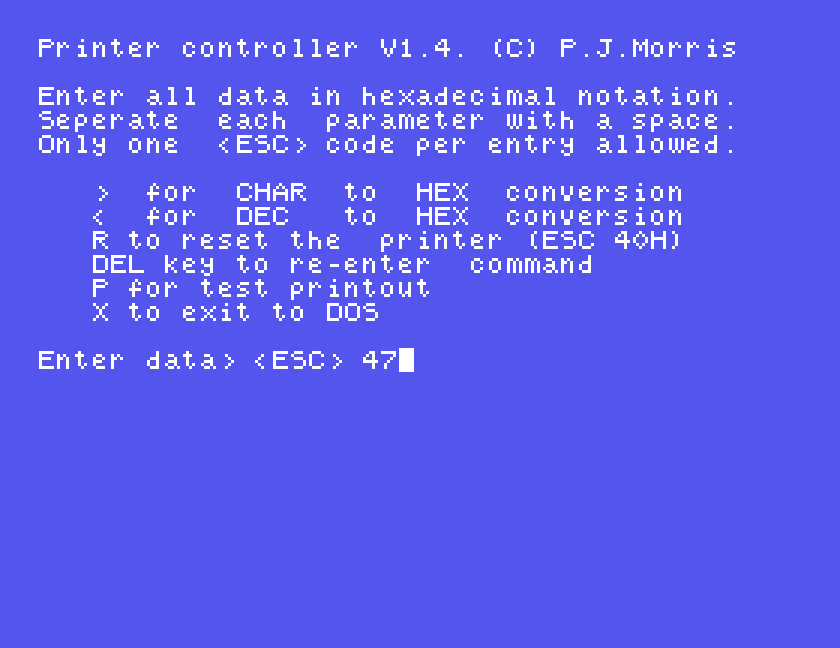
For us, ESC then 47 and ENTER sent exactly those two codes, ESC and G, to the printer. CTRL also helps with the hexadecimal:
>) asks for a key and gives its code: G is HEX 47. Press ENTER to go back to typing.<) turns a decimal number into hexadecimal: 14 is 000E.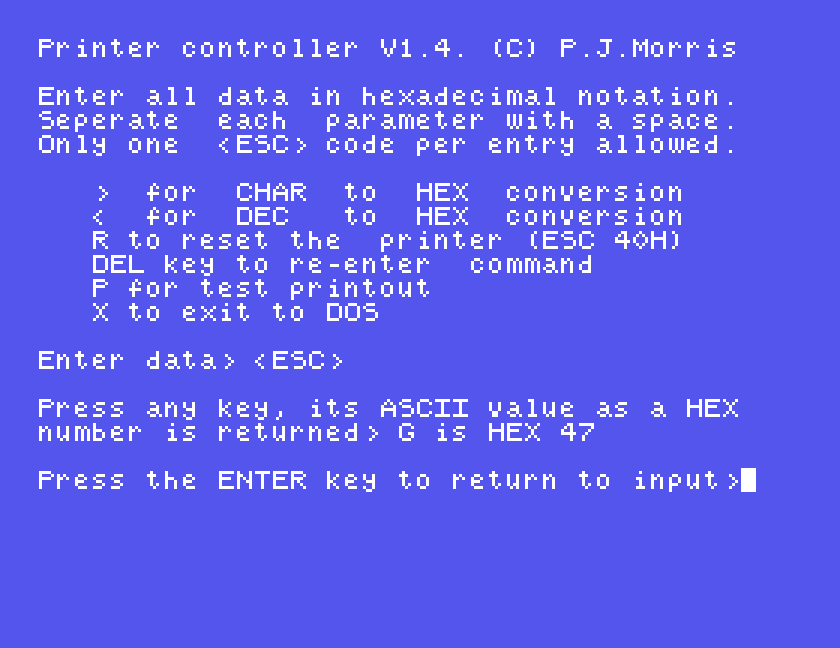
The instructions describe using the two together: set a style with CTRL, then type in it with TYPE.
| Command | Does |
|---|---|
DISP NAME.INS | read a tool's instructions |
FUNKEY, then D | the default function keys |
FUNKEY, then R | your own function keys, six characters each |
AUTO | run a command at switch-on; ENTER alone removes it |
MOVE | copy the DOS to another disc |
DIRTY | erase, unerase, list erased and system files; X to leave |
TYPE | a typewriter on the printer; CTRL-X to leave |
CTRL | send control codes to the printer; X to leave |
If you used Pete's Utilities, or know P.J. Morris, we would like to hear from you. The contact form is at tatungbytes.co.uk/contact.