The Dean Database, from Dean Software in 1984, is a card index for the Tatung Einstein. You design a record once, giving each field a name, and then fill in as many records as you need: a book collection, a list of customers, a stock list. It can search the records, sort them, add up a column of figures and print them out, as whole pages or as labels.
It is written in Xtal BASIC and asks you everything as a series of numbered questions, so it is easy to follow once you know what it wants. This guide builds a small catalogue of books from scratch. Everything here was done in MAME with the library's Dean Database disc.
The Dean Database disc. It boots by itself to the DOS 0: prompt, and holds the program (five BASIC programs that call each other), a small machine code routine and Xtal BASIC to run them.
Somewhere to save. Under MAME, set up the Einstein as in Setting Up MAME and use an .mfi image of the disc, which MAME can save to. DSK, MFI and SCP explains how. We saved our records on the program disc itself.
At the 0: prompt, type:
XBAS
RUN"START"
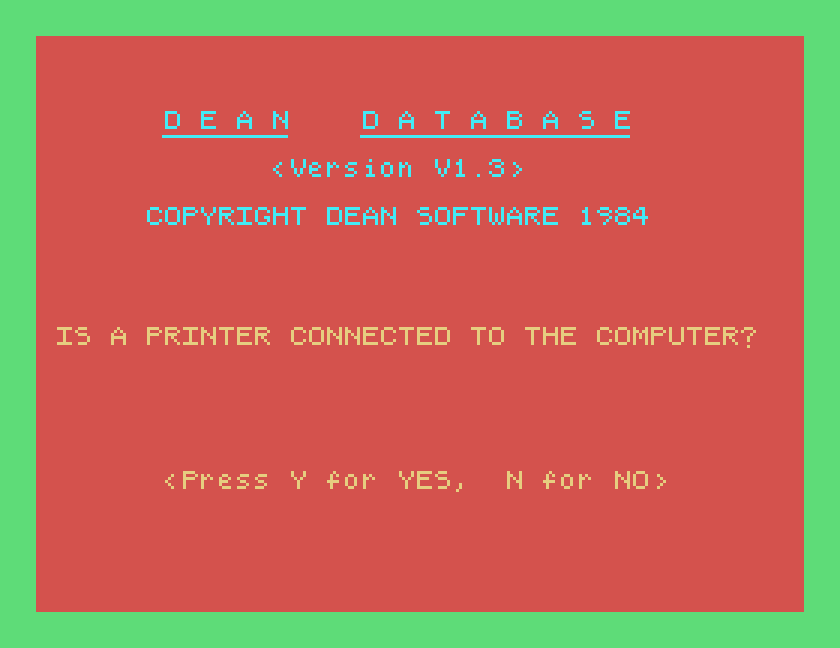
The first question is whether a printer is connected. Answer Y if you want to print, N if not; the program remembers the answer, and refuses to print later if you said N.
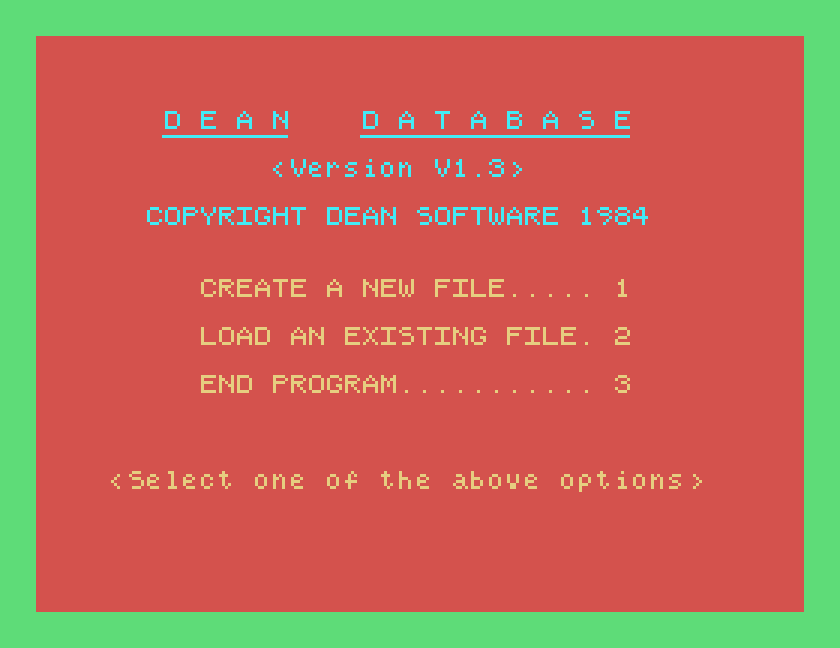
Then comes the start menu: create a new file, load an existing file, or end.
Wait for each question to appear before you answer it. The program draws its screens slowly, and a key pressed before the question is on the screen can be lost.
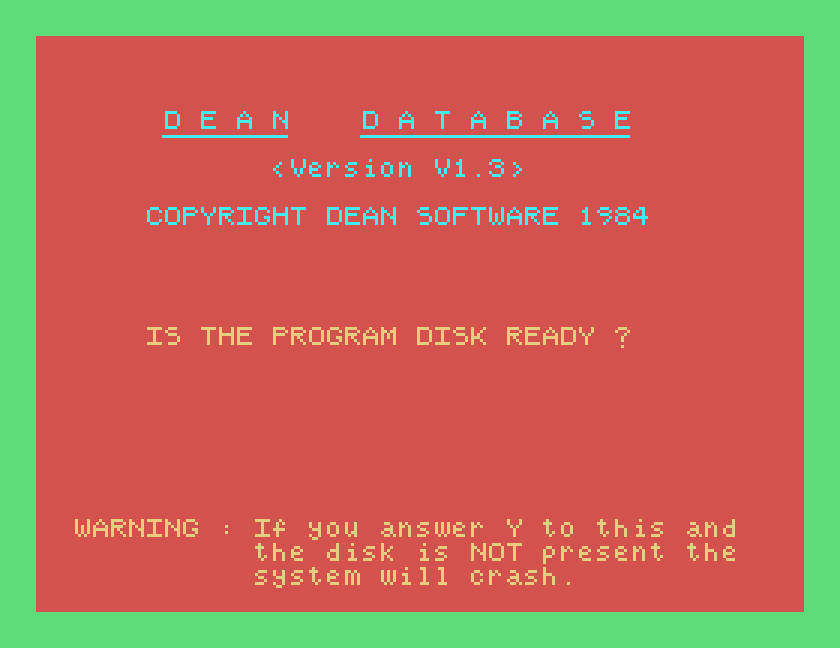
The program is split into parts that load one another from the disc as you move around it. Before each one loads, it asks IS THE PROGRAM DISK READY? and warns you that if you answer Y without the disc in drive 0 the computer will crash, and you will have to reset it, load BASIC and run START again. Leave the disc in drive 0 and answer Y.
Choose 1 at the start menu, and Y to say the program disc is ready. The program then asks a series of numbered questions to set up the file. Answer each with a single key (Y or N) or by typing and pressing ENTER.
1 and ENTER.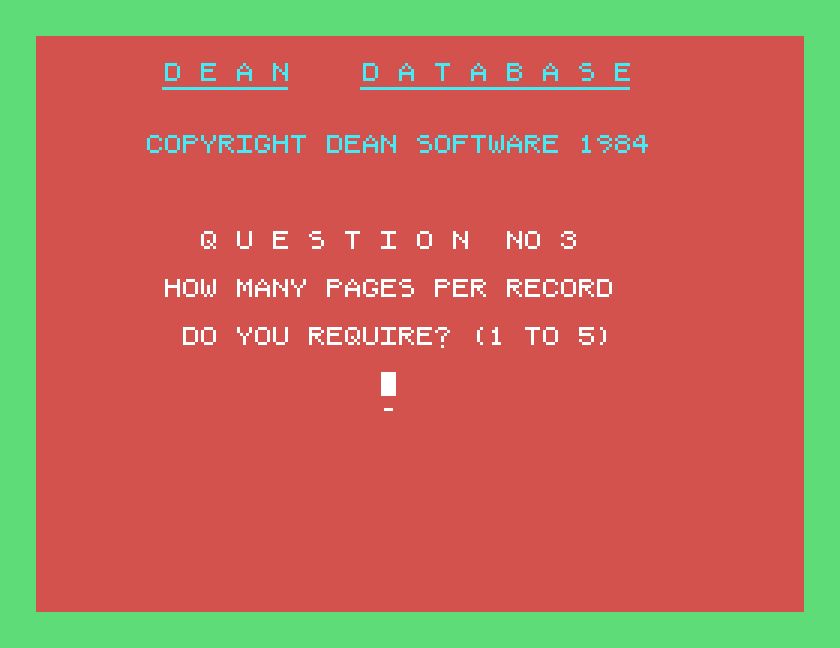
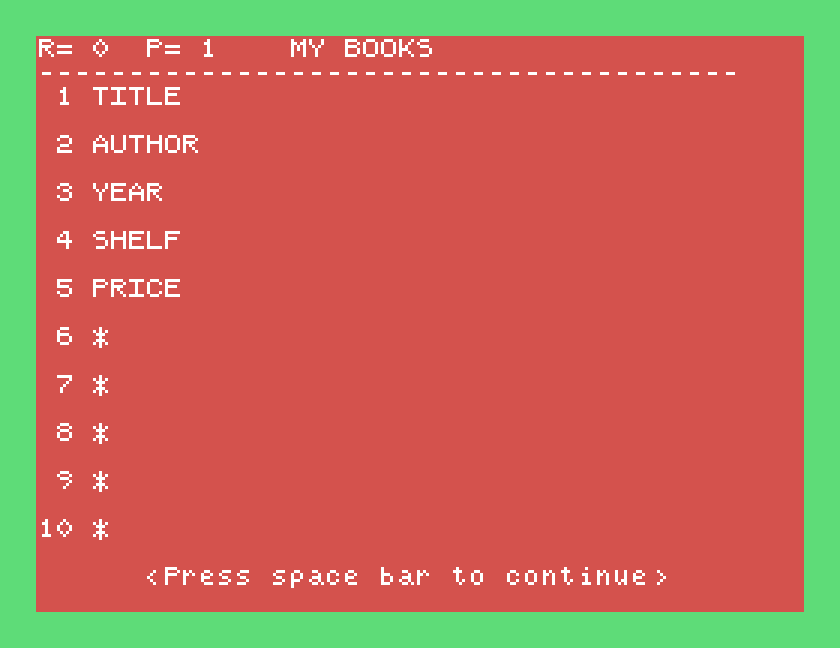
MY BOOKS and ENTER. The program shows you the empty page with its heading; press SPACE, and answer Y when asked if the heading is right.TITLE, AUTHOR, YEAR, SHELF and PRICE. Each name box starts with a *, which means an unused field; when you have named all the fields you want, press ENTER on the next * and the rest stay unused.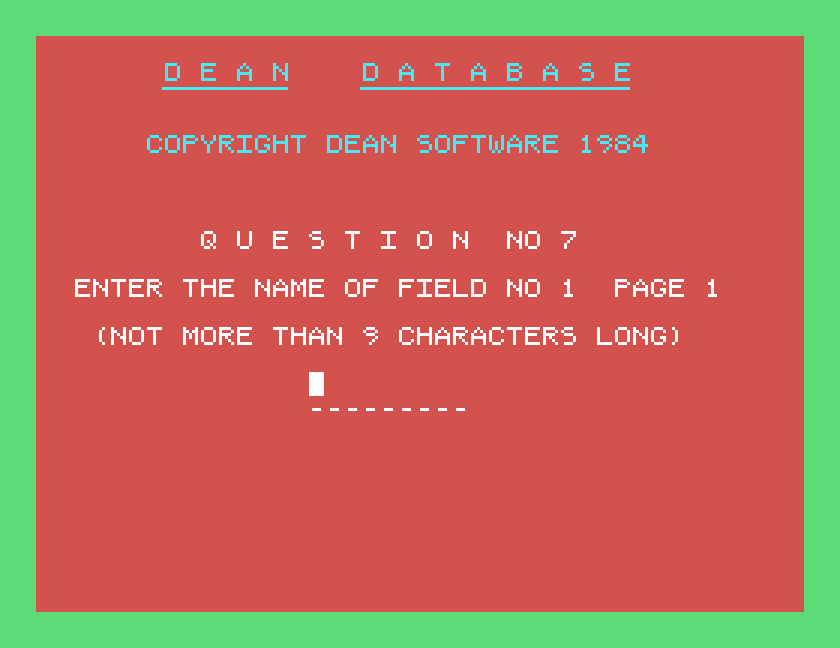
The finished page is shown for you to check. Press SPACE, and answer Y to question 8 if the fields are right.
The next questions offer to show and change the details you have just set up, and to set up the summary print, which decides how records are printed as labels. We answered N to each of them (questions 10, 11, 16 and 17), which keeps the design as it is and the summary print as it comes.
BOOKS and ENTER.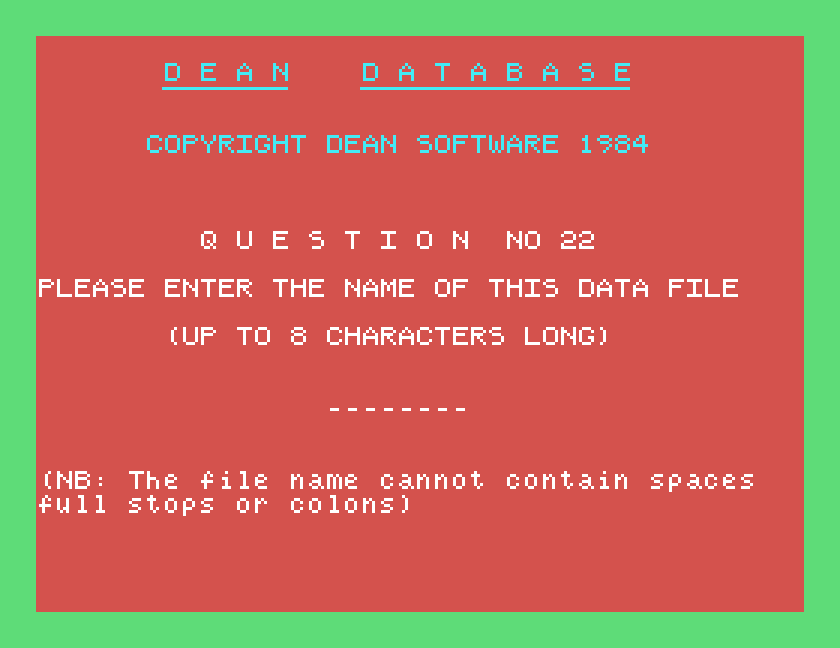
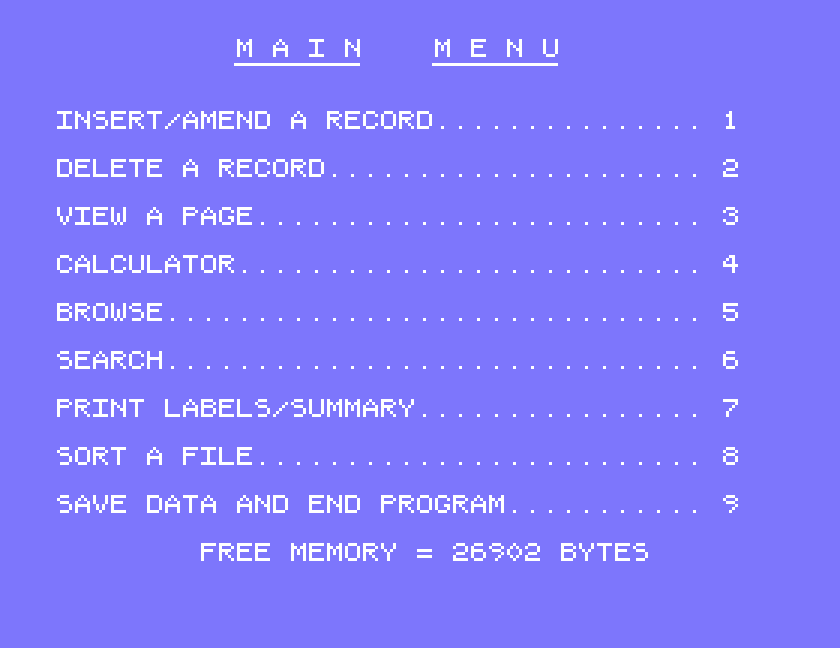
The main menu shows the free memory at the bottom: 27000 bytes for an empty file. Every record you add uses some of it.
Choose 1, insert/amend a record. The program asks for the record number: type 0 and ENTER for the next free record. The page appears with the cursor in the first field.
Type the entry for each field, and press the Einstein's vertical grey cursor key to move down to the next field. SHIFT with the same key moves back up a field, and DEL rubs out the character to the left of the cursor. In MAME the vertical cursor key is your Down arrow, with Shift as before. A dotted line under the field shows how much room you have.
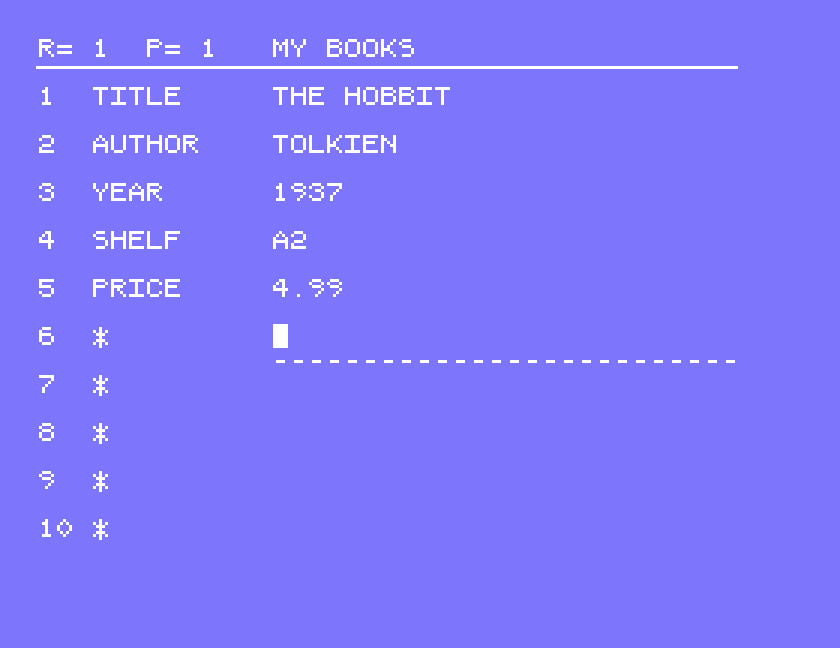
Press ENTER when the record is finished. The page stays on the screen; press M to go back to the main menu, and choose 1 and 0 again for the next record. We added three books:
| TITLE | AUTHOR | YEAR | SHELF | PRICE |
|---|---|---|---|---|
| THE HOBBIT | TOLKIEN | 1937 | A2 | 4.99 |
| EMMA | AUSTEN | 1815 | B1 | 2.50 |
| DUNE | HERBERT | 1965 | A1 | 3.95 |
To change a record, choose 1 and type its number instead of 0. It opens with the entries already in place. Move to the field with the cursor key and type over it: typing replaces the character under the cursor. We changed THE HOBBIT's price from 4.99 to 5.99 this way.
To look at a record without changing it, choose 3, view a page, and type its number.
To delete one, choose 2, type its number and answer Y to ARE YOU SURE. The record is emptied, but its number stays, so the records after it keep their numbers.
The records are only in memory until you save them. Choose 9, save data and end program. Despite its name it does not end straight away: after the program disc question it opens a file menu.
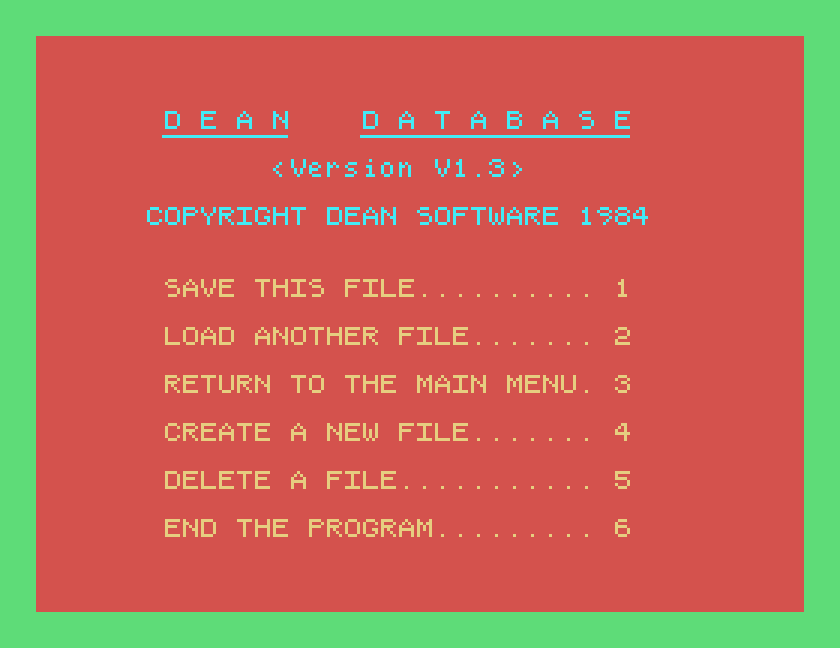
Choose 1, save this file. The program asks for the first and last record numbers to save, so you can save part of a file if you want to; we saved records 1 to 3, all of them. Answer Y to IS THE DATA DISK READY?; we kept our data on the program disc. It then lists the data files already on the disc, and offers the file's name for you to confirm with ENTER.
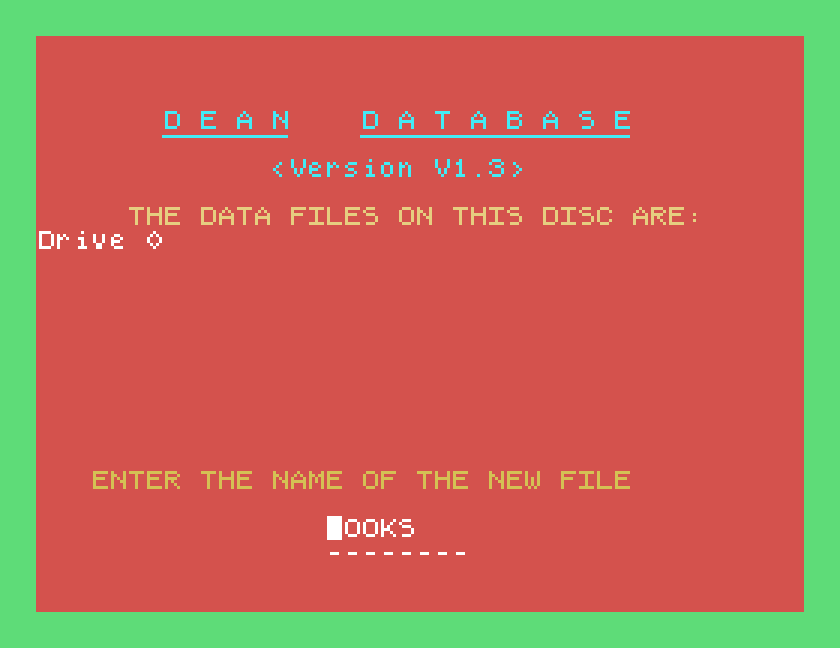
The file is saved as BOOKS.TXT, and the file menu returns. Choose 3 to go back to the main menu, or 6 to end the program.
Start the program as before, and choose 2, load an existing file, at the start menu. Answer Y to the data disc question. The data files on the disc are listed; type the name, without .TXT, and ENTER. Answer Y to the program disc question, and the main menu appears with the records loaded.
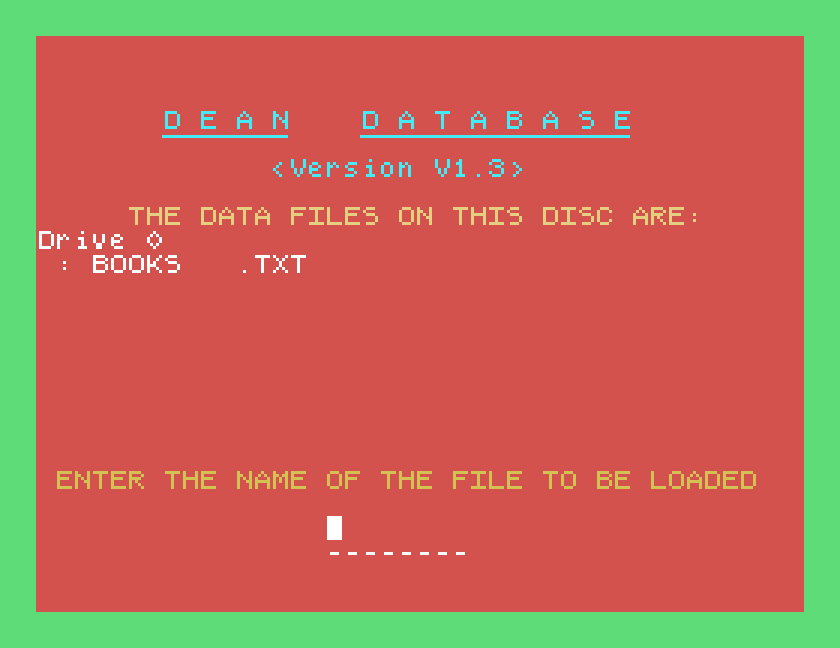
Choose 6, search. Type the number of the field to search, and ENTER. The program then asks whether you want to search for a range of numbers.
For words, answer N, type what you are looking for and ENTER. We searched field 2 for AUSTEN, and the program showed EMMA's record. Press G to go on to the next match; when there are no more, the "Press G" line disappears. Press M for the main menu. To stop a long search, hold down A.
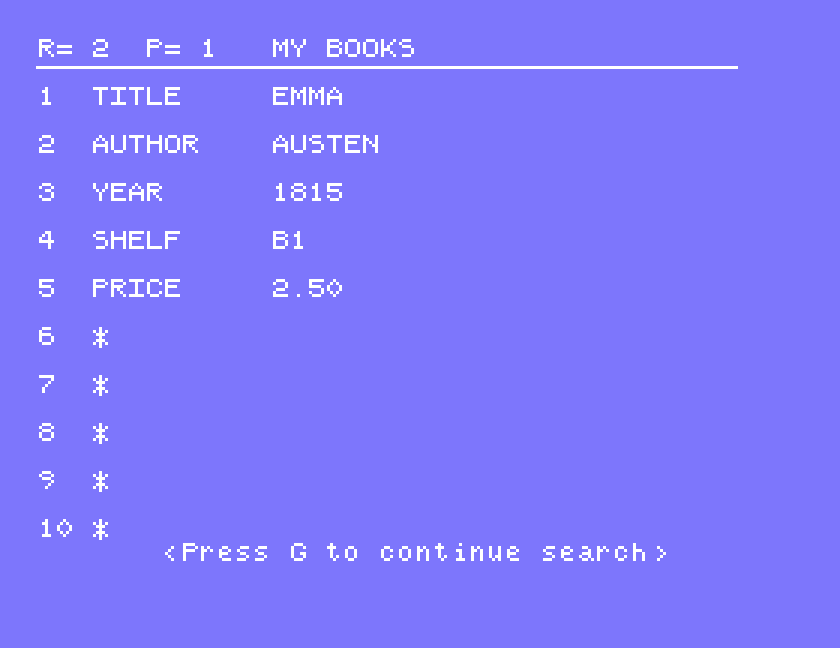
For numbers, answer Y, and give a number the field must be greater than and one it must be less than. We searched field 3, the year, for more than 1900 and less than 2000. It found THE HOBBIT, and with G, DUNE, and passed over EMMA from 1815.
Choose 5, browse, and give the record number to start from. The program shows the records one after another by itself, with BROWSING at the bottom. Press H to halt on the record on the screen, and M for the main menu.
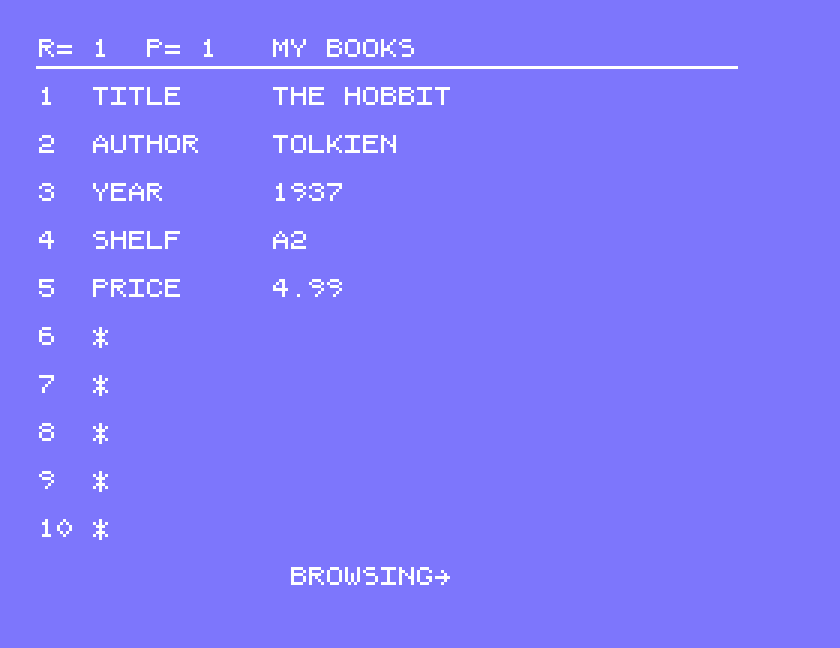
Choose 8, sort a file, and Y to the program disc question. Type the number of the field to sort on, and ENTER. The program asks DO YOU WISH TO IGNORE TITLES ETC? and refers you to the manual; we answered N. The records are put in order and renumbered, and the main menu returns. Sorted on field 1, our record 1 became DUNE, then EMMA, then THE HOBBIT.
Choose 4, calculator, and Y to the program disc question. The calculator menu offers A + B = C, A − B = C, A × B = C, A ÷ B = C, A × a constant = C and the sum of field A, where A, B and C are fields you choose.
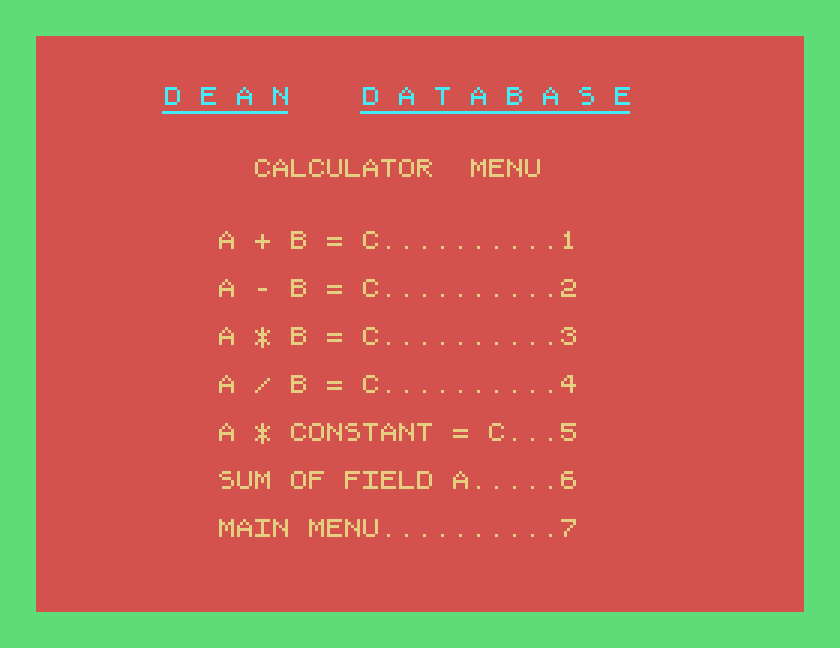
We chose 6, the sum of field A, and typed 5 for the price field. The program worked through the records and showed the total.
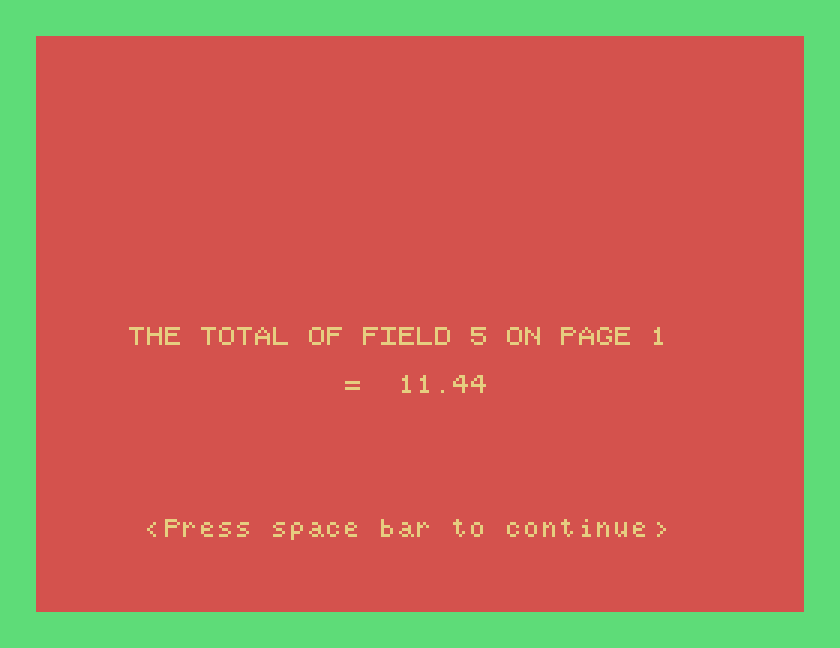
Press SPACE to go back to the main menu. The other five work through every record in the same way and put the answer in field C. We tried only the sum; since they write into your records, try them on a copy of your file first.
Printing needs a Y to the printer question at the very start. Under MAME, give the Einstein a printer that writes to a file:
mame einstein -window -flop1 deandb.mfi -centronics printer -prin books.prn
To print one record, show it with 3, view a page, and press P. The page is printed as it appears on the screen:
R = 1   P = 1   MY BOOKS
----------------------------------------
1. TITLE      THE HOBBIT

2. AUTHOR     TOLKIEN

3. YEAR       1937

4. SHELF      A2

5. PRICE      4.99
and on down to field 10.
To print labels, choose 7, print labels/summary, and Y to the program disc question. Answer N to DO YOU WISH TO CHANGE THE SUMMARY PRINT?, give the first record to print and the number of copies of each label. Each record is printed as a small block, its fields one per line, with blank lines between:
THE HOBBIT
TOLKIEN
1937
A2
4.99


EMMA
AUSTEN
...
That is the summary print as it comes, which prints each field you named, in order. Changing it, to pick which fields go on the label and how many blank lines go between them, is in the questions we answered N to; we did not try it. The printer receives plain text, not graphics.
| Key | Does |
|---|---|
XBAS then RUN"START" | start the program |
| vertical grey cursor key | next field (MAME: Down arrow) |
| SHIFT with it | previous field |
| ENTER | finish the record |
| M | back to the main menu |
| G | next search match |
| H | halt browsing |
| P | print the record on the screen |
| 9, then 1 | save the file |
If you used the Dean Database, or have its manual, we would like to hear from you. The contact form is at tatungbytes.co.uk/contact.