Superdraw is a drawing program for the Tatung Einstein written by J.P. Barker for Bell Software in 1988. You move a cross-shaped cursor around the screen with the cursor keys and build a picture from boxes, lines, ellipses, fills and text, each started with a single letter. Superdraw remembers every step, so a saved picture is a list of drawing commands that it plays back to redraw the picture.
It comes as part of a small suite, with a database, a graph plotter and an address book, but this guide is about the drawing. Everything in it was done in MAME with the library's copy of the Superdraw disc.
The Superdraw disc, and a disc with Xtal BASIC on it. Superdraw is written in BASIC, and the disc's own label says "Load XBAS and run MENU", but XBAS is not on the disc. We used the library's TC01 System Master disc in drive 0, with Superdraw in drive 1.
Under MAME, set up the Einstein as in Setting Up MAME, and use an .mfi image of the Superdraw disc, which MAME can save to; DSK, MFI and SCP explains how to convert the .dsk.
mame einstein -window -flop1 xtaldos.dsk -flop2 superdraw.mfi
The System Master boots to the 0: prompt. Type these three lines, pressing ENTER after each:
1:
0:XBAS
RUN"MENU"
The first line makes drive 1, where Superdraw is, the one the Einstein looks at first, so that Superdraw's programs can find each other. The second starts Xtal BASIC from drive 0, and the third runs Superdraw's menu:
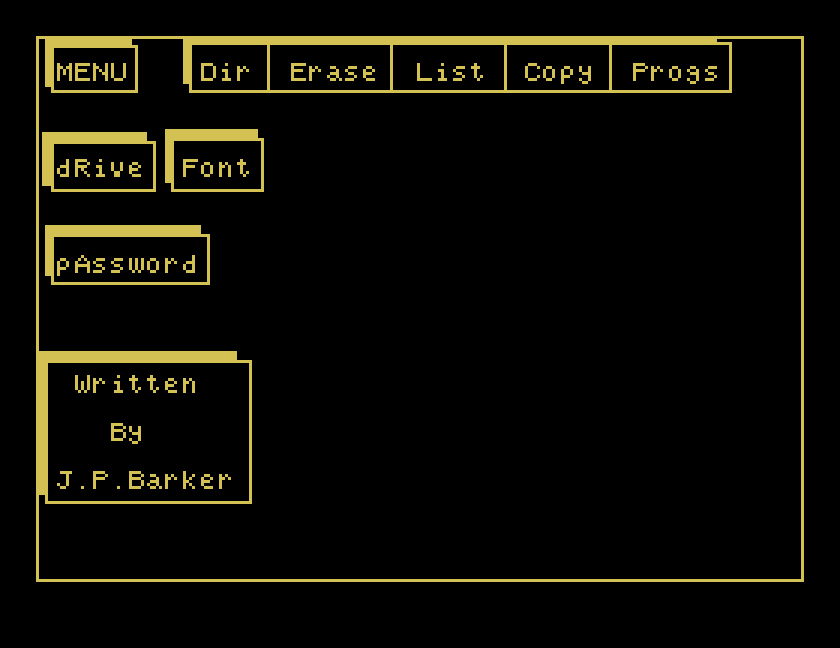
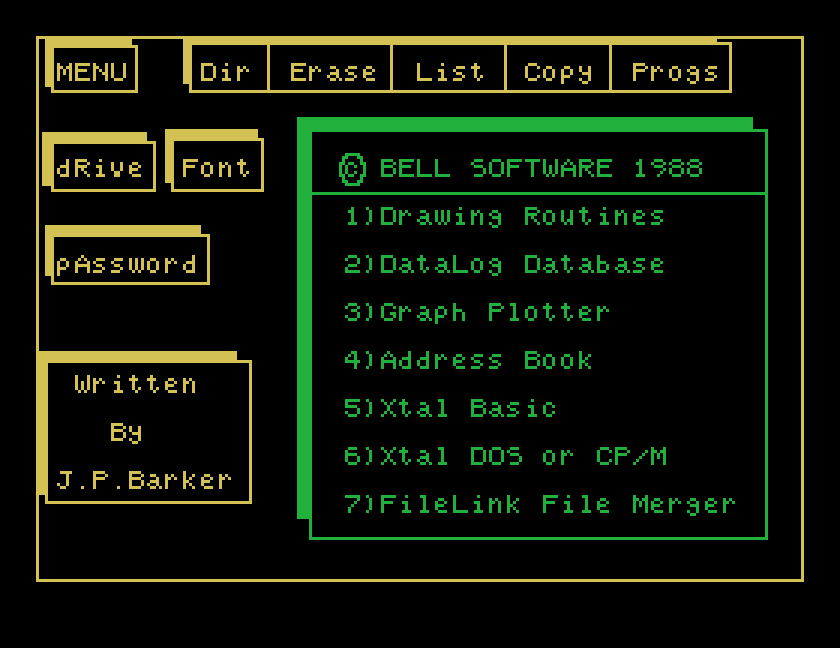
Press P for Progs, which brings up the list of programs:
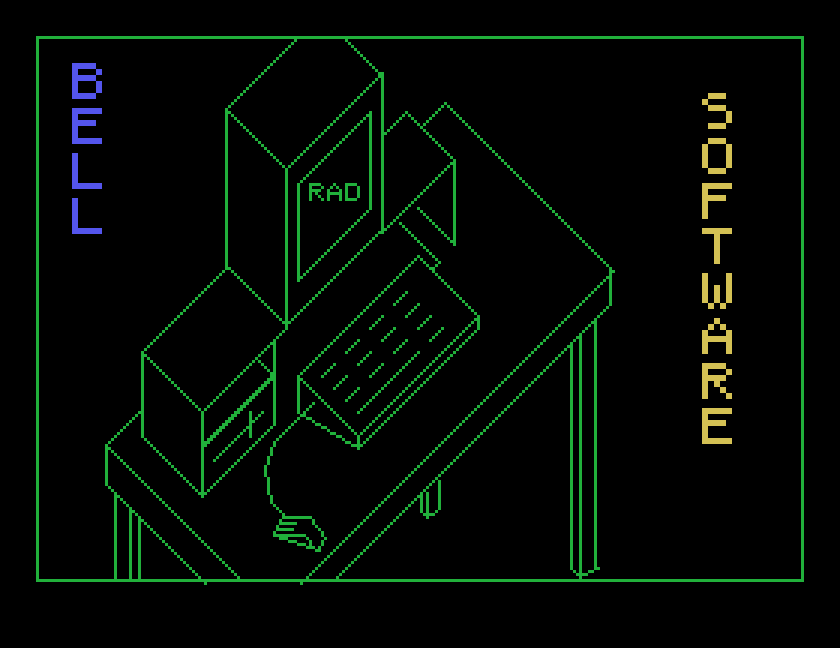
Press 1 for the Drawing Routines. A title picture appears, a line drawing of a computer on a desk. Press S for Super Draw. Superdraw asks whether a joystick is connected to port 1; press N to use the keyboard.
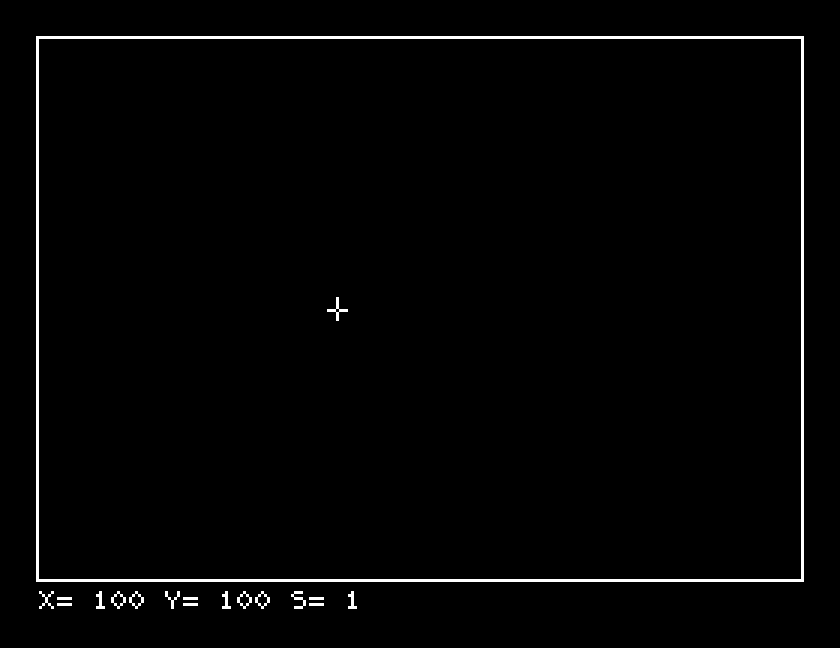
The line under the picture shows where the cursor is, X across and Y up, counted from the bottom left corner, and S, the step: how far each key press moves it.
Moving: the Einstein's two grey cursor keys. The horizontal one moves right and, with SHIFT, left; the vertical one moves down and, with SHIFT, up. In MAME they are your Tab key and your Down arrow, with Shift as before.
The step: press a number from 1 to 9 to set how far each press moves the cursor. 1 is for fine work; 5 gets across the screen quickly.
One warning. Moving the cursor along a line you have already drawn can rub out that part of the line. Crossing a line is fine; running along it is not. Move off the line first, then along.
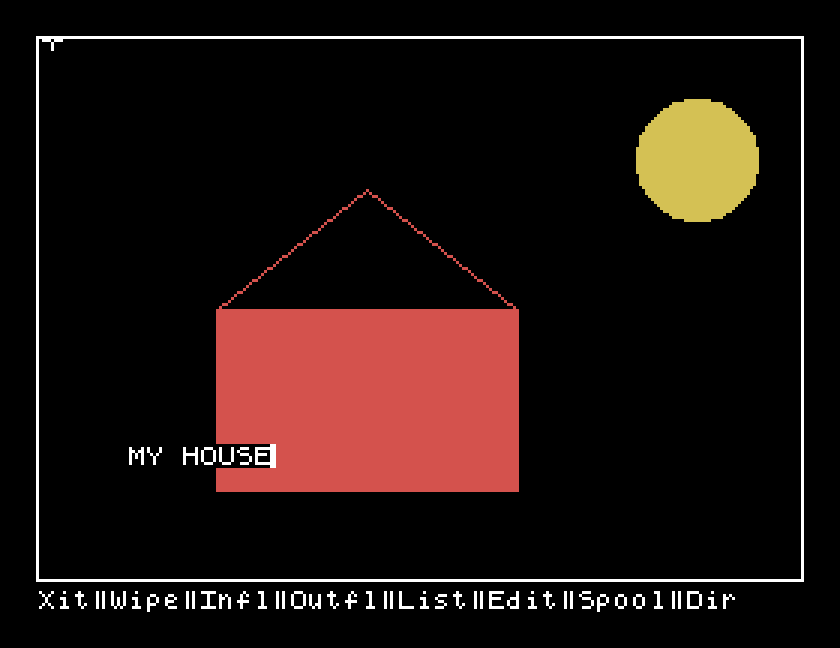
Each tool is a letter. Here is how this picture was made:
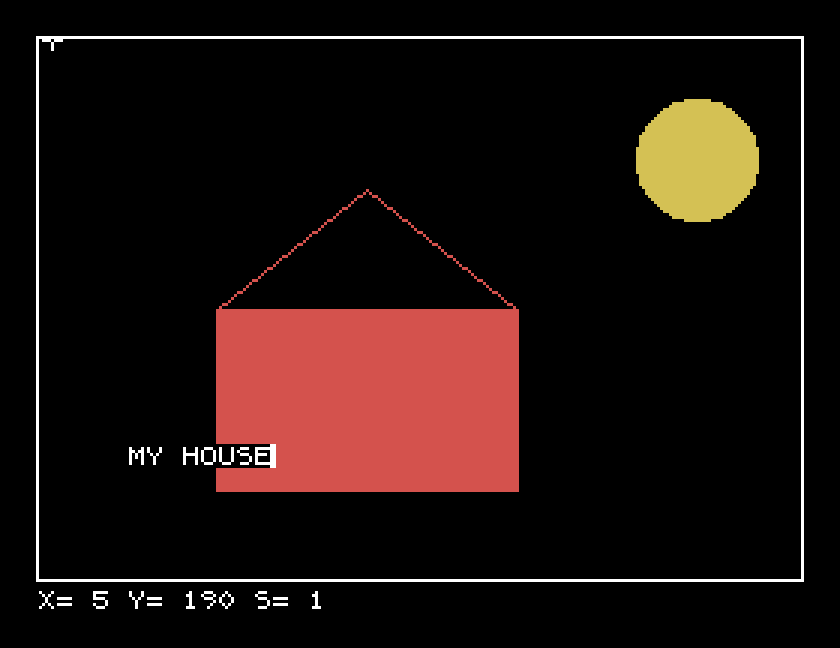
Colour. C asks Colour:. Type the colour's number as two digits: 06 gave red, 10 yellow and 15 white.
A box. Put the cursor at one corner and press B for Box stretch Mode. Move to the opposite corner; the box stretches as you go. ENTER draws it.
Lines. Put the cursor where the line starts and press L. Superdraw asks for a line type, 0 to 5; 0 is a solid line. Move to where the line ends, marked with a second cross, and press ENTER. The roof is two lines from the top of the roof down to the corners of the box.
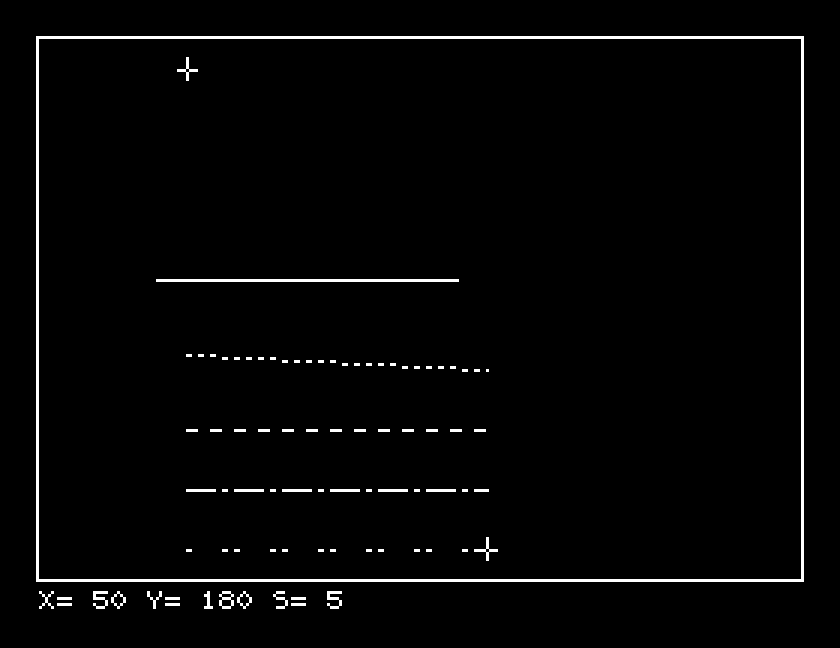
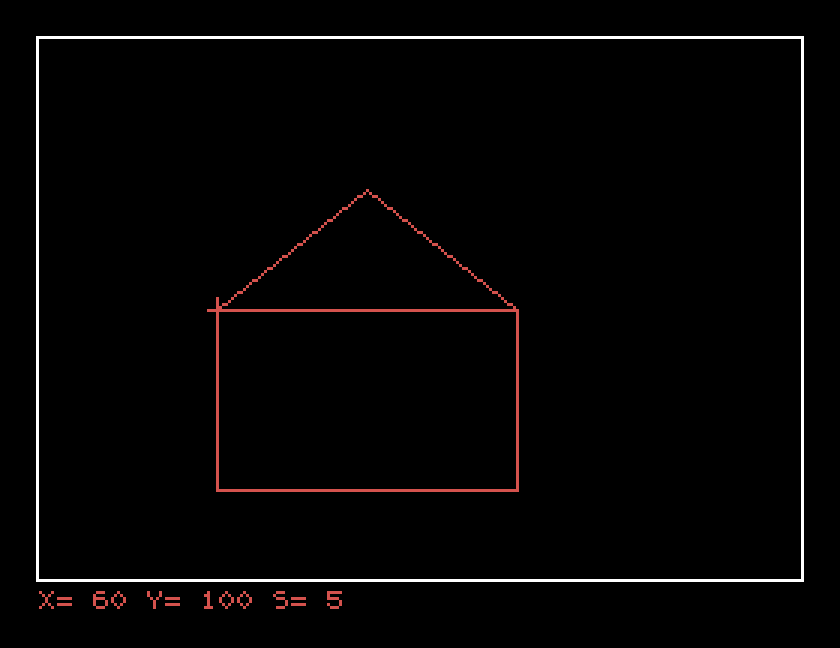
Fill. Put the cursor inside a closed shape and press F: it fills with the current colour. The shape must be closed; if there is a gap, the colour pours out through it and fills the screen.
Ellipses and circles. Put the cursor at the centre and press E for Ellipse Mode. Move the cursor to stretch it, right for width and up for height, and press ENTER. The sun is an ellipse, three steps each way, filled with F.
Text. Press T, type the words at the bottom of the screen and press ENTER. The words appear on the left of the picture, and a second ENTER puts them down there. We did not try moving them.
Two drawing keys we did not try: P, which plots a single point, and D, which asks for a background colour. M shows how much memory is left, and A hides the status line and brings it back.
The file commands are on a menu of their own: press Z and the bottom line changes to:
Press the first letter of the one you want. Every one of them then asks Are You sure about that: press Y before anything else. Anything but N counts as yes, and the letter is used up, so if you type the file name straight away its first letter disappears. We saved HOUSE1 like that and got a file called OUSE1.
Outfile Filename:; type a name and ENTER. Superdraw adds .PIC..PIC, and ENTER. Superdraw redraws it step by step, which takes a while for a big picture.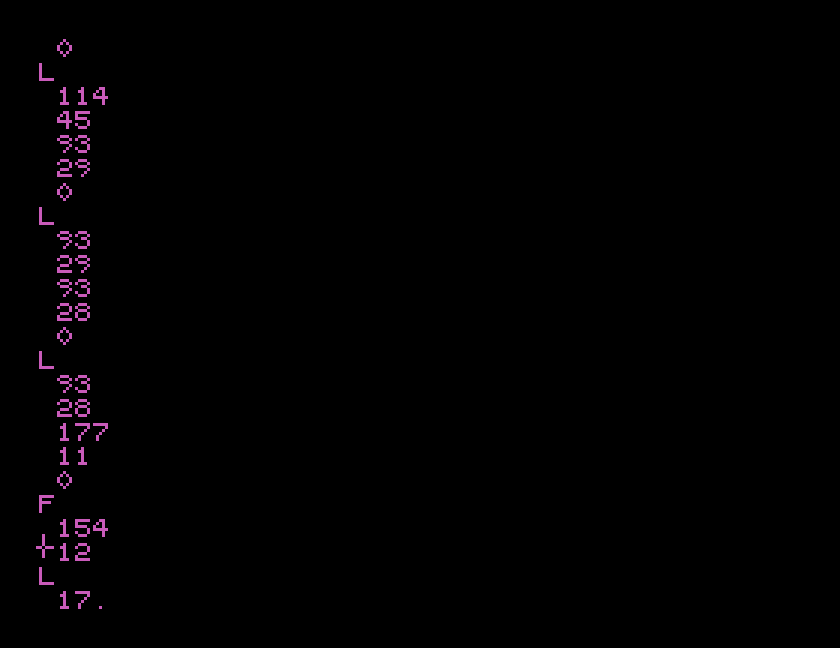
The menu also has Edit and Spool, which we did not work out. Spool sent nothing to MAME's printer.
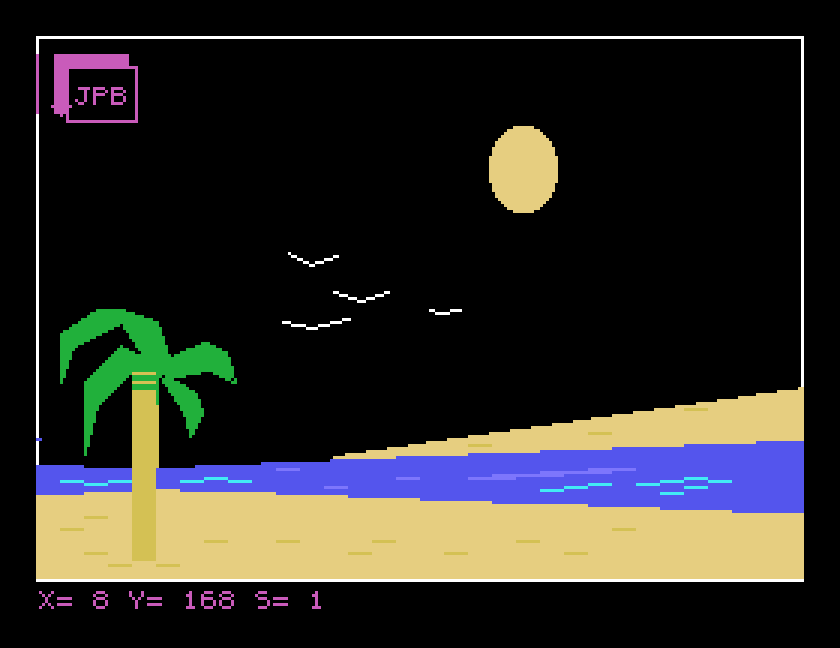
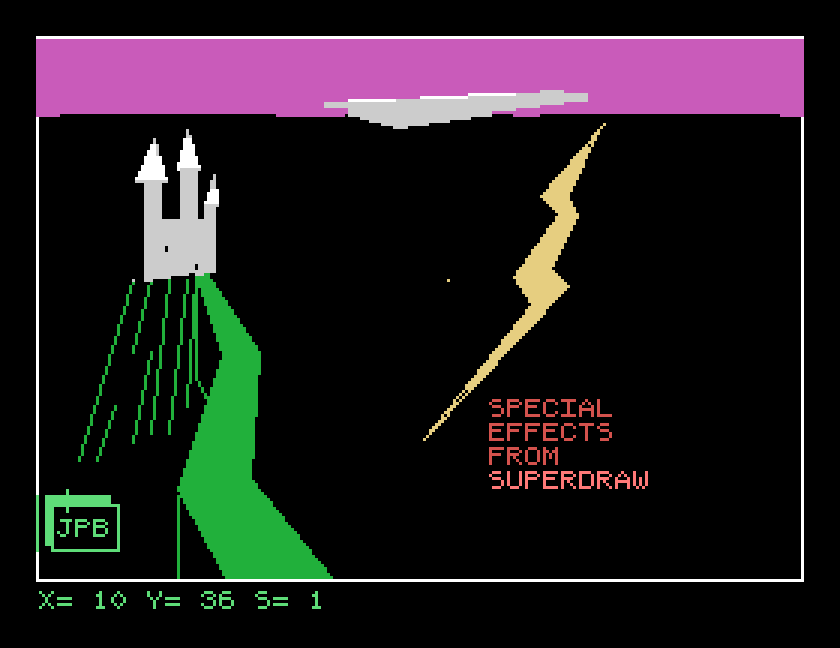
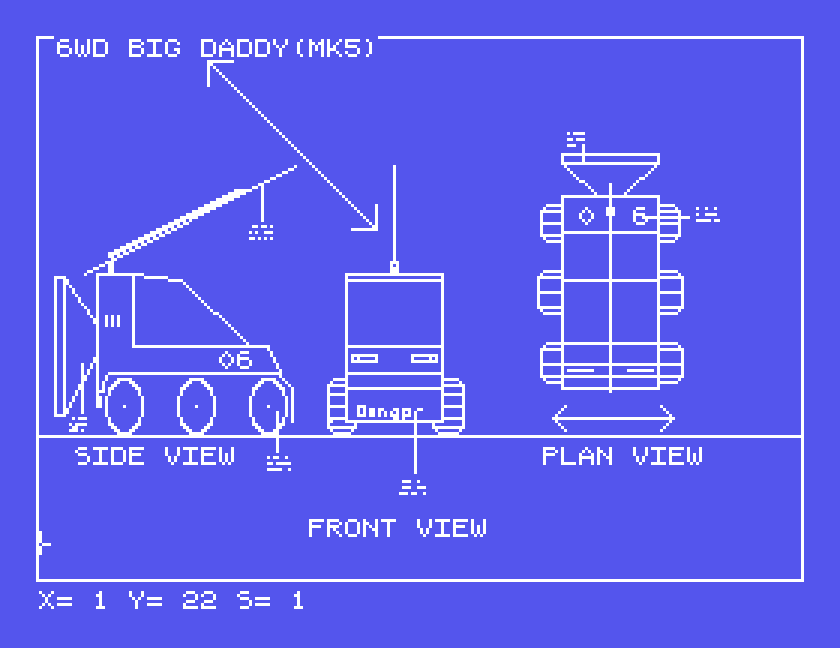
The disc comes with pictures to load with Z, I: CASTLE, ENGLAND, ISLAND, PYRAMID, CAR, LEGGIT and SNOOPY. Most are signed JPB. They show what the simple tools can do in patient hands, from scenery to technical drawings:
| Key | Does |
|---|---|
| grey cursor keys, with SHIFT | move the cursor |
| 1 to 9 | step size |
| C | colour, two digits |
| B, then ENTER | box |
| L, type 0 to 5, then ENTER | line |
| E, then ENTER | ellipse |
| F | fill |
| T | text |
| M | memory left |
| A | status line off and on |
| Z then O, Y | save |
| Z then I, Y | load |
| Z then W, Y | wipe and start again |
| Z then X, Y | back to the menu |
If you used Superdraw, or know more about Bell Software or J.P. Barker, we would like to hear from you. The contact form is at tatungbytes.co.uk/contact.