module
27
Some lines you type again and again: FLUSH. 1 LOAD. FORGET MARK. The Einstein has a row of function keys along the top, and SuperForth can make each of them type a whole line for you.
NEWFILE FUNKEYS
1 LOAD
5 FUNKEY " 11 22 + ."
The number says which key. After FUNKEY comes a double quote, your text, and a closing quote. A space after the opening quote does no harm, and is a good habit to keep from .". From then on, pressing that key types the text at the cursor, just as if you had typed it, and waits. You can add to it, or rub it out, or press ENTER.
The keys are numbered 0 to 15. 0 to 7 are the keys marked F0 to F7, and 8 to 15 are the same keys with SHIFT held down.
In MAME, the Einstein's F0 is your F1, its F1 is your F2, and so on: always one more than the Einstein's number. On a laptop whose top row does something else first, hold Fn as well.
If the text ends with GRAPH and ENTER pressed together - it shows as a small CR symbol - the key presses ENTER for you as well. One touch, and it is done.
In MAME, GRAPH is F8. That is also where the Einstein's F7 lands, so F8 presses both at once - which is why this section leaves F7 alone and keeps to F0 to F6. At a real Einstein all eight are yours.
That is ideal for FLUSH and for .S, and a poor idea for anything you might regret.
NEWFILE FUNKEYS
1 LOAD
3 LOAD
5 FUNKEY " 11 22 + ."
KEYLIST
Then press F5 - in MAME, your F6 - and then ENTER.
Starting from
A fresh boot, with SuperForth just started.
What you should see
3 LOAD installs a ready-made set of keys, and KEYLIST shows all sixteen, with yours in place of the one that was on key 5:
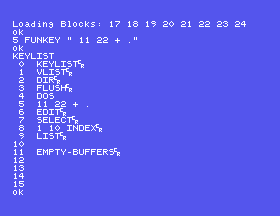
Press the key and 11 22 + . appears at the cursor. Press ENTER:
 11 22 + .
33 ok
Function keys are not words, and they are not kept where words are kept. Leave SuperForth with DOS, start it again, and your keys still work - even though FUNKEYS is no longer loaded and FUNKEY itself is an unknown word. They outlast SuperForth itself.
So a good way to start a session is a screen in your own file that sets up your keys, loaded once.
.S followed by GRAPH-ENTER. Put some numbers on the stack and press it.DOS, come back with FORTH, and press one of your keys.27.1 Set up keys for the four things you type most.
27.2 Put your FUNKEY lines on a screen of your own file, so that one LOAD installs them. What has to be loaded first, and what does that tell you about the order of a session?
27.3 Make a key that clears the stack and shows that it is empty, in one touch. Then try to make one that prints CLEARED with ." as well. Why can that not work?
Worked solutions are in Appendix II.
| Symptom | Cause |
|---|---|
FUNKEY? | Not loaded - or you restarted SuperForth. The keys survive a restart; the word that sets them does not. |
| The key's text stops short, and the rest of your line gets an error | The text contained a double quote. The first " after the opening one ends it, so a key cannot hold a ." message. |
| A key runs the moment you touch it, and you did not want that | Its text ends in GRAPH-ENTER. Define it again without. |
With FUNKEYS loaded, n FUNKEY " text" makes function key n type the text; ending the text with GRAPH-ENTER makes it run at once. KEYLIST shows all sixteen and 3 LOAD installs a ready-made set. The keys outlast a restart of SuperForth.
S28, Reading A Real Program - the game Peter Amey put on the disc, screen by screen.
This form is protected by reCAPTCHA, and the Google Privacy Policy and Terms of Service apply.
