module
3
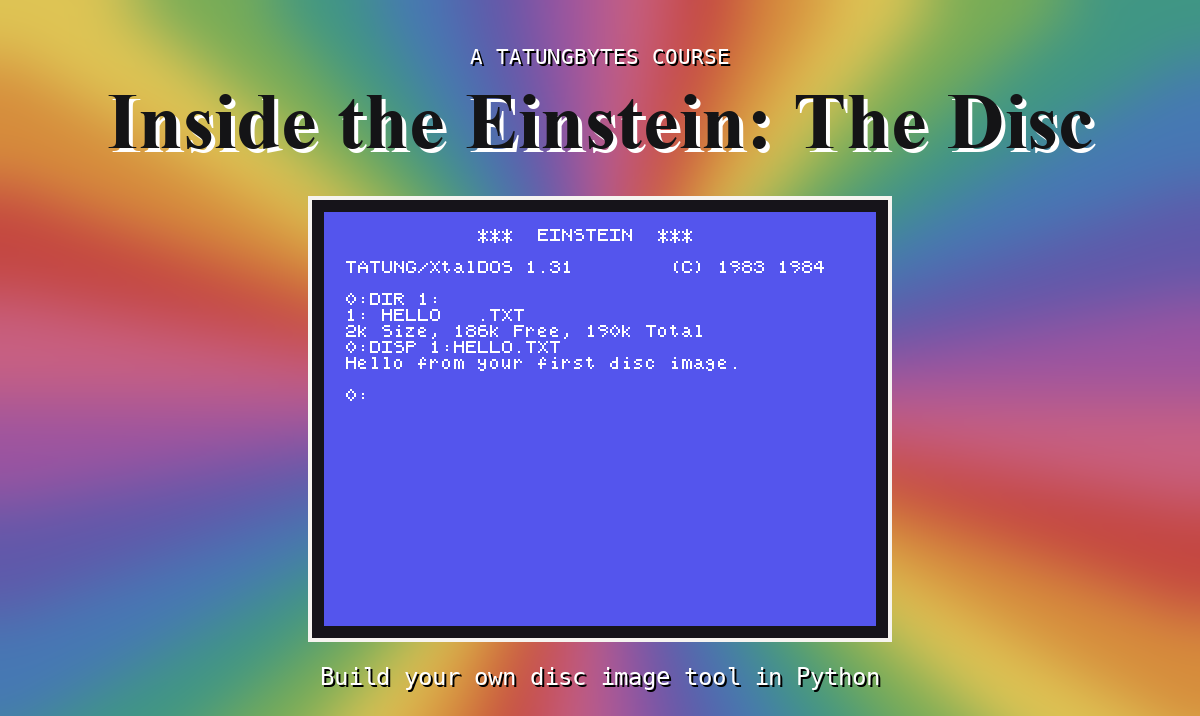
Your program will run on your own computer. But a program that writes disc images needs a judge: something that is not your program, that knows exactly what an Einstein disc should look like, and will tell you whether yours is right. The best judge there is is an Einstein.
This section sets one up - an emulated one, running in a window on your computer - and shows it a disc image the course has made for you. There is no Python in it. Set it up once and it stays out of your way.
| Piece | What it does |
|---|---|
| MAME | The emulator: a program that behaves like an Einstein, given the Einstein's ROM. |
| The Einstein ROM | The machine's own built-in software. MAME cannot be an Einstein without it. |
| The XtalDOS system disc | The Einstein's disc operating system, on a disc image. It is what lists your files. |
| The course download | The practice disc images used in this course, starting with FIRST.DSK. |
MAME gives the Einstein two disc drives, drive 0 and drive 1. In this course the system disc always goes in drive 0, where the Einstein starts from, and the image you are working on goes in drive 1.
These steps cover macOS and Windows. Everything in this course was checked on macOS; the Windows steps are written from MAME's own documentation rather than our own machine, so if something here is wrong for you, please tell us. On Linux, MAME is in every major distribution's package manager, and from step 2 the macOS instructions apply.
On macOS, the easiest way is Homebrew. If you do not already have it, follow the instructions at brew.sh, then, in the terminal:
brew install mame
Check it is there:
mame -version
On Windows, MAME is a download from mamedev.org/release.html. Take the 64-bit binary - mame0289b_x64.exe, or mame0289b_arm64.exe if your PC has an Arm processor. It is a self-extracting archive rather than an installer: run it, choose a folder such as C:\mame, and it unpacks a pile of files including mame.exe.
The course is written against MAME 0.289. A later version will almost certainly be fine; if something behaves differently from what a section says, the version is the first thing to check.
It is a file called einstein.zip. Download it from Einstein System ROM (MOS 1.2 & 1.21) on the Downloads page. It goes in a folder called roms.
On macOS, make one in your home folder: ~/roms/einstein.zip.
On Windows, MAME already unpacked a roms folder next to mame.exe: C:\mame\roms\einstein.zip.
Do not unzip it. MAME wants the .zip exactly as it is.
Download the TC01 System Master Disc (XtalDOS) from the Downloads page, and put it in your edisc folder from S2 as XTALDOS.DSK.
From the course download, put FIRST.DSK in your edisc folder too.
You now have, in edisc:
hello.py        your program from S2
XTALDOS.DSK     the system disc
FIRST.DSK       the first practice image
On macOS, in the terminal, in your edisc folder:
mame -rompath ~/roms einstein -flop1 XTALDOS.DSK -flop2 FIRST.DSK -window
On Windows, open a Command Prompt in the folder you unpacked MAME into and type it with the full paths to your discs:
mame.exe -rompath roms einstein -flop1 %USERPROFILE%\edisc\XTALDOS.DSK -flop2 %USERPROFILE%\edisc\FIRST.DSK -window
The parts: -rompath says where einstein.zip is; einstein is the machine to be; -flop1 is the disc in drive 0 and -flop2 the disc in drive 1 (MAME counts its floppy drives from 1, the Einstein from 0); and -window keeps the Einstein in a window. Keep the -window - without it MAME takes over the whole screen.
It is worth saving that line somewhere, because you will run it at the end of nearly every section, with a different image after -flop2.
A window opens and the Einstein starts from the system disc:
           ***  EINSTEIN  ***

TATUNG/XtalDOS 1.31        (C) 1983 1984

0:
That 0: is XtalDOS, the Einstein's disc operating system, waiting for a command - just as your terminal waits at its prompt. The 0 is the drive it is looking at.
Type DIR 1: and press ENTER. DIR asks for a disc's directory - its list of files - and 1: says which drive. (The : is on your apostrophe key - see The Keyboard below.)
What you should see
0:DIR 1:
1: HELLO   .TXT
2k Size, 186k Free, 190k Total
0:
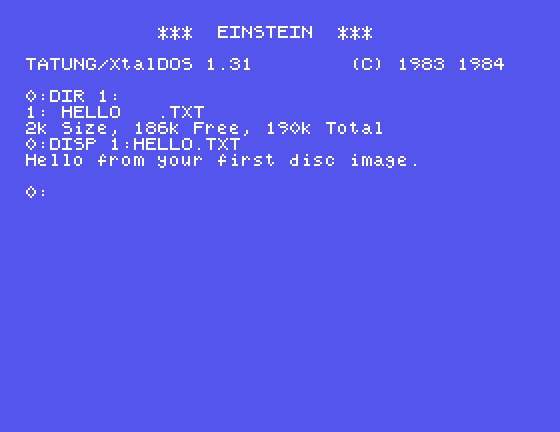
One file, HELLO.TXT, on the disc in drive 1. The last line is about the whole disc: the files on it take 2k, there is 186k free, and 190k in all is available for files. You will see a line like that at the end of nearly every section, and by the end of the course you will be able to work out every number in it from the bytes yourself.
Now look inside the file. Type DISP 1:HELLO.TXT and press ENTER:
0:DISP 1:HELLO.TXT
Hello from your first disc image.

0:
DISP displays a text file. The Einstein has found the file's name in the directory, found where its bytes are on the disc, read them, and printed them. By S16 your own program will do every one of those steps.
There is one thing the Einstein in MAME cannot do: change a .dsk image. If XtalDOS tries to save a file to one, it reports
Bad Data 1:
Try Again(Y/N)?
and the image on your computer is left exactly as it was. For this course that is a good thing. Your program makes every change; the Einstein only looks. Whatever it shows you is your program's work and nothing else.
To stop the Einstein, close the MAME window.
While the MAME window is in front, your keyboard is the Einstein's, laid over yours key by key by position, not by what is printed on your keys. Letters, numbers, . and ENTER are where you expect them. The colon is not. The Einstein's : key sits where your keyboard has its apostrophe key (', just right of ;), so to type DIR 1: you press that key, without SHIFT. Pressing your own : gives the Einstein a ;.
MAME has control keys of its own as well - Esc to quit, F3 to reset - and it starts with them switched off, so that those keys reach the Einstein. One key switches them on: forward delete on a Mac (Fn and Backspace on a laptop), and Scroll Lock on Windows according to MAME's documentation. If Esc ever closes MAME, that key has been pressed, and pressing it again puts things back.
-flop2 FIRST.DSK, and type DIR 1:. What do you expect XtalDOS to say about an empty drive?DIR on its own. Which drive's files do you see, and why are there so many more?FIRST.DSK in both drives (-flop1 FIRST.DSK -flop2 FIRST.DSK). Does the Einstein start? What does that tell you about where XtalDOS itself is kept?| Symptom | Cause |
|---|---|
| MAME takes over the whole screen | -window was left out. MAME's own default is full screen. |
| Esc closes MAME, or F3 restarts the Einstein | MAME's own control keys have been switched on. Forward delete on a Mac (Fn and Backspace on a laptop), or Scroll Lock on Windows, switches them off. |
Bad Data 1: / Try Again(Y/N)? | XtalDOS tried to write to the image in drive 1. It cannot; type N. Nothing in this course asks it to. |
No Drive 1: then No.(0-3)? | There is no disc in drive 1 - -flop2 was left out or misspelt. XtalDOS is asking which drive to use instead; type 0 and ENTER to carry on with drive 0, then restart with -flop2. |
DIR 1: shows ; instead of : | You pressed your own : key. The Einstein's : is on your apostrophe key. |
Only *** EINSTEIN ***, and nothing more | The disc in drive 0 has no XtalDOS on it - your image went in with -flop1. Close the window and put XTALDOS.DSK after -flop1. |
You have an Einstein on your computer that starts from its system disc and can show you any image in drive 1: DIR 1: for the files and the space, DISP 1: for the contents of a text file. It never changes your images, so what it shows you is exactly what your program made. You have also seen your first disc image from the outside. S4 starts finding out what is inside.
S4, Numbers, And Names For Them - what a byte actually is, and how to count the way a disc does.
This form is protected by reCAPTCHA, and the Google Privacy Policy and Terms of Service apply.
