So you've got a Speculator and want to know the answer to the most important question: how do I run a game? This is a quick start guide for doing exactly that. The folks at TatungBytes have done the hard work of putting loads of games onto disc images, so you can dive right in without a single Spectrum tape.
The Speculator plugs into the Einstein and lets it run ZX Spectrum software. The original manuals and the existing guides on this site are extremely detailed and well worth reading later. This is the short version.
0: prompt, type SP1 and press ENTER.Load file 1? (or 2, or 3). Press Y.Interrupt?. Press 1, unless the list says 2. If the game appears but ignores the keys, load it again and answer 2 instead.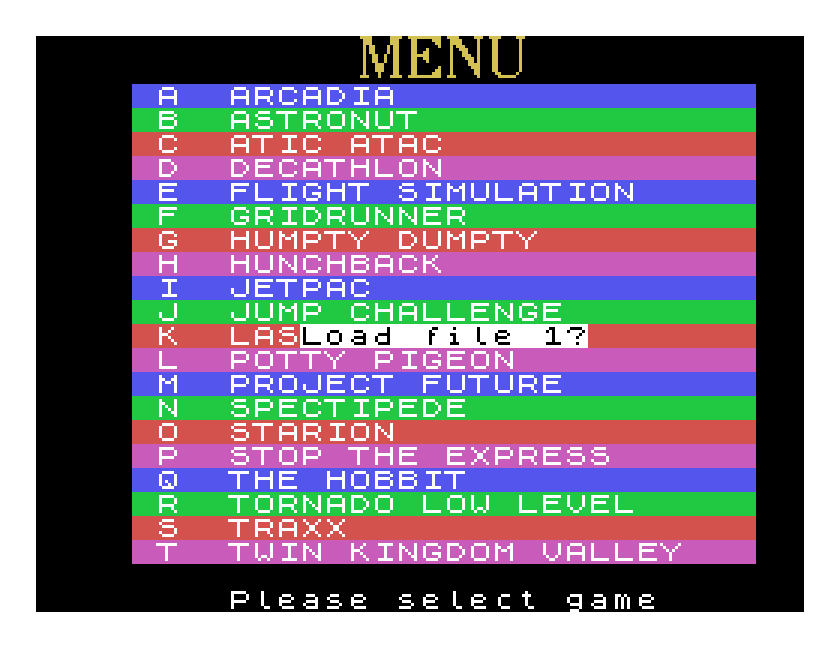
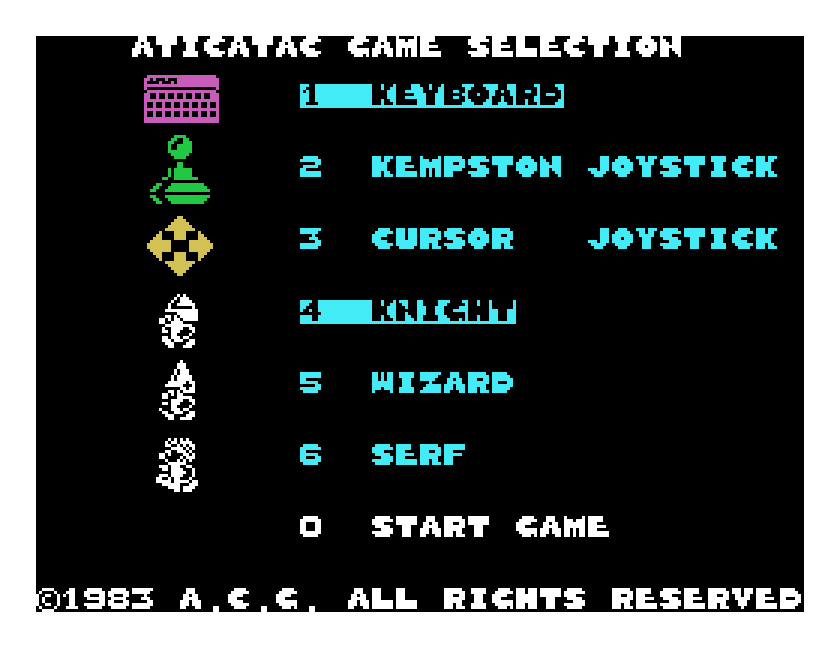
This is the game I went looking for, and it's on ZXdisk05 as file 1. Boot SP1.dsk, type SP1, swap to ZXdisk05, hold F6 and press 1, press Y, then press 1 at the interrupt prompt. Up comes Atic Atac's game selection screen.
The download page has a table of every game with its disc, file number and interrupt, and the same list is in CONTENTS.txt inside the zip, with an A to Z index.
Don't use DIR to find a game. The Speculator saves games as F1.SPC, F2.SPC and F3.SPC, so DIR never tells you which game is which, and on seven of the discs it is actively misleading: five show no files at all, and on two the names are in a different order from the file numbers. SP1 finds a game by where it sits on the disc, and the list does the same.
| Key | What it does |
|---|---|
| F0 | Pause |
| F1 | Sound on |
| F2 | Sound off (the default) |
| F3 | Joystick on |
| F4 | Joystick off |
| F5 and 1, 2 or 3 | Save the game to that file |
| F6 and 1, 2 or 3 | Load a game from that file |
| F7 and ESC | Back to SP1's menu |
Most keys are where they are on a Spectrum. Symbol Shift is the Einstein's < key, and Caps Shift is the left SHIFT. F5 saves onto whatever disc is in the drive, so put a spare disc in first or you will write over a game.
MAME emulates the Speculator: add -pipe speculator to the command line described in the MAME guide. SP1 and every game in the pack load and show their menus, but in MAME 0.289 some games stop once play begins; Jetpac, Pssst and Atic Atac all did. A real Speculator is the way to play them.
To transfer your own Spectrum tapes, or use the conversion codes published in the period books, read Lee Bendall's Basic Usage Guide and Conversion Codes and Disks; the Conversion Disks those need are in the pack too. The original manuals are in the library: The Einstein Speculator Book, Beyond the Spectrum Emulator and the Einstein Spectrum Emulator Pamphlet.
Quick start by L. Boffin. The pack, the list of games and the testing were added by TatungBytes.

