← Back to News
The Einstein VS Code Extension Now Runs on Windows
Version 0.7.0 of our Tatung Einstein VS Code extension runs on Windows, with the assembler built in: all you add is MAME and the Einstein ROM.
November 19, 2026
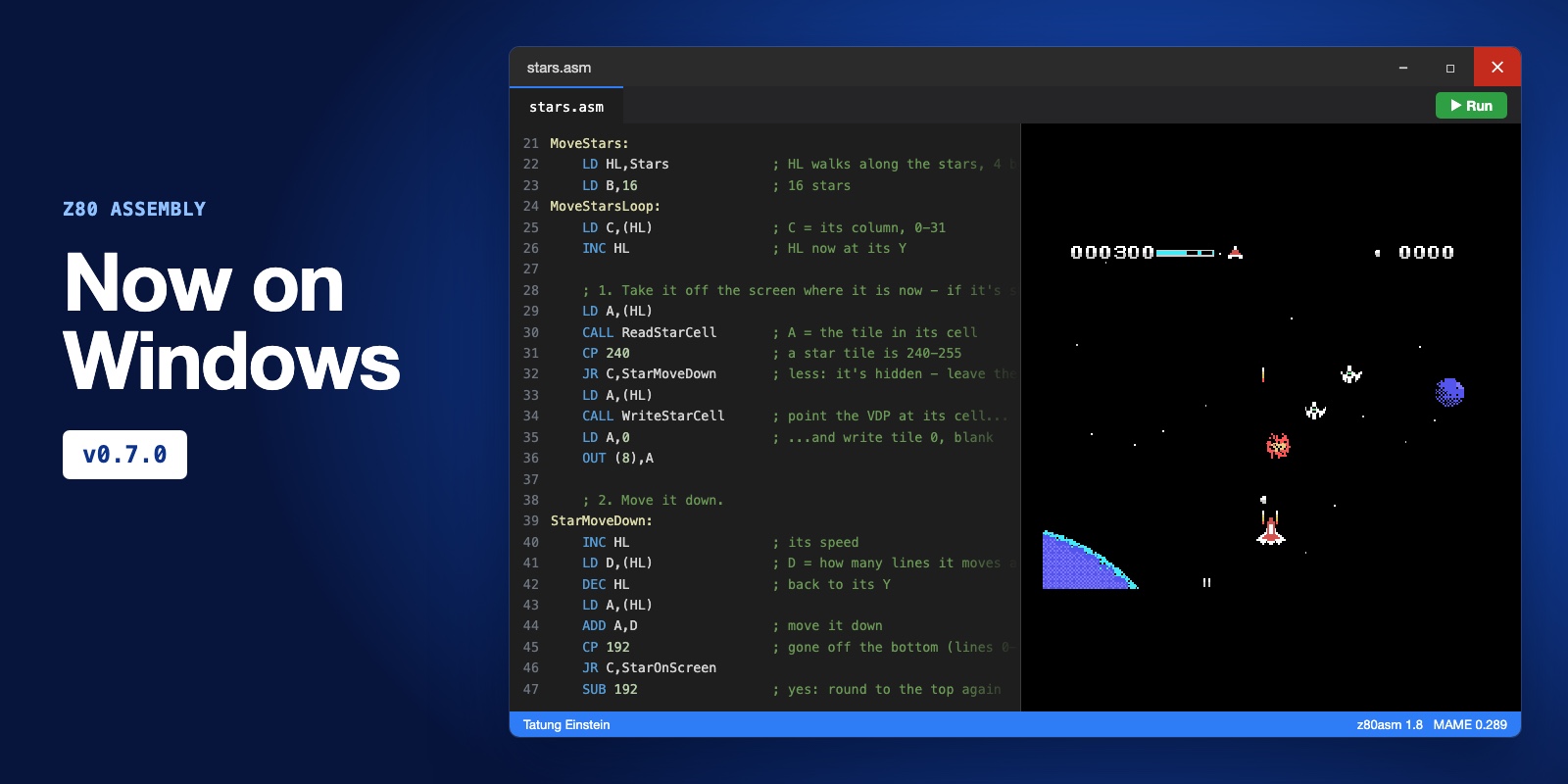
Our Tatung Einstein Development extension for Visual Studio Code now runs on Windows. Version 0.7.0 is out now. Until now it ran on macOS, and Windows users had to build their own route through WSL and Linux to use it. That is no longer needed.
The extension is the build and run loop behind our Z80 Assembly for the Tatung Einstein course: open a .asm file, click Run, and your program is assembled and loaded straight into an Einstein running in MAME, with no manual steps in between.
On Windows the extension now brings its own copy of z80asm 1.8, the assembler the course is written for, and uses it automatically. So there is nothing to compile and no second assembler to find. All you add is MAME and the Einstein ROM. The Windows version has been tested on Windows 11 with MAME 0.289.
C:\mame. Avoid C:\Program Files, where MAME cannot save its settings. MAME's Windows package is not code signed, so Windows may say "Windows protected your PC" when you open it: click More info, then Run anyway.einstein.zip in C:\mame\roms without unzipping it. For the Einstein 256, add einst256.zip beside it.C:\mame\mame.exe and the ROM. If MAME is somewhere else, choose Browse and pick mame.exe..asm file and click Run.INCBIN, for screens, fonts and tile data.Download version 0.7.0 and install it in VS Code with Install from VSIX. If you already have an earlier version, installing 0.7.0 replaces it. The course's Setting Up module walks through the rest.
The Windows work began with feedback from Phil, who got the earlier version running on Windows 11 through WSL and a wrapper of his own. Thank you, Phil.