module
17
Everything so far has been white text on a dark blue screen, appearing wherever the last line left off. That is fine for a program that prints a list, and no use at all for a game, where the score belongs in the corner and stays there.
Two statements fix both of those, and by the end of this section you will have drawn the first screen of the game.
The Einstein has sixteen colours, numbered 0 to 15. Colour 0 is not a colour at all: it is transparent, and what shows through it is the backdrop.
| 0 transparent | 1 black | 2 dark green | 3 light green |
| 4 dark blue | 5 light blue | 6 dark red | 7 cyan |
| 8 red | 9 light red | 10 dark yellow | 11 light yellow |
| 12 dark green | 13 magenta | 14 grey | 15 white |
Three statements set colours, and they are separate from one another:
TCOL f | the colour of text printed after it |
TCOL f,b | text colour and the colour behind it |
BCOL n | the backdrop, which fills the border and shows through anything transparent |
TCOL changes nothing already on the screen, only what comes next.
When BASIC starts, text is white on transparent and the backdrop is dark blue, which is why everything has looked the way it has.
CLS clears the screen, and it does one more thing worth knowing: it paints the whole screen with TCOL's current pair. So the order matters:
10 BCOL 1
20 TCOL 15,1
30 CLS
sets the backdrop to black, asks for white on black, and only then clears, giving a properly black screen. Clear first and set the colours afterwards and you will have a screen still coloured the way it was.
Not all sixteen work against each other. Some pairs are almost the same brightness and turn into mush: the two greens (2 and 3), the two reds (8 and 9), the two yellows (10 and 11), yellow against grey.
Black (1) is the most useful background there is: every other colour reads against it. White (15), light yellow (11) and cyan (7) are the strongest against black, and this course uses those three throughout.
Avoid light blue (5) on the default dark blue backdrop. It is nearly the same hue and nearly the same brightness, and it disappears.
PRINT @12,0;"MOUSE IN A HOLE"
@ takes a column and then a row, both counting from 0. Columns run 0 to 39, rows 0 to 23. The semicolon after the row is part of the form.
It is easy to get the order the wrong way round: it is across first, then down, like a map reference.
Two things to know. The numbers are not checked: a column of 45 wraps round to column 5 rather than complaining. And writing into the very last position on the screen, column 39 of row 23, makes the screen scroll at once, even with a semicolon on the end. Leave that corner alone.
10 BCOL 1
20 TCOL 15,1
30 CLS
40 PRINT @12,0;"MOUSE IN A HOLE"
50 TCOL 11,1
60 PRINT @2,2;"SCORE 0"
70 PRINT @28,2;"LIVES 3"
80 TCOL 7,1
90 PRINT @8,12;"PRESS ANY KEY TO START"
100 K=INCH
110 TCOL 15,1
120 CLS
130 PRINT "OFF WE GO"
Starting from
A fresh boot, or NEW.
What you should see
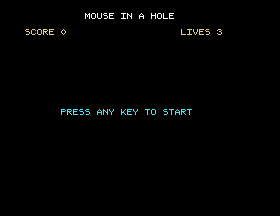
A black screen with a white title across the top, the score and lives in yellow underneath, and a cyan invitation in the middle. Press a key and it clears to OFF WE GO.
Save this one. SAVE "MOUSE1"; it is the first piece of the game, and S23 picks it up.
CLS happens before the colours are set. Run it. What colour is the screen now, and why?TCOL 16,1 and run it. The score line does not appear. What do you think 16 means to a statement that expects 0 to 15?PRINT @39,23;"LIVES 3". What happens to the whole screen, and why is that corner worth avoiding?17.1 Print the numbers 0 to 15 down the screen, each in its own colour, using a loop and PRINT @. Which ones can you barely read?
17.2 Draw a box of text: your name in the middle of the screen with a row of dashes above and below it, lined up, using PRINT @.
17.3 Add a third line to the title screen: a HI 500 on row 2, centred between SCORE and LIVES, without disturbing the other two.
Worked solutions are in Appendix II.
| Symptom | Cause |
|---|---|
The screen is the wrong colour after CLS | CLS paints with TCOL's pair. Set the colours, then clear. |
| Text is invisible | Either the foreground matches the background, or the colour number was over 15; only the bottom four bits count, so 16 means 0, transparent. |
| Text appears in the wrong place | PRINT @ is column first, then row. Both count from 0. |
| The screen scrolled unexpectedly | Something was printed into column 39 of row 23. |
| A colour change spoils the character next to it | In 40 columns a colour change mid-line bleeds into its neighbour unless the column is a multiple of 4. Change colour at the start of a line where you can. |
| The backdrop did not change | BCOL only shows through where a cell's background is colour 0, the transparent one. If you have set a background with TCOL f,b, that covers it. |
Sixteen colours, 0 transparent and 1 black. TCOL f,b sets text colours, BCOL the backdrop, and CLS clears using TCOL's pair; so set colours first. PRINT @column,row; puts text exactly where you want it, counting from 0, across then down. Black is the best background; white, light yellow and cyan read best on it.
S18, Drawing: the other half of the screen: individual pixels and lines, and the platforms the mouse will stand on.
This form is protected by reCAPTCHA, and the Google Privacy Policy and Terms of Service apply.
