The Assembly Lab is a Tatung Einstein in your web browser with a code editor underneath it. You write Z80 assembly language, press one button, and a moment later it is running on the Einstein above. Nothing needs installing, and the lab never sends your code anywhere: it is assembled and run inside your own browser.
It is also a window into the machine. You can stop your program before any instruction, run it one instruction at a time, and watch the registers, the flags and the memory change as it goes. This guide covers every part of it, in the order you are likely to meet them. If you are new to assembly language, the Z80 Assembly course starts from the beginning, and every one of its programs can be opened in the lab.
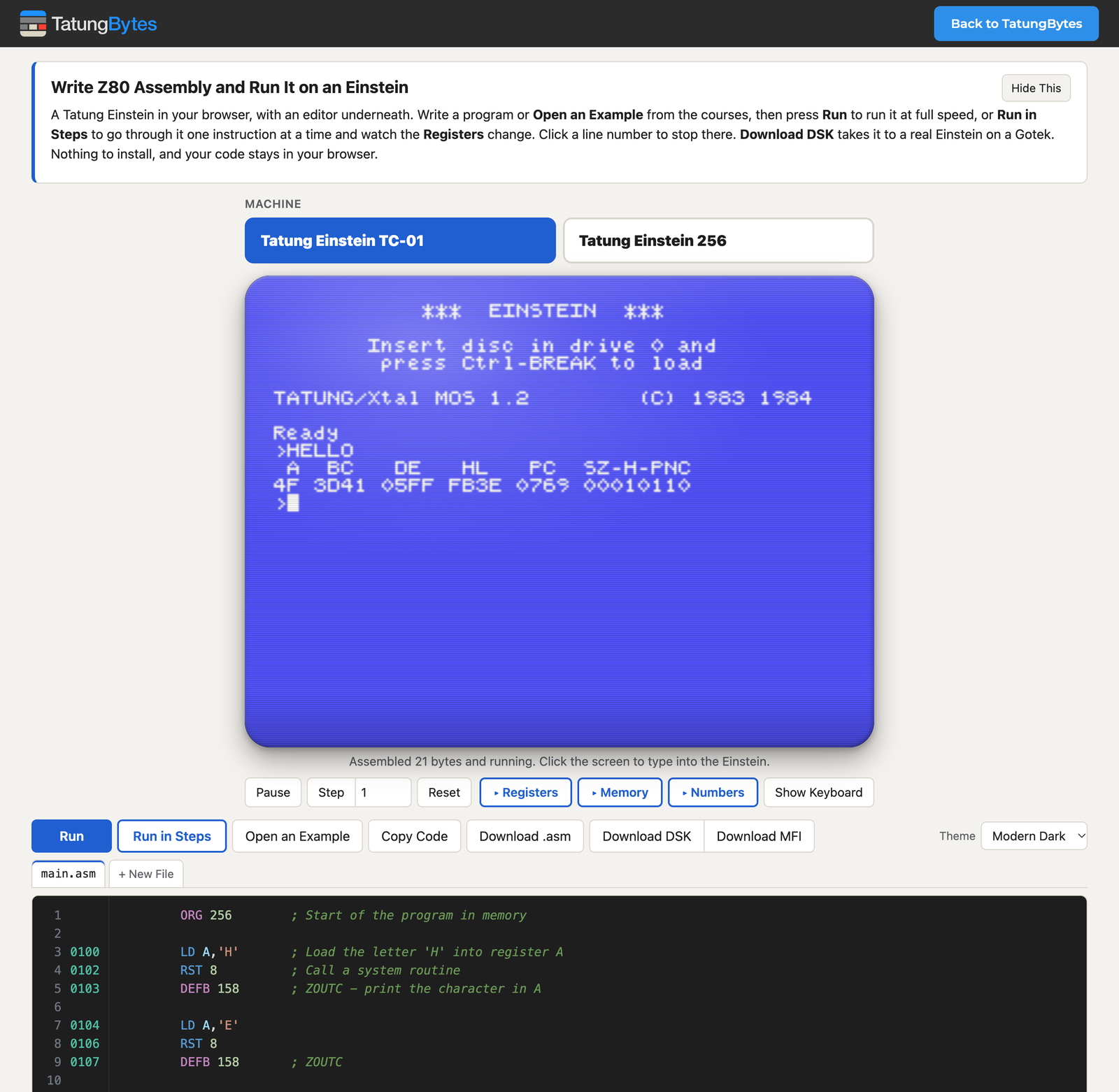
At the top of the page you choose the machine: the Tatung Einstein TC-01 or the Tatung Einstein 256. The lab starts on the TC-01, which is the machine the Z80 Assembly course is written for. The Einstein 256 Primer needs the 256, and its programs will not work on the TC-01. Opening one of the Primer's examples switches the machine for you.
Changing machine starts a fresh Einstein. While it starts, a spinner covers the screen, first while the emulator loads and then while the Einstein boots to its prompt. The Run buttons wake up when it is ready.
The box at the very top explains the lab in a few lines. Hide This folds it away, and How It Works brings it back.
The editor is the dark panel at the bottom of the page. It starts with a short program that prints HELLO, which is the first program in the course.
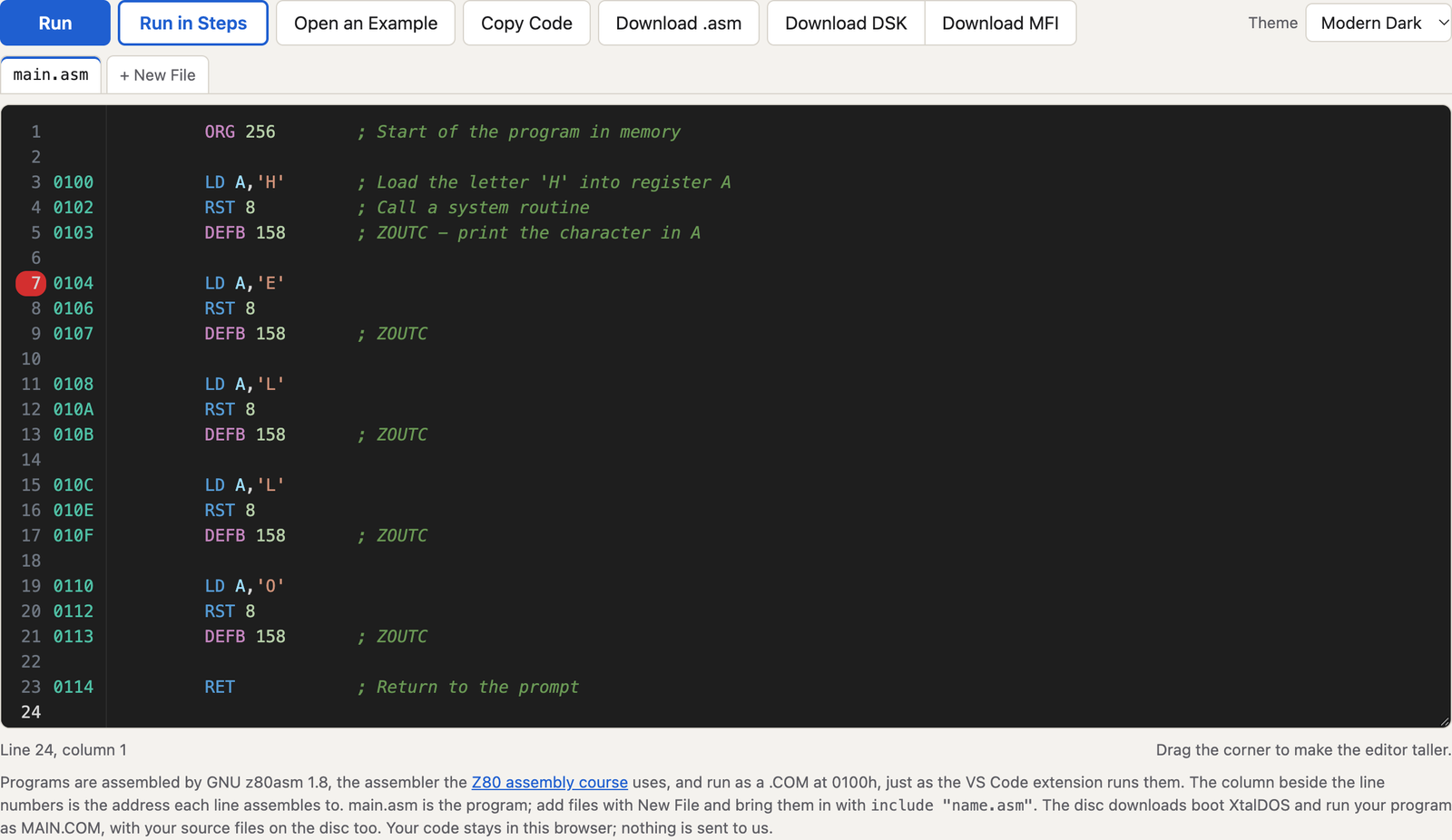
ORG and DEFB, and comments each have their own colour, so a typing mistake usually shows up straight away.Run assembles your program and runs it on the Einstein at full speed. The button shows a spinner while it works, and the line under the screen says what happened: how many bytes your program assembled to, and that it is running.
The lab assembles with GNU z80asm 1.8, the same assembler the course uses, and runs your program as a .COM file at address 0100h, exactly as the course's VS Code extension does. Every program needs ORG 256 (or ORG 100h, the same number) at the top for that reason.
When your program finishes it returns to the Einstein's built in monitor, MOS, which prints a line of register values and gives you its > prompt. S3 of the course explains that line in full.
Click the screen to type into the Einstein. Keys you press then go to the machine rather than to the editor, which is what a program that reads the keyboard needs.
If the assembler finds a mistake, nothing runs. A pink box appears under the editor listing each problem, and the tab of any file with a problem is marked.

Click the line number in a problem to jump straight to that line in the editor. The box clears itself as soon as the program assembles again.
Open an Example lists every program from the lab's two courses: the 47 programs in Z80 Assembly for the Tatung Einstein, and the 23 in the Einstein 256 Primer. They are grouped by section, with the number of lines in each, and you can choose a course at the top or search them all by name.
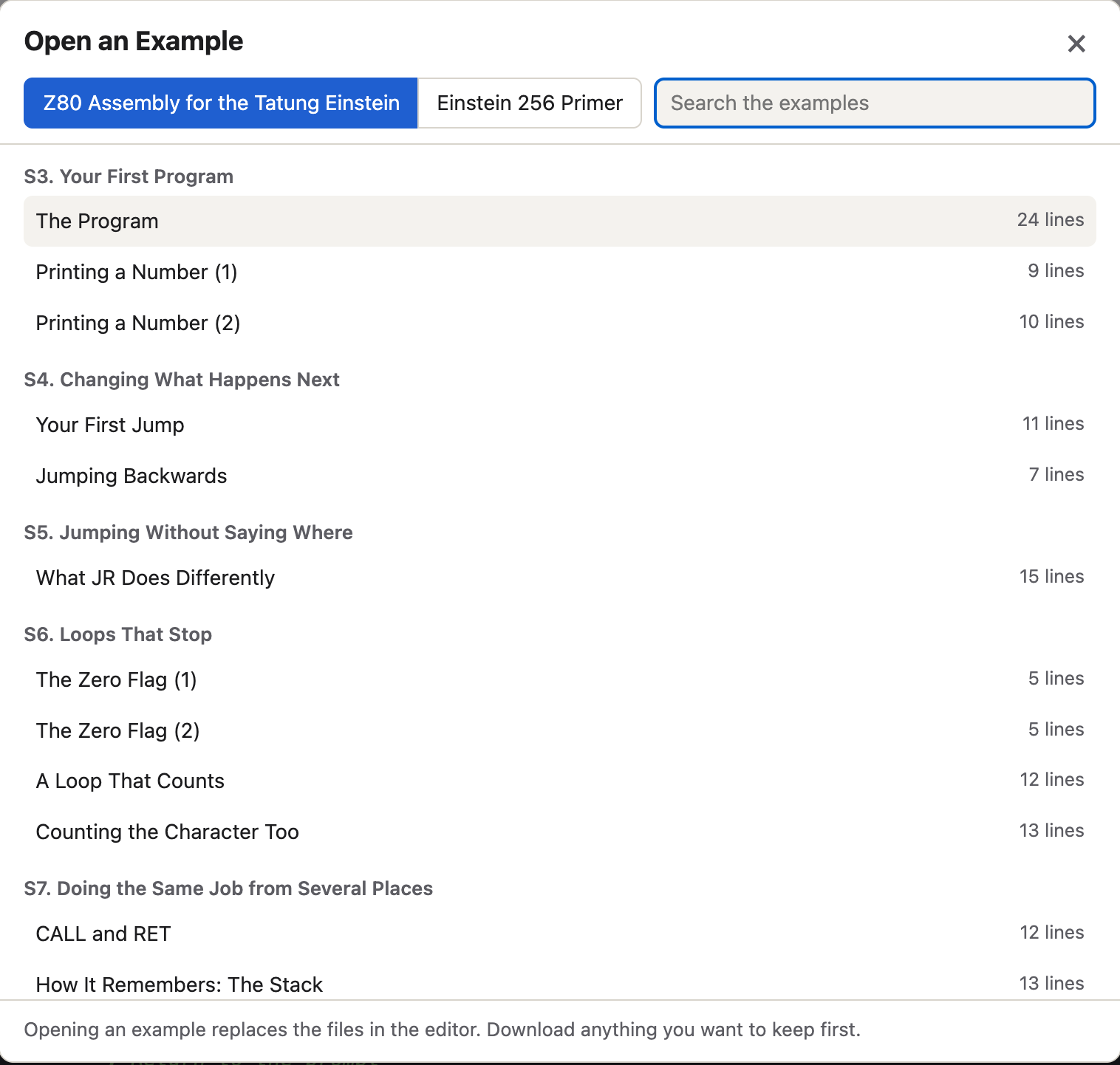
Opening an example replaces the files in the editor, so download anything you want to keep first. Examples that use more than one file, such as River Run in the Primer, open with all their files in tabs.
A bigger program is easier to manage in more than one file. The tabs above the editor are your files.
_ or -, ending in .asm, .inc or .z80. One folder is allowed, as in screens/level1.asm. You can have up to sixteen files.main.asm includes the file, change its include line too.A new file does nothing until main.asm brings it in with a line such as:
include "sprites.asm"
The assembler then reads that file at that point, as if its text were typed there. The address column and the problems box work across all the files, and a problem names the file it is in.
This is the heart of the lab. Run in Steps loads your program and stops it before its first instruction. The button then becomes Next Step, and each press runs one more instruction and stops again.
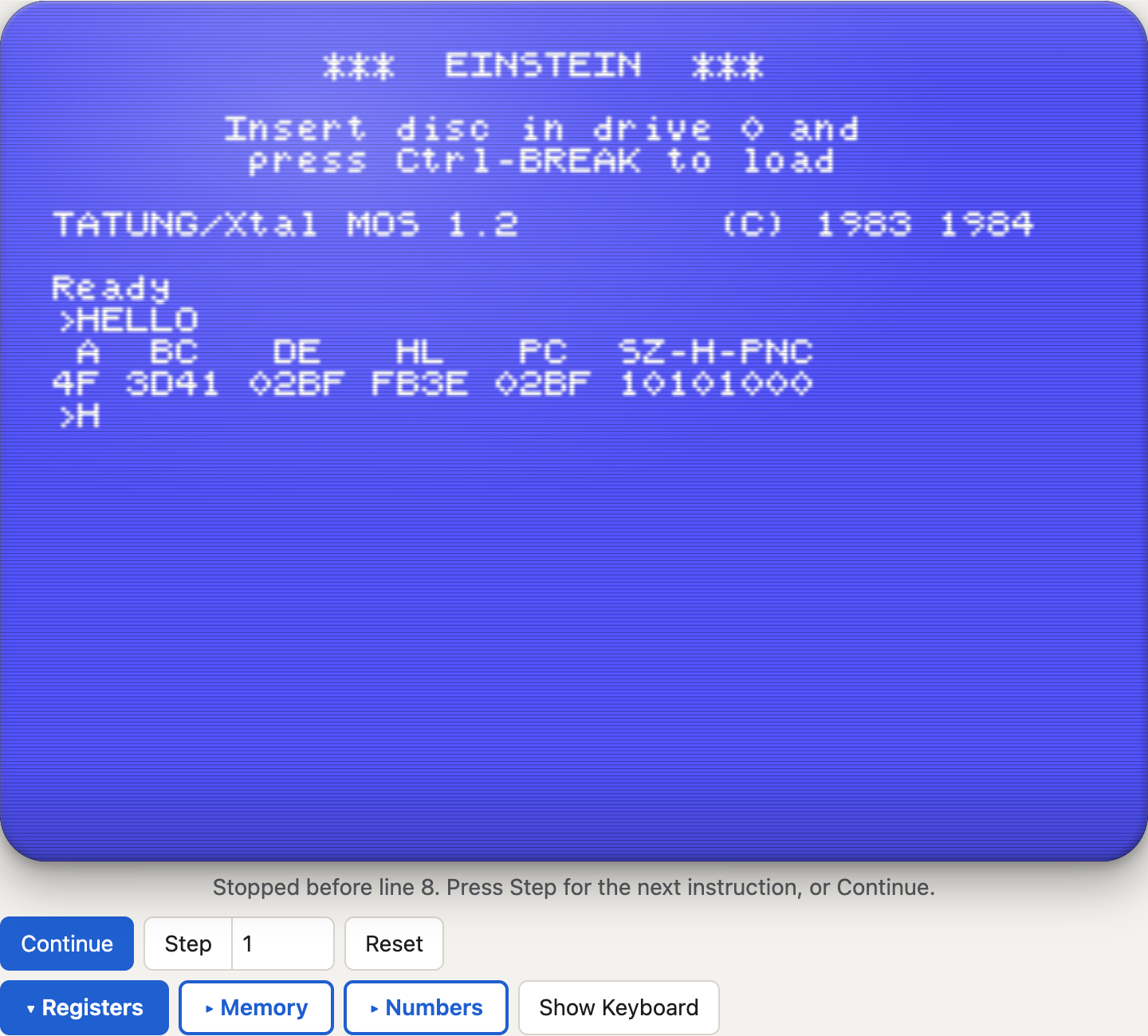
While your program is stopped:
Stepping stops only inside your own program. When your program calls one of the Einstein's own routines, such as RST 8 to print a character, one step runs the whole routine and stops at your next instruction. When your program finishes, the lab says so, and Next Step starts it again from the first line.
Click a line number to set a breakpoint, marked in red. Run then goes at full speed until it reaches that line, and stops before it, so you can step from there. Click the number again to remove it. A breakpoint needs a line that holds an instruction, and you can have up to eight.
Pause stops the Einstein wherever it is, which may be inside MOS rather than your program; it then becomes Continue. Reset restarts the Einstein back to its MOS prompt, which is useful if a program has run away and will not stop.
Registers, under the screen, opens the panel that shows what is inside the Z80. It has two views, chosen at its top right.
The Programmer view shows the registers you use when you write a program, laid out to show how they fit together. It fills in when your program is stopped, which is what Run in Steps is for.
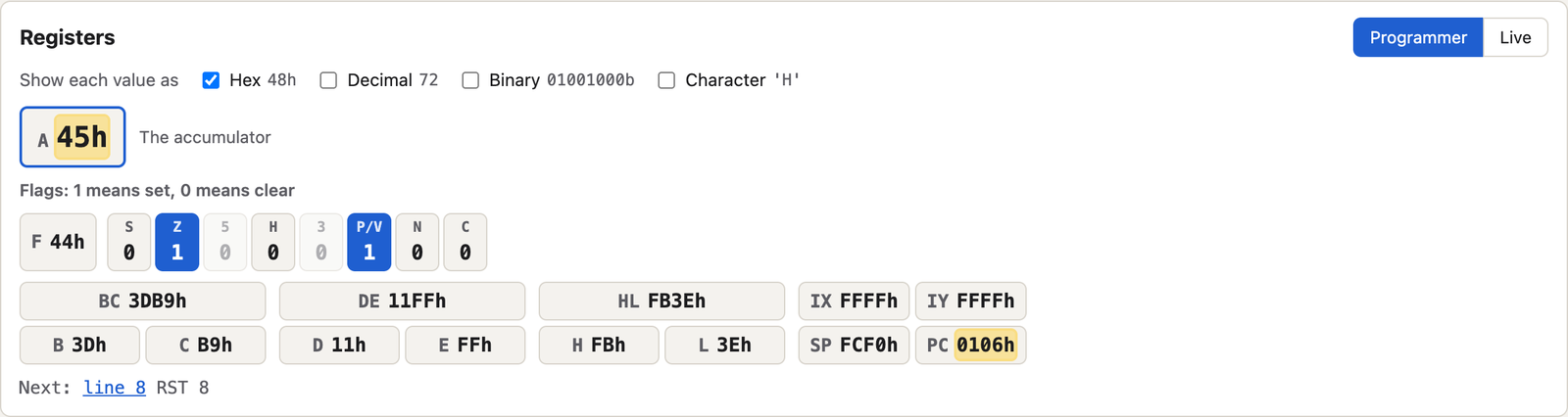
LD, leave the flags alone.When your program is not stopped, the boxes stay in place but grey, holding their values at the last stop, and a line above them says what to press.
The Live view shows everything, all the time, as fast as it changes.

EXX and EX AF,AF' instructions swap in, and the registers that run the processor itself: I and R, the interrupt mode, and whether interrupts are on.When your program is not running, the registers are still busy, because the Einstein's own software keeps running while it waits at the prompt. The note above the Live view tells you whose registers you are looking at.
Click any register value to open it in the number converter, described below.
Every value in the lab is a number, and a number can be written several ways. The ticks along the top of the Registers and Memory panels choose which you see:
| Tick | Shows | Example |
|---|---|---|
| Hex | base 16, as most Z80 listings use | 48h |
| Decimal | the everyday way | 72 |
| Binary | the bits, as the processor sees them | 01001000b |
| Character | the character with that code, where there is one | 'H' |
Tick any combination and the lab shows each value in every form you have ticked, side by side. The two panels share one set of ticks, so changing one changes the other. Hex alone is the default, and the lab remembers your choice. Point at any value to see it in every form at once.
Memory opens a view of 128 bytes of the Einstein's memory, starting at address 0100h, where your program goes.
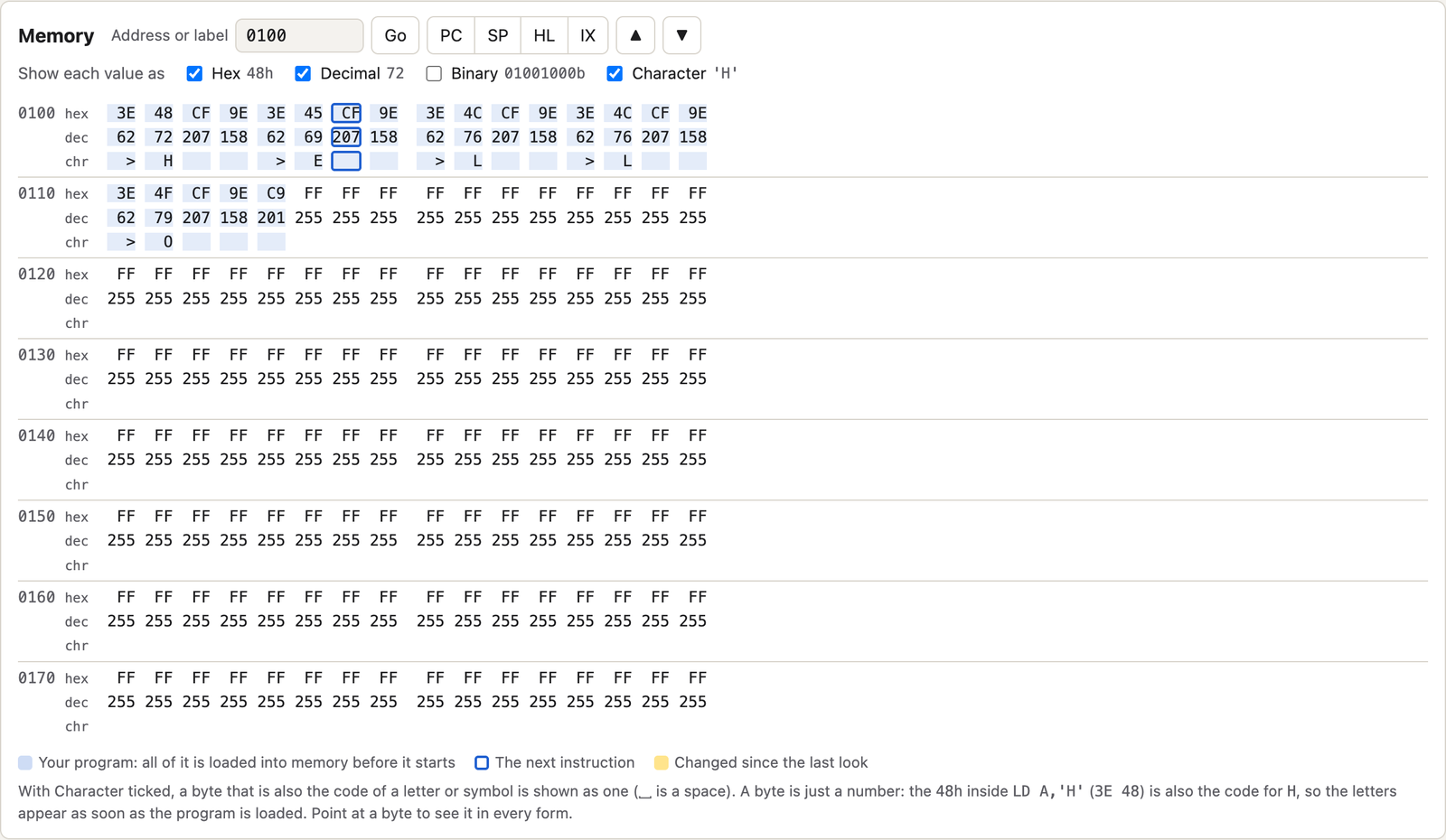
8000 or 8000h, or the name of a label in your program, and press Go.Two things surprise almost everyone the first time, and both say something true about the machine:
LD A,'H' assembles to the two bytes 3E 48. 48h is the code for H, so the chr line shows an H. 3Eh is the instruction "load the next byte into A", but it is also 62, the code for >, so the chr line shows a > there too. Memory holds only numbers. Whether a byte is an instruction, a letter or a count depends only on what reads it, and the processor treats a byte as an instruction only if it is sent there to run it.Numbers opens a converter for moving between the four ways of writing a number.

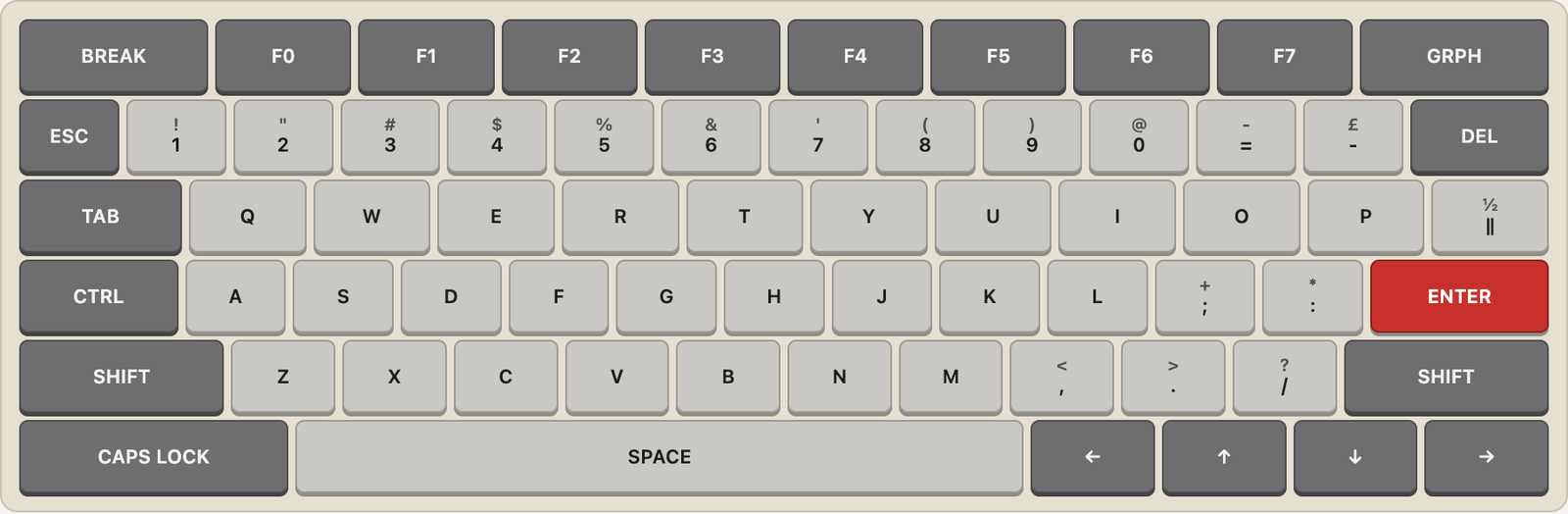
Show Keyboard puts the Einstein's own keyboard on the page. Click its keys to type into the Einstein. It is handy for keys a modern keyboard does not have, and on a touch screen.
The lab keeps your files in your browser as you type, so they are still there when you come back on the same computer and browser. They are not sent anywhere, which also means they are not backed up: clearing your browser's data for the site, or using a private window, loses them. To keep a program safe, take a copy out.
MAIN.COM, and your source files are on it too..mfi, the format MAME prefers. DSK, MFI and SCP explains the difference.The lab also remembers your settings: the machine, which panels are open, the register view, the number formats, the theme and the editor's height.
The lab works best on a computer with a keyboard. On a phone or a tablet it says so once when it opens, then lets you carry on. The editor is cramped on a small screen, and stepping through a program beside its registers is hard to follow there.
| Control | Where | Does |
|---|---|---|
| Tatung Einstein TC-01, 256 | above the screen | choose the machine |
| Pause, Continue | under the screen | stop the Einstein wherever it is, and let it carry on |
| Step and its box | under the screen | run that many instructions of your program, then stop |
| Reset | under the screen | restart the Einstein at its prompt |
| Registers | under the screen | the registers, in Programmer or Live view |
| Memory | under the screen | 128 bytes of memory |
| Numbers | under the screen | the number converter |
| Show Keyboard | under the screen | the Einstein's keyboard |
| Run | above the editor | assemble and run at full speed (Ctrl+Enter) |
| Run in Steps, Next Step | above the editor | stop before the first instruction, then one instruction a press |
| Open an Example | above the editor | every program in the courses |
| Copy Code, Download .asm | above the editor | take the current file out |
| Download DSK, Download MFI | above the editor | a bootable disc of your program |
| Theme | above the editor | the editor's colours |
| Line number | in the editor | set or clear a breakpoint |
| + New File, tabs | above the editor | add, rename and delete files |