module
38

Every program in this course was written for it. This one was not. When Borland sold Turbo Pascal in 1984, they put a real program on the disc beside it, with all its source: MicroCalc, a small spreadsheet - rows and columns of cells holding numbers, text and formulas that work themselves out. It was there to show what Turbo could do, and to be read.
It is also over 1,200 lines long, spread across seven files, and written for a screen twice as wide as the Einstein's. This section compiles it, finds its shape, follows the cleverest thing in it, and makes it fit.
The first lines of MC.PAS say how:
{*   1.  Use the O command from the main menu to select Options.    *}
{*   2.  Select the C option to generate a COM file.                *}
{*   3.  Select the Q option to Quit the Options menu.              *}
{*   4.  Select the M option to make this file the Main file        *}
The first three are S37's Com-file mode. The fourth is new: M, at the main menu, asks Main file name:. Give it MC, and from then on C compiles MC.PAS whatever the work file is - so you can load any one of its parts into the editor, change it, and still compile the whole program.
Then C. While it works, a counter climbs on the bottom line; then:
Compiling  --> A:MC.COM
  1261 lines

Code: 13407 bytes (1FC9-5428)
Free: 23746 bytes (5429-B0EB)
Data: 14414 bytes (B0EC-E93A)
Leave it alone while it compiles: a key pressed now makes Turbo ask *** Abort compilation (Y/N)?.
MC.PAS is only 6,240 bytes. The rest of the 1,261 lines come from six more files, pulled in by lines like this one:
{$I MC-MOD04.INC Evaluating an expression in a cell }
{$I name} is an include: the compiler reads the named file at that point, as if it were typed there. A program too big to edit in one piece - Turbo's editor holds about 26,000 bytes - can be split into as many files as it needs.
Quit Turbo and type MC at 0:. Press ENTER at the welcome (any other key asks for a help file, MC.HLP, which is not on the course disc).
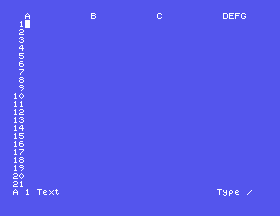
It works - type 123 and ENTER, and 123.00 appears in cell A1 - but it does not fit. MicroCalc was written for a screen 80 columns wide. Its welcome wraps onto the next line; columns D to G are crushed into the right-hand edge; and press / for its commands, and the line of them is so long that it wraps and pushes the whole screen up. Q returns to 0:.
Read MC.PAS first - it is short, and it is the map. After the types and variables, the six {$I} lines, then a procedure Commands, a welcome, and the main program:
repeat
  Read(Kbd,Ch);
  case Ch of
    ^E:       MoveUp;
    ^X,^J:    MoveDown;
    ^D,^M,^F: MoveRight;
    ^S,^A:    MoveLeft;
    '/':      Commands;
    ^[:       GetCell(FX,FY);
  else
    if Ch in [' '..'~'] then
    GetCell(FX,FY);
  end;
until true=false;
You have written this loop: it is Warehouse's. ^E is CTRL-E, a way of writing a control character that S24 did not need. The moving keys are the editor's (S5) - CTRL-E, CTRL-X, CTRL-S, CTRL-D - and ^J is code 10, the Einstein's DOWN arrow, so DOWN works too. Any printable key starts an entry in the current cell. until true=false never ends: MicroCalc stops with Halt, inside Commands.
Each call has a comment naming the module it lives in. That is how a program this size stays findable.
A cell is a record (S20), and the sheet is an array of them, seven columns by 21 rows:
CellRec    = record
  CellStatus: set of Attributes;
  Contents:   String[70];
  Value:      Real;
  DEC,FW:     0..20;
end;
CellStatus is a set (S18) of an enumerated type - Constant, Formula, Txt, OverWritten, Locked, Calculated - so one cell can be several things at once. Save writes the cells to a file of CellRec (S21), one after another.
Type (A1>A2) into a cell and MicroCalc adds up cells A1 to A2. Type (2+3)*4 and it works out 20. The part that does that is MC-MOD04.INC, and its first comment is honest:
{*  NOTE:               This module contains recursive procedures  *}
{*                      and is for computer scientists only.       *}
It is not as bad as that. Evaluate reads a formula one character at a time, and inside it is a nest of five functions, each handling one level of S7's arithmetic rules:
| Function | Deals with |
|---|---|
Expression | + and - between SimpleExpressions |
SimpleExpression | * and / between Terms |
Term | ^, raising to a power |
SignedFactor | a minus sign in front |
Factor | a number, a cell, a function such as SQRT, or a bracket |
Because Expression asks SimpleExpression for each part it adds, and SimpleExpression does its multiplying before it hands anything back, multiplication happens before addition without any rule saying so. And when Factor meets a bracket, it calls Expression - the top of the nest - for what is inside. The functions call each other, round in a circle: that is the recursion.
Look at the line just above Evaluate:
{$A-}
Borland's own program, turning A off for its recursive part, just as S16 and S34 had to. The directive at the top of MC.PAS sets A+; the compiler meets this {$A-} only when it reaches MC-MOD04.INC.
Make MicroCalc fit forty columns by changing two lines of MC.PAS. Near the top:
FXMax: Char = 'C'; { Maximum number of columns }
FXMax is the last column MicroCalc uses - every loop over the columns runs from 'A' to FXMax - so three columns, which fit.
And in Commands, the long line becomes:
Write('Command: / Q L S R P F A H');
Each letter is the first of a command in the case just below it: Quit, Load, Save, Recalculate, Print, Format, AutoCalc, Help.
Starting from
Turbo started, Y, W MC40 - a new work file - then E, CTRL-K CTRL-R, MC, to read in MC.PAS. Change the two lines, CTRL-K CTRL-D, S. Then O, C, Q; M, MC40; C. Q to leave Turbo, and MC40 at 0:.
What you should see
Three columns, A to C, and nothing crushed at the edge. Type 10 and ENTER, DOWN, 20 and ENTER, DOWN, then (A1>A2) and ENTER:
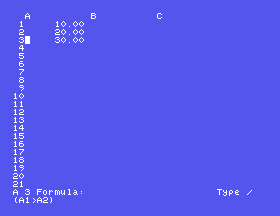
A3 shows 30.00, and the status line says it holds a formula. / shows the commands on one line. Save the sheet with /, S, a name and ENTER; run MicroCalc again and /, L, the same name, brings it back.
FXMax 'B'. How many columns now?/. What happens to the screen?38.1 In MC40, put three numbers in column B and their total under them.
38.2 Save a sheet as SUMS, quit, run MicroCalc again and load it. What name does the file have on the disc?
38.3 Without running anything: which procedure does / then C call, and in which file is it?
Worked solutions are in Appendix II.
| Symptom | Cause |
|---|---|
*** Abort compilation (Y/N)? | A key was pressed while it compiled. Answer, and next time wait for the report. |
No .COM appears | Memory mode: O, C, Q first. |
To get help the file MC.HLP must be on your disk | Any key but ENTER at the welcome asks for help, and the help file is not on the disc. Press RETURN (ENTER) as it says. |
| The arrow keys type characters into the cell | MicroCalc moves with CTRL-E, CTRL-S, CTRL-D and CTRL-X. In MAME your Left, Right and Up arrows are the Einstein's ← → ↑ character keys; only the Down arrow, the Einstein's vertical cursor key, moves. |
A big program can be split into files joined by {$I name} includes, and compiled as one with a main file set by M. MicroCalc's main program is a key loop like Warehouse's; a cell is a record holding a set; the sheet is saved as a file of records; and its formula evaluator is a nest of functions that call each other, compiled with {$A-}. Written for 80 columns, it fits the Einstein's 40 when FXMax is 'C' and its command line is shorter.
S39, Where You Go From Here - what else Turbo Pascal can reach, and where the assembly course takes over.
This form is protected by reCAPTCHA, and the Google Privacy Policy and Terms of Service apply.
