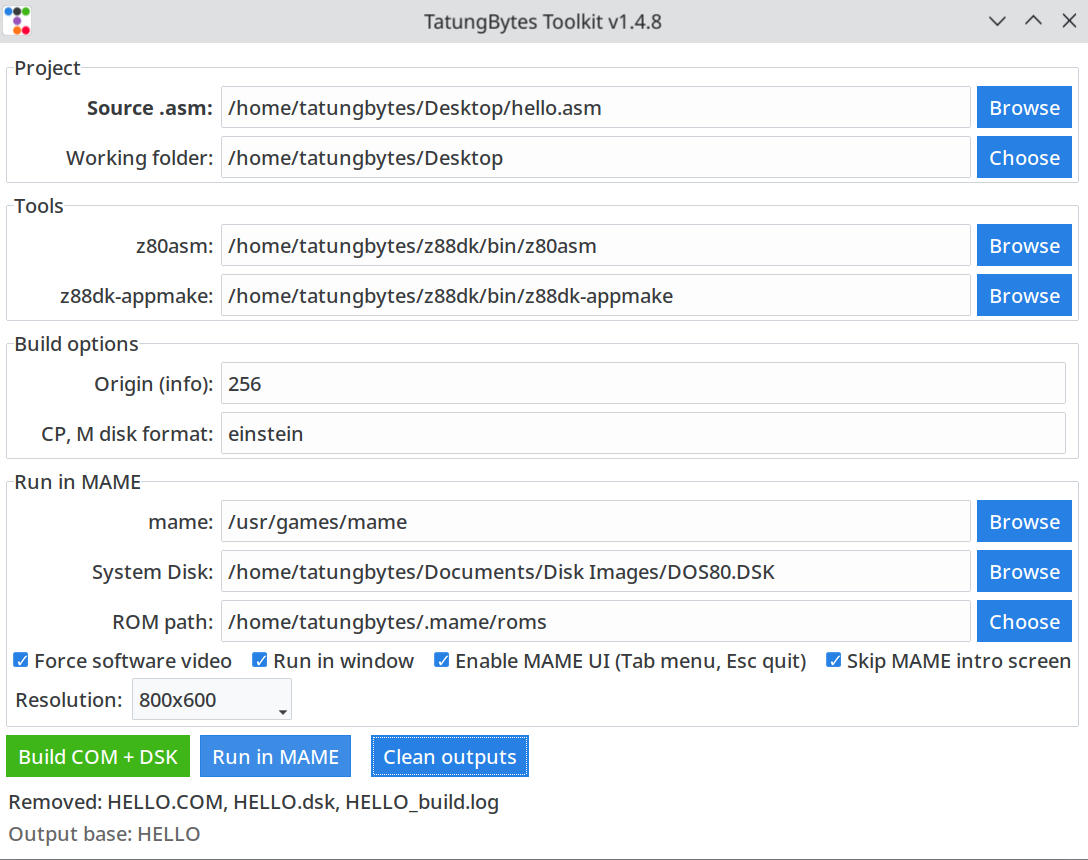
A wrapper for z88dk and Mame to easily assemble .asm files into .com programs, create a Tatung Einstein dsk image for the program, and run the program in Mame.
Utility
AsmToDsk Installation Instructions
The TatungBytes AsmToDsk tool is a wrapper for z88dk and Mame, allowing you to quickly assemble your code, create a .dsk image with your compiled program, and mount that .dsk image in M.A.M.E. to see your program running on the Tatung Einstein.
So lets begin with the setup of the pre-requisites, which at first glance may appear a little daunting, but rest assured if you follow the instructions outlined this is quite a painless process.
Pre-requisites
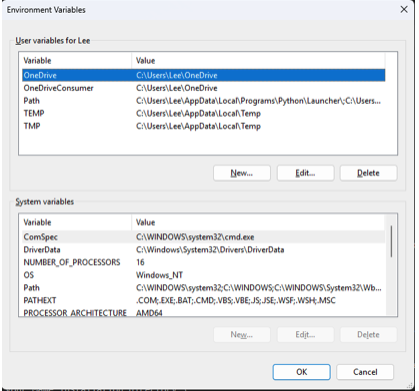
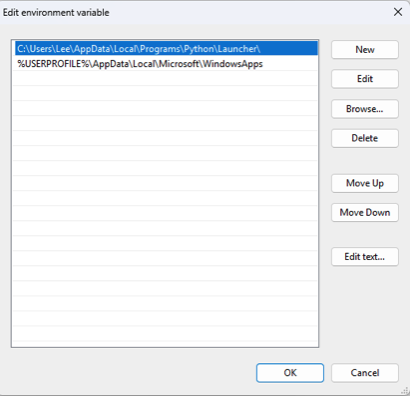
4. Python

That Completes the Pre-requisites Section - Please proceed to the next page where we will setup the AsmToDsk Program
From the directory you installed AsmToDsk into (way back at the beginning of the Pre-requisite Section) click and run the asmtodsk.py file and the following screen will appear
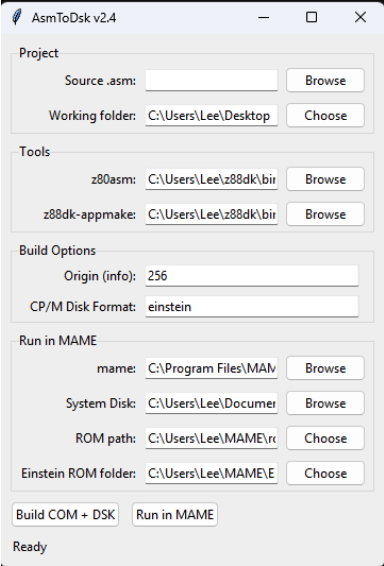
2. Click on the “Browse” button on the far right of the “Source.asm” field and navigate to your ASM file.
3. Click on the “Choose” button on the far right of the “Working Folder” field and navigate to the location of your working directory (this can be anywhere you like, including the AsmToDsk folder itself).
4. Click on the “Browse” button on the far right of the “Z80asm” field and navigate to where you installed Z88DK to (in the pre-requisite section), within that folder you need to locate the “Bin” folder and select “Z80asm.exe”. Now press open and you will return to your previous screen.
5. Click on the “Browse” button on the far right of the “Z88dk-appmake” field and navigate to where you installed Z88DK to (in the pre-requisite section), within that folder you need to locate the “Bin” folder and select “z88dk-appmake.exe”. Now press open and you will return to your previous screen.
6. The “Build Options” section is for those experienced users, who may want to make a change and know what the effect will be but for most users this is best left alone.
7. Click on the “Browse” button on the far right of the “mame” field and navigate to where you have M.A.M.E. installed, locate “Mame.exe” and click open and you will return to your previous screen.
8. Click on the “Browse” button on the far right of the “System Disk” field and navigate to where you installed the AsmToDsk tool, locate the boot disk named “Dos80.dsk” and click open and you will return to your previous screen.
9. Click on the “Choose” button on the far right of the “Rom path” field and navigate to where you have M.A.M.E. installed, locate the Einstein sub directory and click open and you will return to your previous screen.
10. Repeat step 9 for the “Einstein ROM folder field.
11. You have now setup the program and all your settings will be saved for future use.
12. Now click on the “Build COM + DSK” button and you should get a message saying “Build OK”.
12. Finally its time to check your work by clicking on the “Run in MAME” button, the emulator will now start and you will see the familiar Einstein boot Scrren.
13. Now type “1:” and press return, type “DIR” and you will see the ASM file you specified in step 2 has been compiled. Simply type the name of the file and it will run.
Congratulations you have now compiled your program.