EinTrans is a utility written by Ste Ruddy for transferring files between a PC and Tatung Einstein TC-01 over a serial cable. Ste was a colleague at Software Creations and he was respected for his in-house utilities alongside his games development skills. This is an application I used a handful of times at Software Creations for transferring source code from my Tatung when our development systems moved to PCs.
I was surprised that this had escaped to the wider community after finding this guide on Chris Coxall’s website.
Thanks to the Chris for reminding me of its existence and preserving a copy of it for download.
As the site in question does not look like it has been updated in a while, I’ve created this page so that this software is not lost to posterity. I’ve also added further observations, specifically how the bootloader works, and with regards to running it in Linux in Wine.
Editor's note: the download links in Dean's original post no longer work. Both EinSys.zip and EinTrans200.zip are now hosted on TatungBytes, and the links below point to those copies. You can also find them, with credits, on the EinTrans download page.
Note that I have had problems with my CH340 based USB serial adaptor, specifically with handshaking, so if possible, use a PC with a built-in serial port.
I ended up installing a PCI serial card in my PC to get this system working correctly. This is relatively straightforward for Windows PCs. If you are using Linux, specifically Ubuntu, then here is my guide for installing a PCI serial card in a Linux desktop PC.
I found a supplier of custom cables, including those for the Einstein online. Unfortunately they are no longer trading, so your only option at the moment is to either make one yourself, or find someone to make one for you.
The wiring diagram is as follows

NB: Both connectors are pictured from the rear, i.e. solder-side.
Download and unzip EinSys.zip.
Insert a 3″ floppy in Drive 0, or select a blank disk image if that drive is a Gotek.
On the PC, run einsys.exe from a DOS prompt and follow the instructions given on-screen.

This part of the process involves manually entering and running a small machine code boot program in hexadecimal via the Einstein MOS. This boot program will then load in and execute more code that will create a system disk with the program EINTRANS.COM on it.
For those that are interested, here is the disassembly of the boot program.
;
; First flush the buffer
;
1000 3E 27 LD A, 27h ; Assert CTS
1002 D3 11 OUT (11h), A
1004 DB 10 IN A, (10h) ; Read a byte in
1006 DB 11 IN A, (11h) ; Check if there is any more data to read
1008 CB 4F BIT 1, A
100A 20 F8 JR NZ, 1004h ; Yes, so loop until empty
100C 3E 07 LD A, 07h ; Deassert CTS
100E D3 11 OUT (11h), A
;
; Load the program from the PC over the serial link
;
1010 21 00 01 LD HL, 0100h ; Destination address of the program to be downloaded from the PC
1013 11 00 08 LD DE, 0800h ; Length
1016 3E 27 LD A, 27h ; Assert CTS
1018 D3 11 OUT (11h), A
101A DB 11 IN A, (11h) ; Loop until a byte has been received from the PC
101C CB 4F BIT 1, A
101E 28 FA JR Z, 101Ah
1020 DB 10 IN A, (10h) ; Read the data byte in
1022 77 LD (HL), A ; Write into memory
1023 3E 07 LD A, 07h ; Deassert CTS
1025 D3 11 OUT (11h), A
1027 23 INC HL ;Increment the memory pointer
1028 1B DEC DE ;Decrement the length
1029 7B LD A, E ; Check for DE = 0
102A B2 OR D
102B 20 E9 JR NZ, 1016h ; No, so loop back until downloaded
102D C3 00 01 JP 0100h ;Jump to the downloaded program at 0100h
This is the only reliable way I’ve found of running this on Linux (Ubuntu 24.04.1 LTS).
First, it is suggested that you add your user to the dialout group on Linux as follows:
usermod -a -G dialout $USER
Then, the following regedits are required in Wine to map the Linux serial ports to Windows ports.
Start regedit from the command line:
wine regedit
Map the ports by adding REG_SZ values to the folder HKEY_LOCAL_MACHINE\Software\Wine\Ports like this.

Substituting the Linux serial device as appropriate, mine are /dev/ttyWCH*.
Download and unzip EinTrans200.zip.
From the command line, change directory to the location where you’ve extracted the zip, for example:
cd ~/.wine/drive_c/Tools/EinTrans
To launch the application in Wine, from the command line:
wine WinEinTrans.exe
Download and unzip EinTrans200.zip (you can skip this if you’ve followed the Linux guide above).
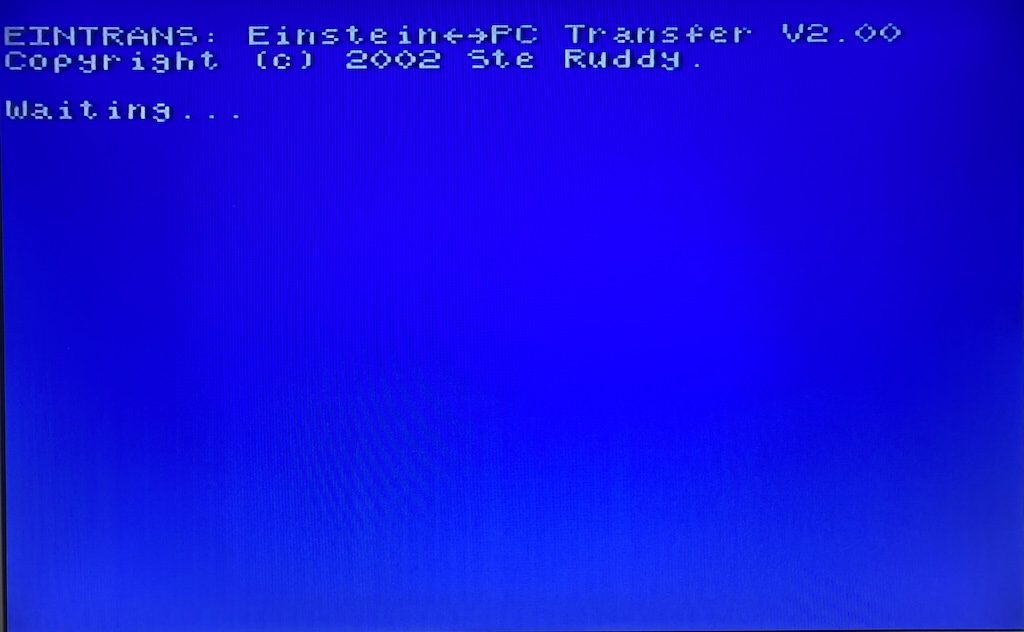
Run EINTRANS.COM on the Einstein from the system disk created previously. It should display a screen like this.
Launch WinEinTrans.exe and select the COM port that the Tatung is connected to from the Serial port drop-down (bottom-right of the window).
If the connection is successful, you should see something like this on the Einstein screen…
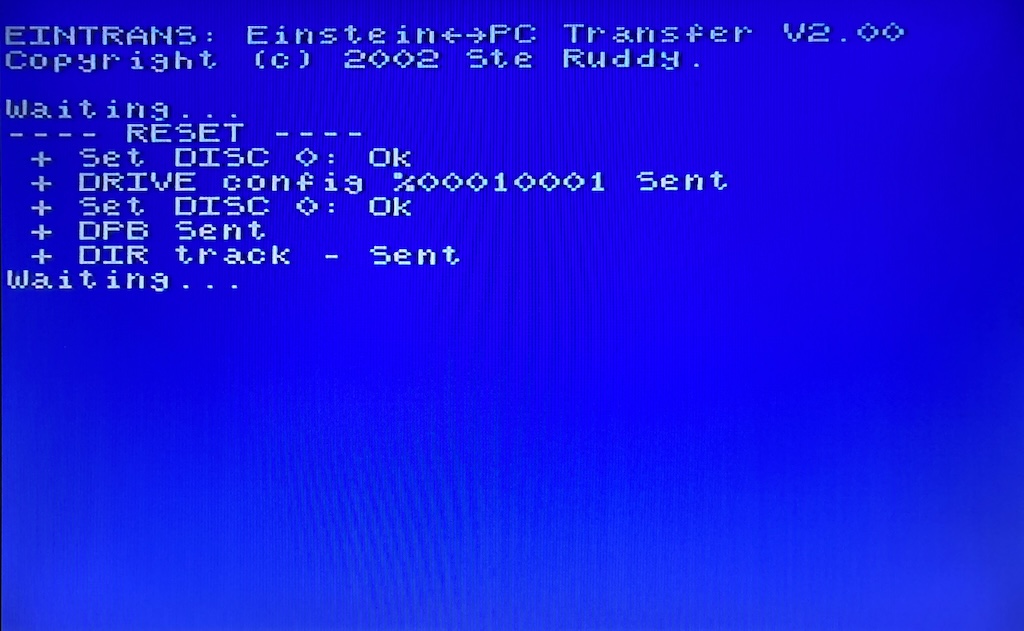
And within a few seconds, the DIR listing from the Einstein in EinTrans.

The application itself is fairly self-explanatory, and there is a comprehensive help file (EinTrans.chm) if you get stuck.

